A make your own bundle on Shopify is a page that lets shoppers choose the products for a box from a range you set, for example any six cookies, and buy them as one discounted bundle. With the NeatBundles app you create a Build Your Own Bundle, add the products, set how many the box holds and switch it to Active. It takes under five minutes.
Think of a box of six cookies, a six-pack of craft sodas or six bars of soap. The shopper picks the flavours, you decide the box size and the price, and Shopify gets an order with every item listed on its own line. In the video I build exactly that for a cookie shop, and this guide adds the settings the current app gives you on top: volume tiers, box sizes, a fixed price and a free gift.
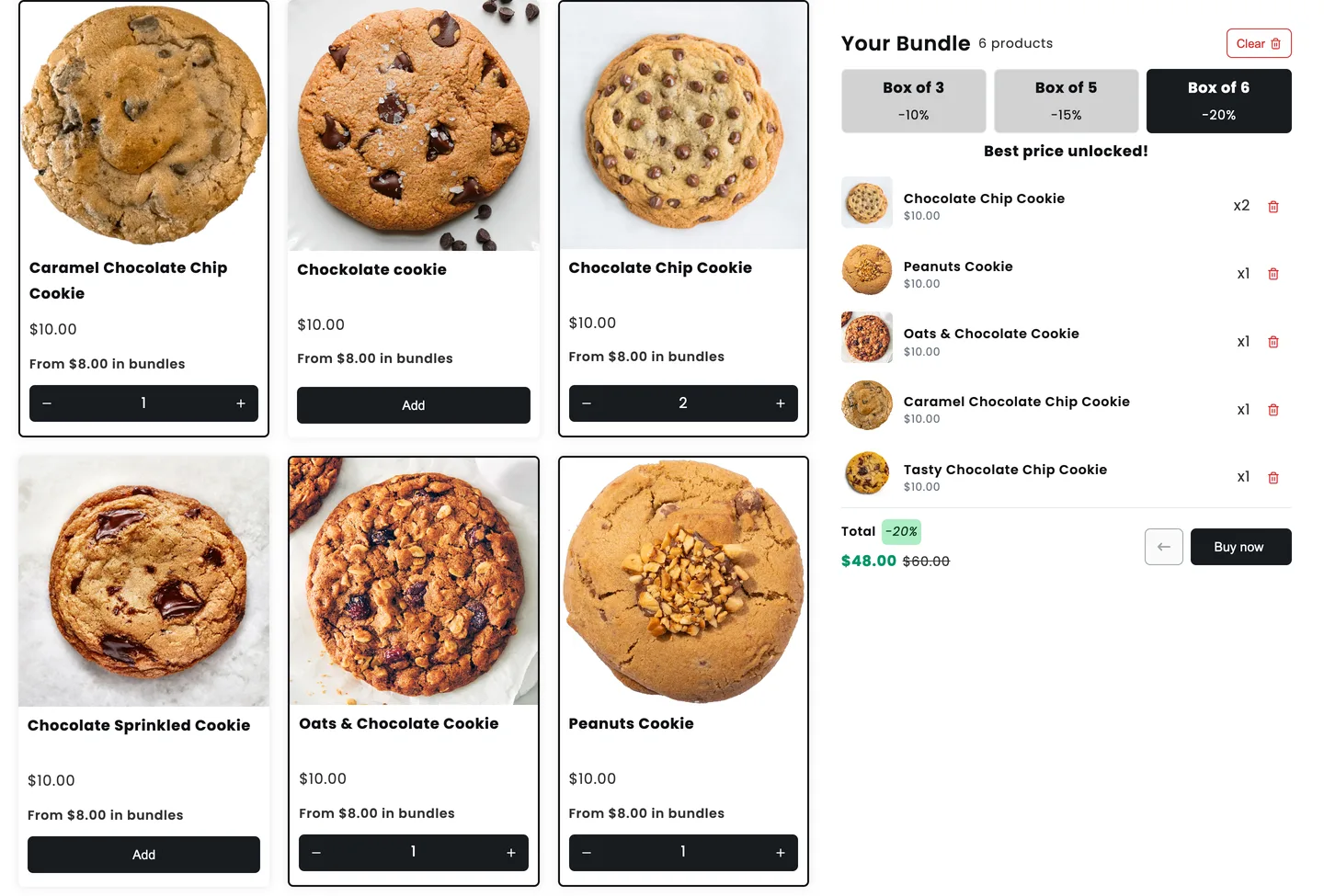
Here's where you end up. On our demo store the shopper has filled a box of six cookies, two of them the same flavour, and the panel shows the 20% box-of-6 price:
Key takeaways
- In NeatBundles a make your own bundle is a Build Your Own Bundle with one rule for the box size, such as Product count, exactly 6.
- Shoppers can't check out with five or seven items; the panel tells them how many to choose.
- The discount can stay flat or grow with the box (for example 10% at 3, 15% at 5, 20% at 6), and you can add a free gift to every box.
- Each product lands in Shopify as its own line, so stock stays right for every flavour.
What is a make your own bundle?
A make your own bundle is a mix and match offer where the shopper picks what goes in the box. With a fixed size, say six items, the shopper decides which six. It sits between a fixed bundle, where you choose everything, and an open bundle builder, where the shopper can stop at any count. The fixed size is what makes it easy to pack, price and ship.
There are three common ways to sell a box of six, and NeatBundles handles each with a different setting:
| Offer | What the shopper does | Setting in NeatBundles |
|---|---|---|
| Exactly 6, one discount | Picks six, gets the same % off every time | Rules: Product count, exactly 6. Pricing: Flat discount |
| Fill the box, save more | Picks 3 to 6, the discount grows at each tier | Rules: Product count, between 3 and 6. Pricing: Volume discount, tiers by Products picked |
| 6 for a set price | Picks six, pays one price (e.g. 6 for $45) | Rules: Product count, exactly 6. Pricing: Bundle price, Flat price |
The video uses the first one: exactly six cookies at 15% off. The demo store screenshots in this post use the second, so you can see both.
What the shopper sees on a box of 6 page
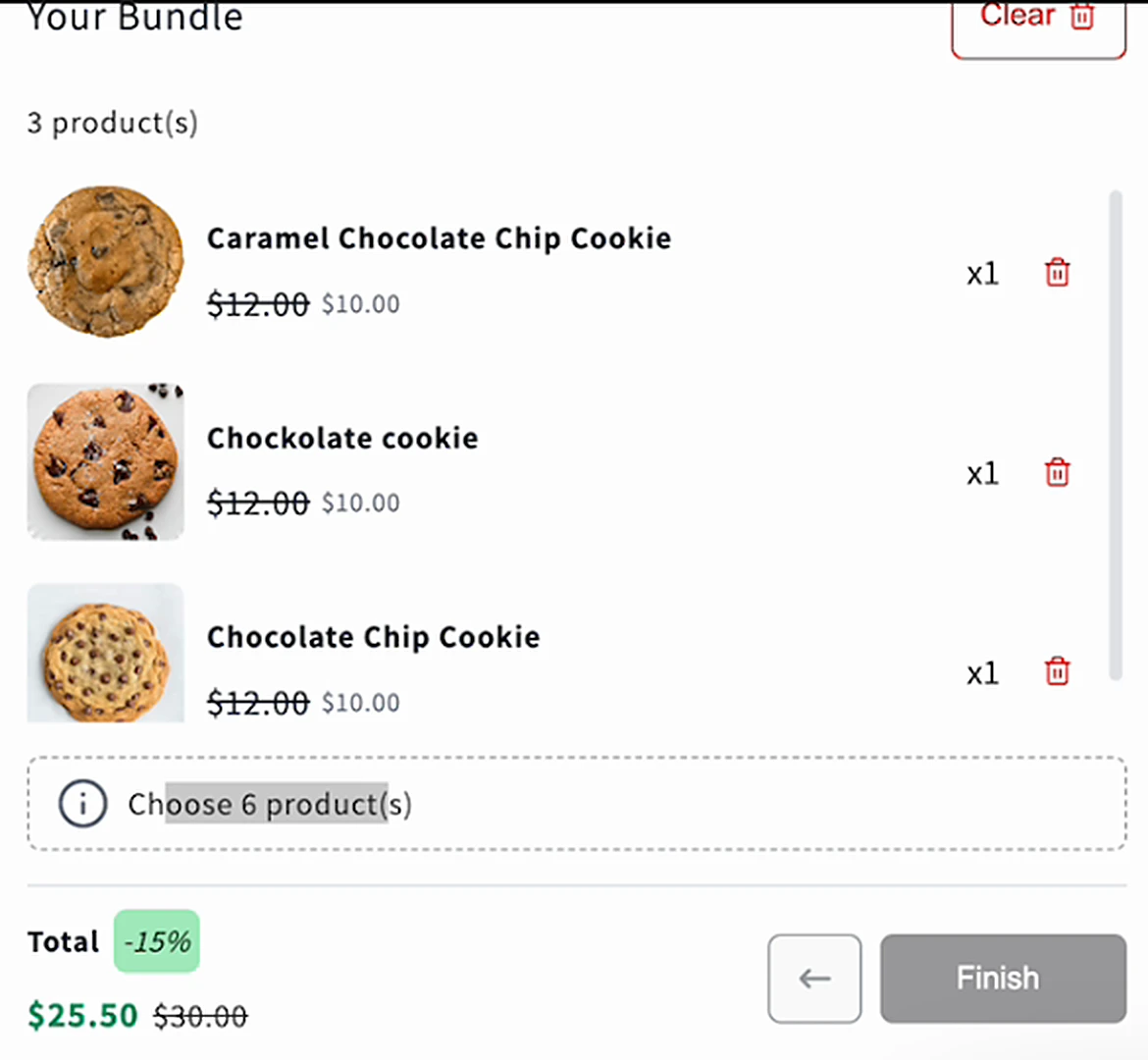
The shopper sees a grid of products and a "Your Bundle" panel that counts their picks. Until the box is full, the panel says how many products to choose, and the button to buy stays unavailable. In the video, three cookies are in the box and the panel reads "Choose 6 product(s)":
The shopper can add the same flavour more than once with the plus button, as I do in the video with the chocolate chip cookies. Once six are in, they click the button and go straight to checkout. The checkout shows one bundle with the discount, and underneath it every cookie as its own item:
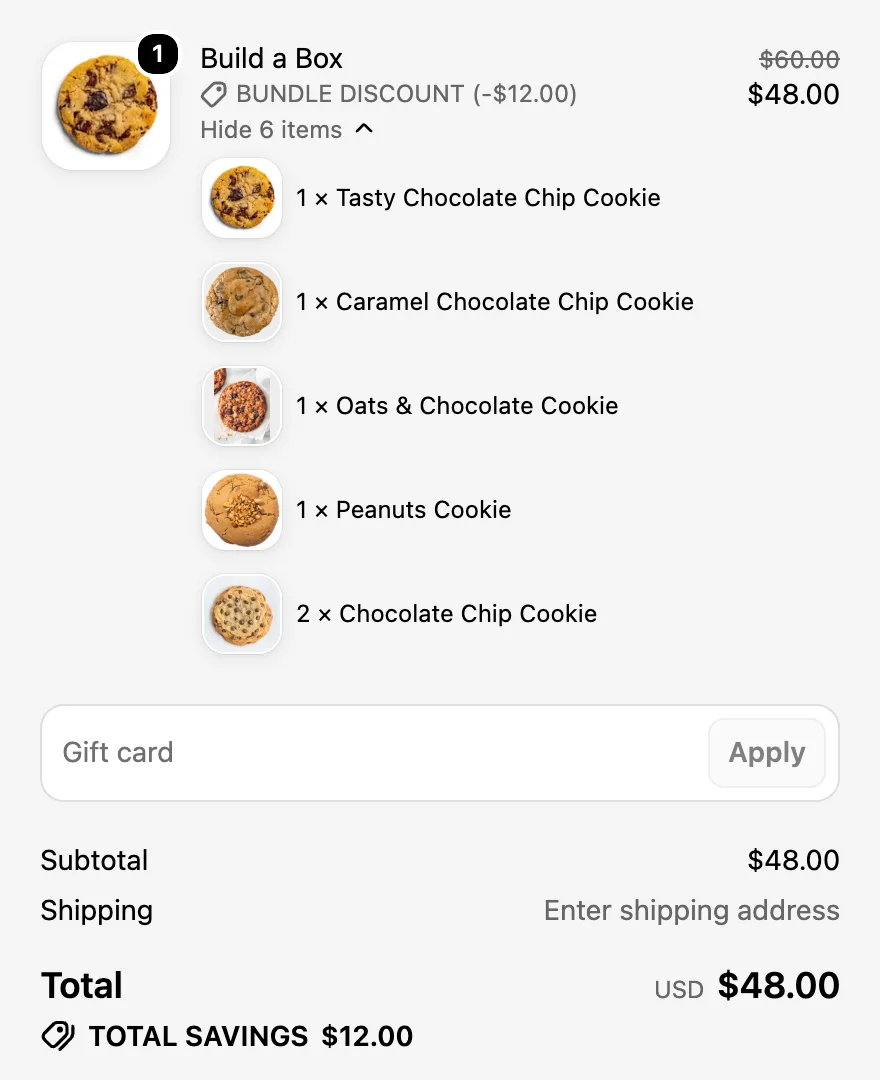
That breakdown matters after the sale. The order in Shopify lists every product separately, so you pick and pack from it like any other order, and your inventory for each flavour goes down by the right amount.
Building the box of 6 in NeatBundles
You need the NeatBundles app installed. The first time you open it, a short onboarding connects the app to your theme and creates a practice bundle, so you can see one working before you build your own. Then the six steps below take a few minutes.
1. Add a bundle and choose Build Your Own Bundle
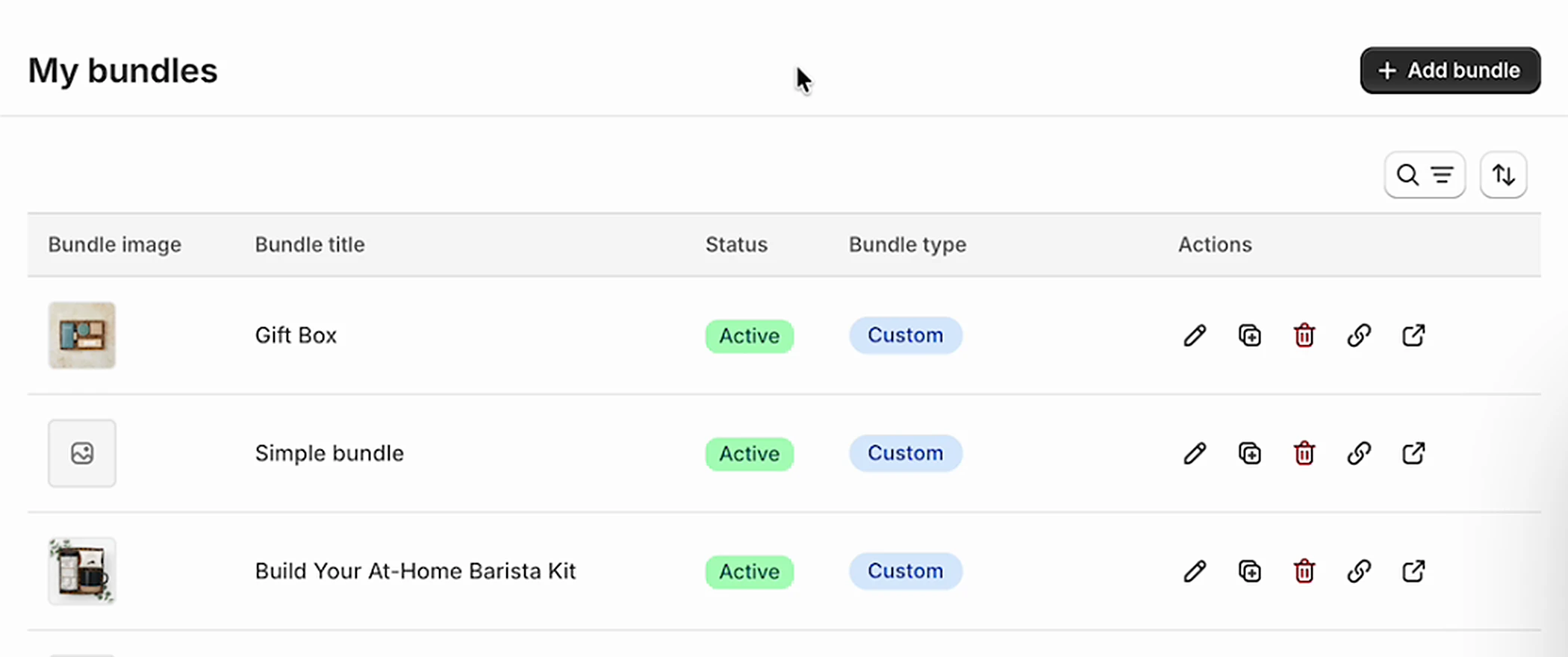
The bundle type decides the layout, and a box of six works best on a single page where every product is visible at once. On the bundles page, click Add bundle:
Under Choose Bundle Type, pick Build Your Own Bundle ("Customers mix and match products from one page into their own bundle") and click Next. The other types, Guided Bundle and Fixed Bundle, are for step-by-step kits and set bundles; I cover when to use them further down.
2. Give the box a name customers will see
The bundle title shows on the bundle page, in the cart and at checkout, so name it the way a shopper would describe the box. "Make Your Bundle" is what I used in the video; "Build Your Cookie Box" or "Build Your Six-Pack" says more. Type the name under Bundle title and click Finish.
Tip: Stuck on a name? Ask ChatGPT for a few options with this ready-made prompt, then change the cookie part to your product.
3. Add the products shoppers can pick from
The products you add here are the cards shoppers see on the page. In the bundle editor, open the Products card and click Add products. You can pick products one by one or pick whole collections and let the page show everything in them. In the video I search "coo" and tick the eight cookie products:
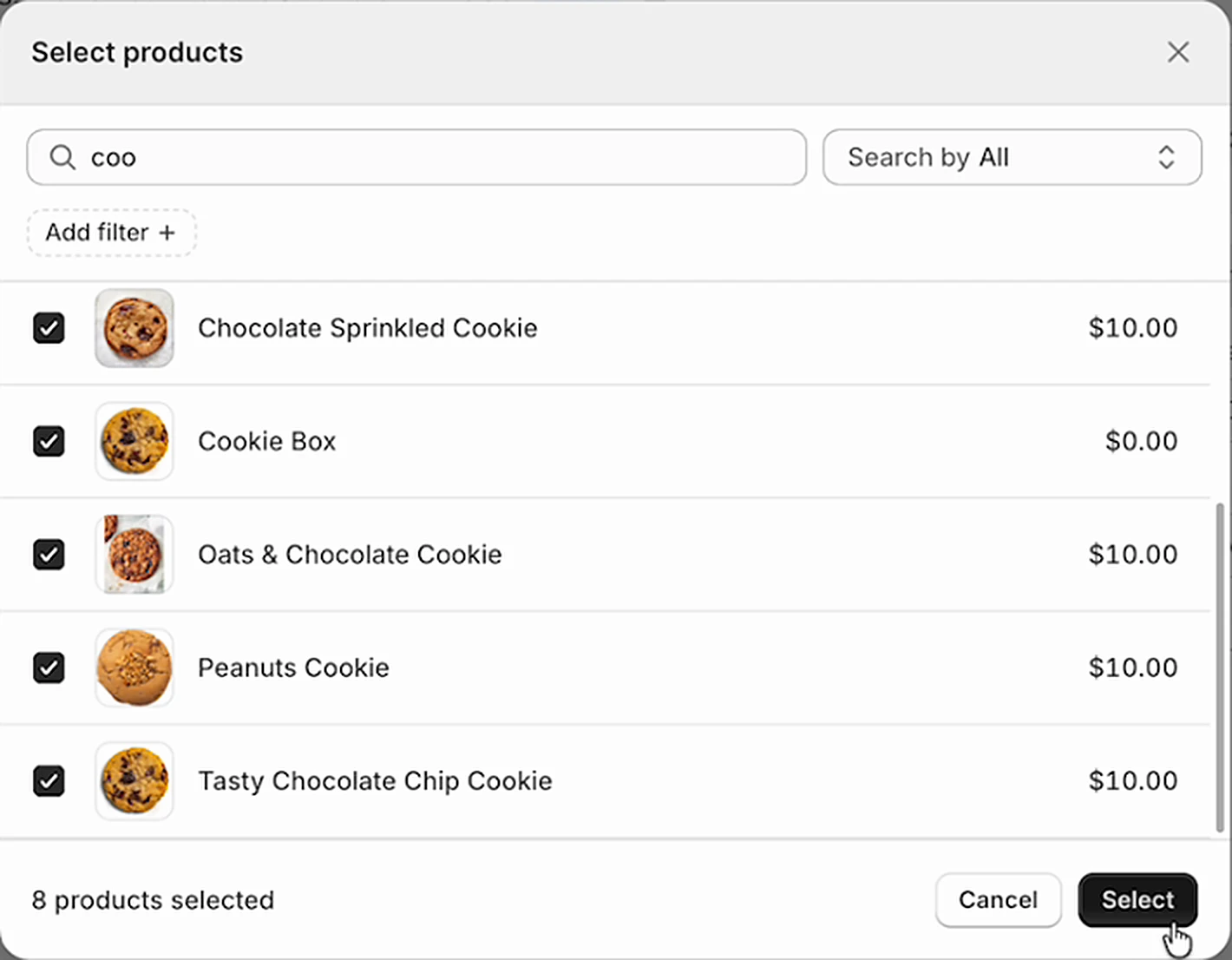
Click Select, then Save. If your products have variants such as sizes or scents, turn on List variants as individual products so each variant gets its own card.
4. Set the rule to exactly 6
The rule is what turns an open bundle builder into a box of six. Open the Rules card ("Set how many products customers can pick, or what bundle value they need to reach"). Under "Customers can add the bundle to cart if", choose Product count, then exactly, and enter 6.
Under Additional rules, tick Allow duplicates if shoppers may pick the same product more than once. For a cookie or soda box you almost always want this on, since plenty of people want three of their favourite. Show product price puts each product's price under its image.
5. Set the discount
A new bundle starts with a 15% discount, the same figure I kept in the video. Open Pricing & Discounts to change it. Under Offer, Discount takes a percentage or an amount off the box, Bundle price sets one price for the whole box and No discount keeps full prices. Discount name in cart & checkout is the label shoppers see next to the saving, for example "Box of 6 discount".
6. Switch Visibility to Active and open the page
Every new bundle starts as Draft, hidden from customers. In the sidebar, set Visibility to Active and save, or click Publish at the top of the editor:
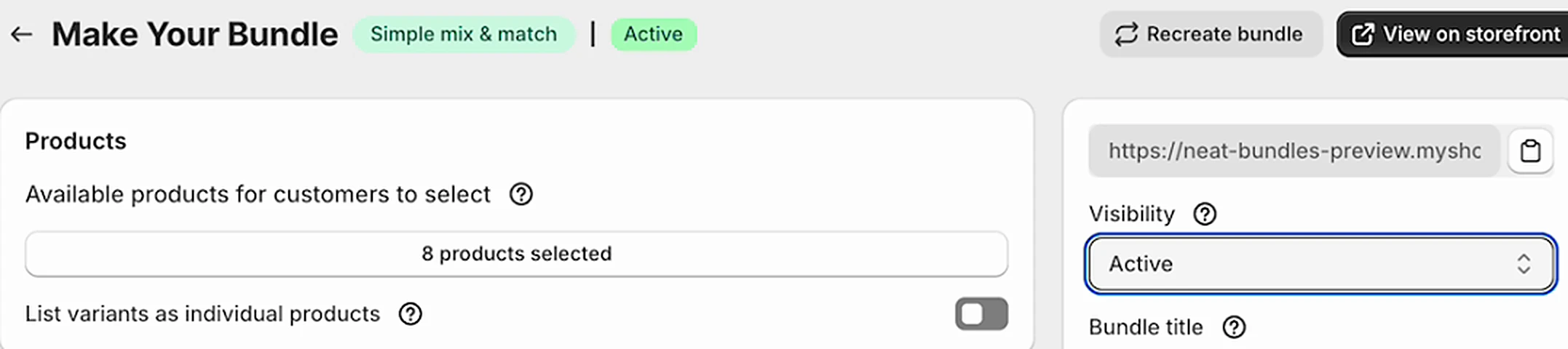
A "Your bundle is live" banner appears. Click View on storefront in it to open your new page. In the video, the whole build takes about three minutes. Add a few products, check the panel asks for six, and run one test through checkout.
What you can control on a box of 6
Once the box is live, these are the settings merchants ask about most. Each one is a field in the same bundle editor.
Can I make shoppers pick exactly 6 products?
Yes. In NeatBundles you open the Rules card and set Product count to exactly 6. Shoppers see "Choose 6 products" in the bundle panel and can't add the box to the cart with fewer or more. The same rule works for any size: exactly 4, exactly 12, or a range like between 3 and 6.
Can shoppers pick the same flavour more than once?
Yes. Tick Allow duplicates under Additional rules and every card gets a plus and minus button. If one product should be limited, for example a seasonal flavour you only want once per box, open that product's options and set its Maximum. You can also give a product a Minimum, or make it Preselected and Required so it's always in the box.
Can the discount grow as the box fills up?
Yes. In Pricing & Discounts, choose Volume discount ("Buy More Save More") and set Tiers by to Products picked. Each tier has a Minimum products value and its own discount. The demo store uses 10% at 3, 15% at 5 and 20% at 6, and the panel shows the tiers above the picks with a nudge like "Add 2 more products to get 15% off":
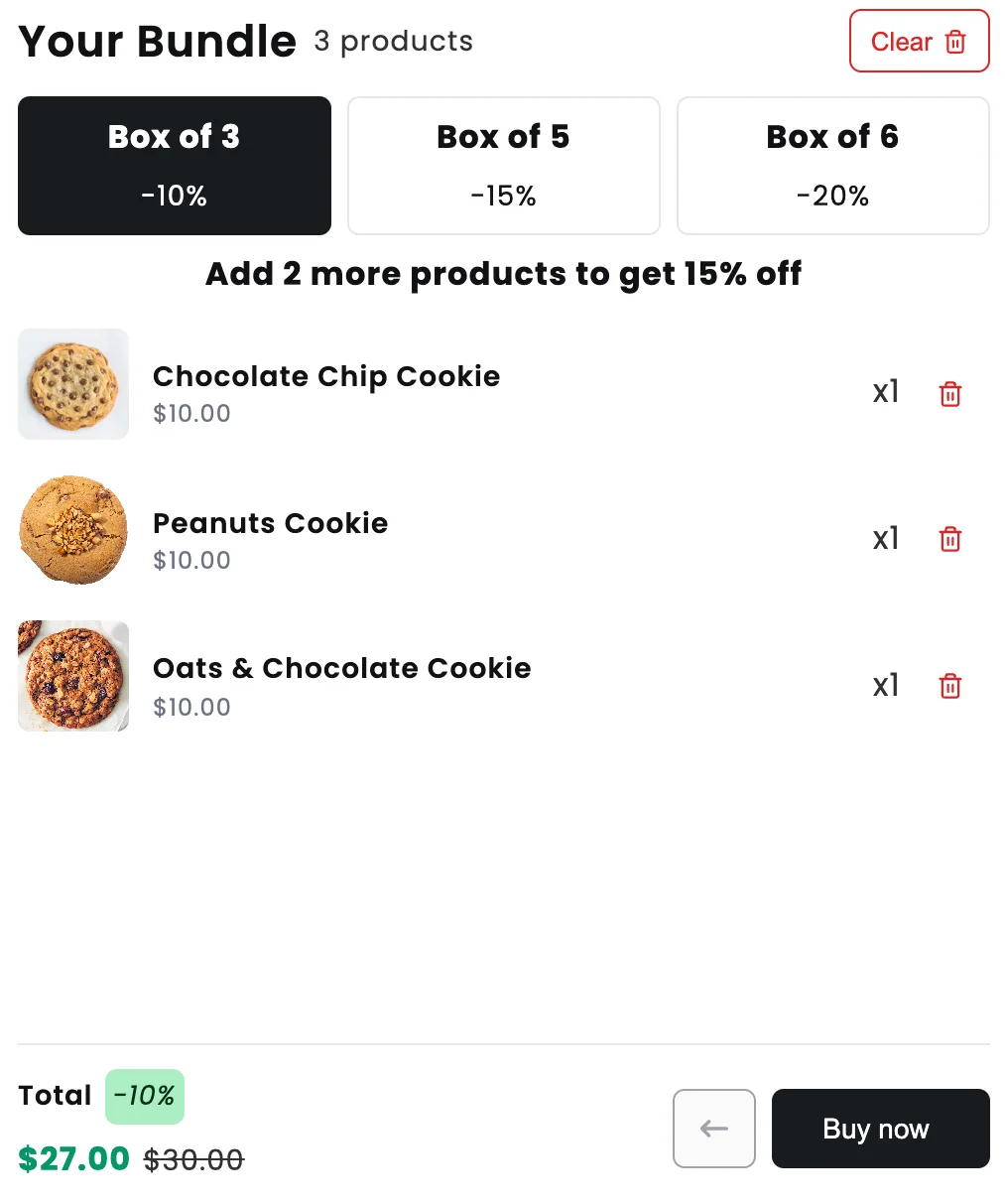
For tiers to make sense, the rule needs a range, such as between 3 and 6, rather than exactly 6. At six the panel says "Best price unlocked!". The volume and tiered discounts page has more tier examples.
Can I sell a box of 6 and a box of 12?
Yes. The simplest way is two bundles, one with exactly 6 and one with exactly 12, each with its own price. If you'd rather keep one page, choose Custom in the Rules card, which lets you combine conditions with AND and OR groups (exactly 6 or exactly 12), and add a volume tier at 12.
Can I charge a fixed price, like 6 for $45?
Yes. Under Offer, pick Bundle price and then Flat price ("Every bundle costs the same"). Whatever six products the shopper picks, the box costs the price you set. Volume pricing works the same way with a different price per box size.
Can I add a free gift to every box?
Yes. Turn on Enable gifts in the Gifts card. Each gift can be One product (everyone gets the same item), Customer picks one (the shopper chooses from a few you list) or Free shipping. Add another gift to give two. A free sample with every box of six is a simple way to make the offer feel generous without cutting the discount.
Can I send shoppers straight to checkout?
Yes. In the video the button goes straight to checkout, which suits a box that's complete the moment it has six items. This is a store-wide setting: in NeatBundles go to Settings, then General, and under Redirect pick Redirect to checkout, Redirect to cart or No redirect.
Which layout fits your box?
A make your own bundle page fits when every product is interchangeable: flavours, scents, colours of the same item. When the choices come in a set order or different groups, another NeatBundles layout fits better.
- One kind of product, any mix: Build Your Own Bundle with a count rule, as in this guide. The build your own bundle page guide covers the open version without a fixed size.
- A kit with ordered choices (a brewer, then beans): a Guided Bundle, one step per group. See the multi-step build your own bundle guide.
- A gift box with packaging and a note: the Gift Box layout, with a personalization step at the end.
- The same six every time: a Fixed Bundle, where you choose the items and shoppers just add it to cart.
If you're still deciding what to put in the box, the mix and match bundle ideas post has nine offers to copy, and the build a box feature page shows how the page looks on mobile.
Getting the link in front of shoppers
A box of six only sells if people find it. Copy the page link with the link button next to Visibility and put it where your shoppers already are: your store menu, the homepage, a product page for one of the flavours, or social media, as I suggest at the end of the video. If you want the box to stay off your store's navigation and only reach people with the link, for example a box for your newsletter list, set Visibility to Unlisted ("Accessible only by direct link").
Frequently asked questions
Which Shopify app lets shoppers make their own bundle?
NeatBundles is a Shopify app for mix and match bundles that lets shoppers pick a set number of products, such as exactly six, into one discounted box. You set the count rule, the discount or fixed price, volume tiers and free gifts in one editor. It's free to use up to $500 of bundle sales a month; see pricing.
Can Shopify's free Bundles app let shoppers make their own bundle?
No. Shopify's Bundles app builds fixed bundles and multipacks from products you choose, so the shopper can't build their own mix of six from a range. For a box where the customer picks the items, you need a bundle builder app such as NeatBundles, which also enforces the six-item count.
What happens if a shopper picks only five products?
The box can't go to the cart yet. The bundle panel keeps showing "Choose 6 products" and the buy button stays unavailable until the sixth item is in. If you allow a range instead, such as between 3 and 6, the shopper can buy at any count in that range and the panel shows how many more reach the next discount.
Does a mixed box of 6 keep my inventory accurate?
Yes. NeatBundles adds every product in the box to the order as its own line item, so Shopify reduces stock for each flavour separately. Two chocolate chip cookies in a box take two off that product's inventory, and you can pick and pack the order straight from the Shopify order page.
Can the box be 4, 8 or 12 instead of 6?
Yes. The count rule takes any number, so a box of 4, 8, 12 or 24 is the same setup with a different value. You can also set a range, such as at least 4 or between 6 and 12, when you want shoppers to choose their box size and pair it with volume tiers.
Launch your box
That's the whole setup: a Build Your Own Bundle, your products, a rule of exactly 6, a discount and Visibility set to Active. From there, try a volume tier or a free gift and see which one moves your average order value more. Install NeatBundles free and build your first box of six today.

 Install for free