A build your own bundle (BYOB) page is a full page where shoppers pick their own mix of products, watch a live summary with the discount, and buy everything as one bundle. On Shopify you can create one without code in the NeatBundles app: create a bundle, choose the build your own type, select products, and set it to Active.
I timed it while recording the tutorial video: from clicking "Create bundle" to a live page took under four minutes. Before the four steps, here's what you're building, because the finished page (and what happens after checkout) is the part most guides skip.
Key takeaways
- A BYOB page lets shoppers choose any mix from products you pick, with the discount shown live as they build.
- The bundle reaches checkout as one line, with every product listed under it as its own SKU, so inventory stays accurate.
- Setup in NeatBundles is four actions: create a bundle, pick the Build Your Own Bundle type, select products, switch Draft to Active.
- NeatBundles is free to use up to $500 of bundle sales a month.
What a build your own bundle page looks like
The page shows a grid of products on the left and a "Your Bundle" panel on the right. The shopper adds what they want, and the panel updates with every click. Here's the cookie page from our demo store, before anything is added:
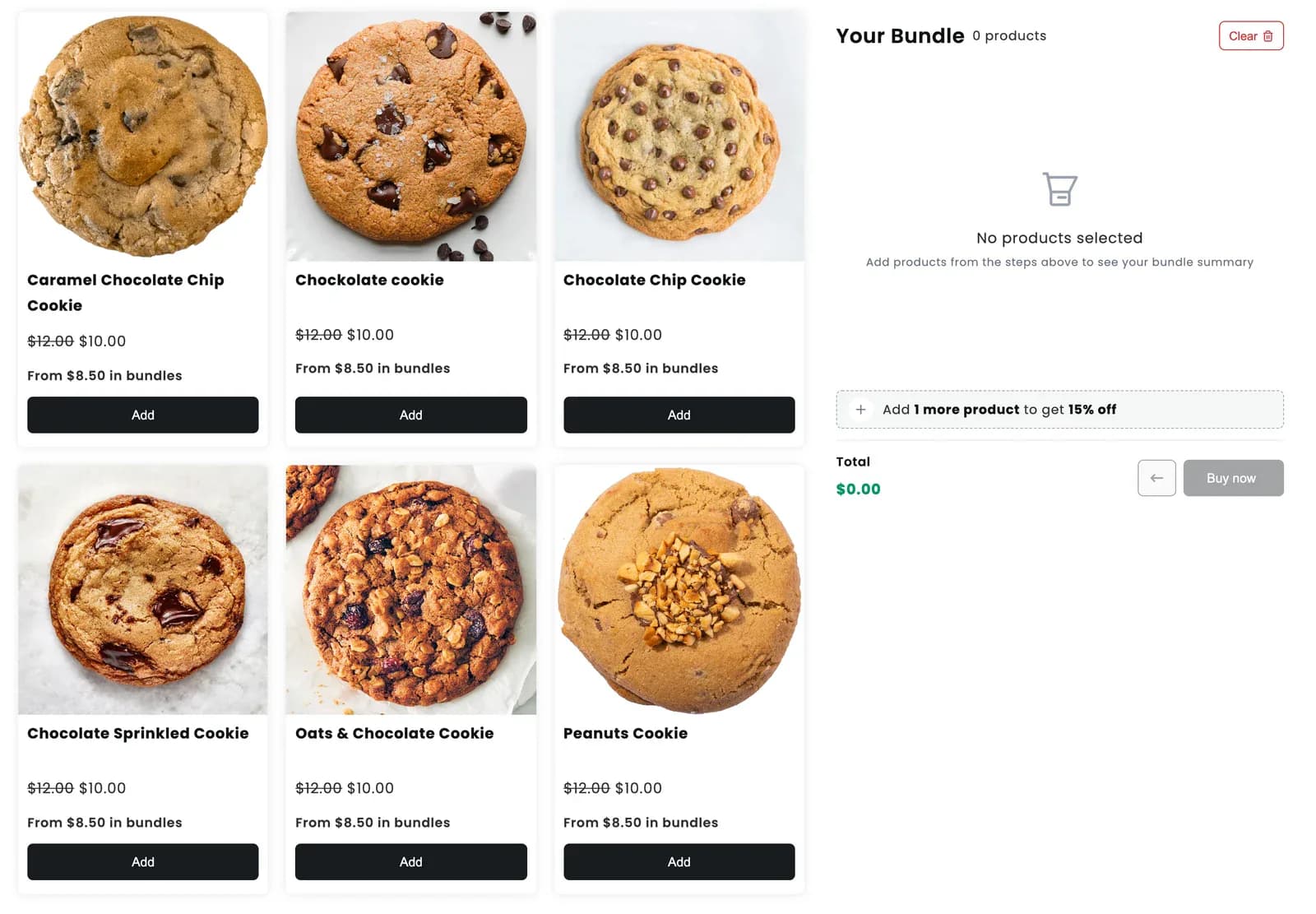
Each card shows the regular price and a "From $8.50 in bundles" hint, so the shopper knows there's a deal before they add anything. The panel also nudges them toward it: "Add 1 more product to get 15% off".
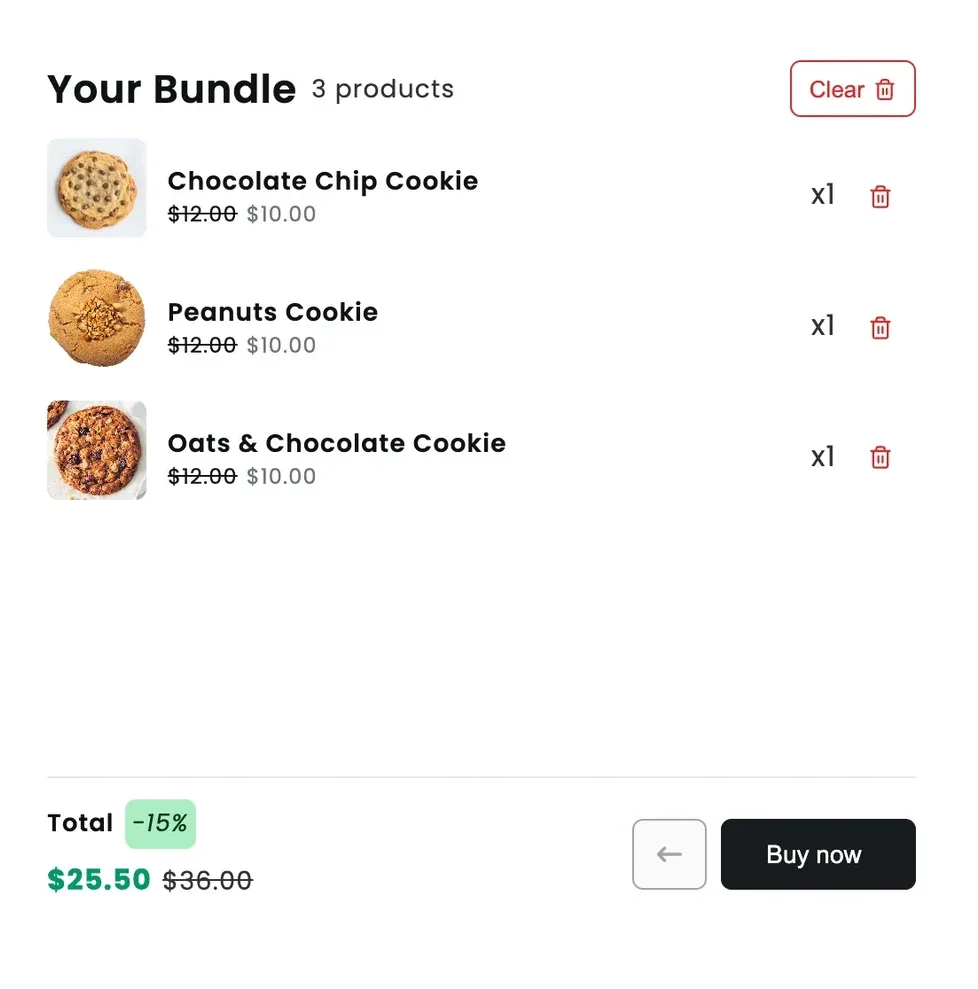
After adding a Chocolate Chip, a Peanuts and an Oats & Chocolate cookie, the panel lists all three, shows the 15% discount badge and the new total next to the crossed-out one. Shoppers can remove a single cookie or clear the whole bundle without leaving the page.
What shoppers see at checkout
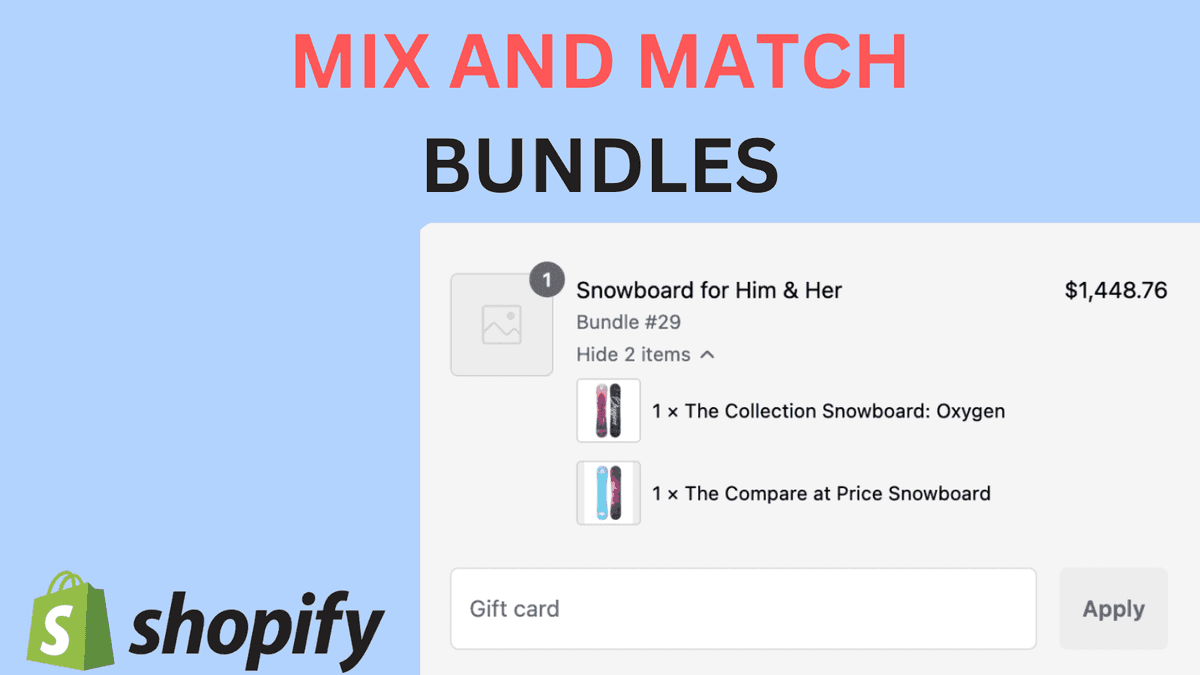
Clicking Buy now sends the shopper straight to Shopify checkout. You can also send them to the cart first if your store prefers that. The bundle arrives as one line called "BYOB" with the bundle discount on it, and the three cookies listed underneath:
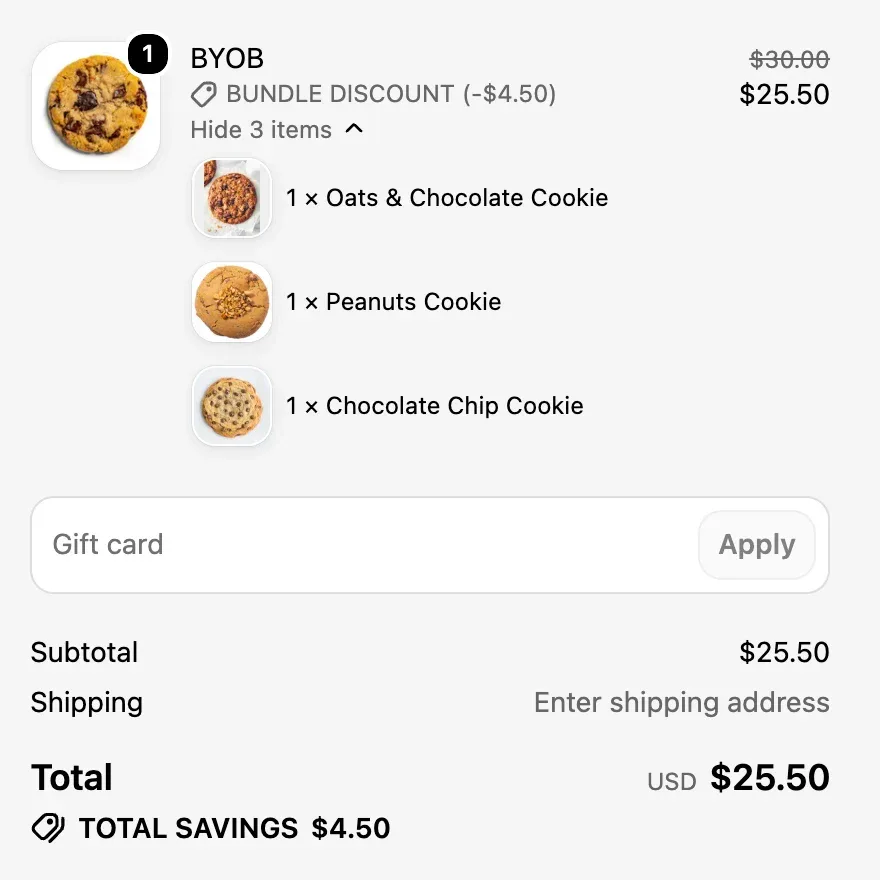
In this example the three cookies cost $30.00 and the 15% bundle discount takes off $4.50, so the shopper pays $25.50. The checkout states "Total savings $4.50" in Shopify's own words, which is a nice reassurance right before they pay.
What lands in your Shopify orders
Every cookie in the bundle is its own SKU. When the order is placed, it shows up in Shopify admin like any other order, with each product listed and marked as part of the bundle. Shopify deducts stock from the real products, not from a made-up "bundle" product.
That matters for two reasons. You can't oversell a cookie you've run out of, which is a real problem with bundling apps that create a separate bundle product with its own stock. And whoever packs the order sees exactly which items to put in the box.
Is a BYOB page right for your store?
A BYOB page works best when shoppers are happy to choose freely from one range of similar products. It's the wrong format when the products only make sense in a specific combination.
It works well for:
- Food and snacks: cookies, chocolates, coffee pods, tea flavours
- Beauty and personal care: pick any 3 lip balms, soaps or sheet masks
- Candles, socks, stickers, jewellery: any range with many variations of one thing
- Gift boxes where the giver wants to choose every item
It's a weaker fit when:
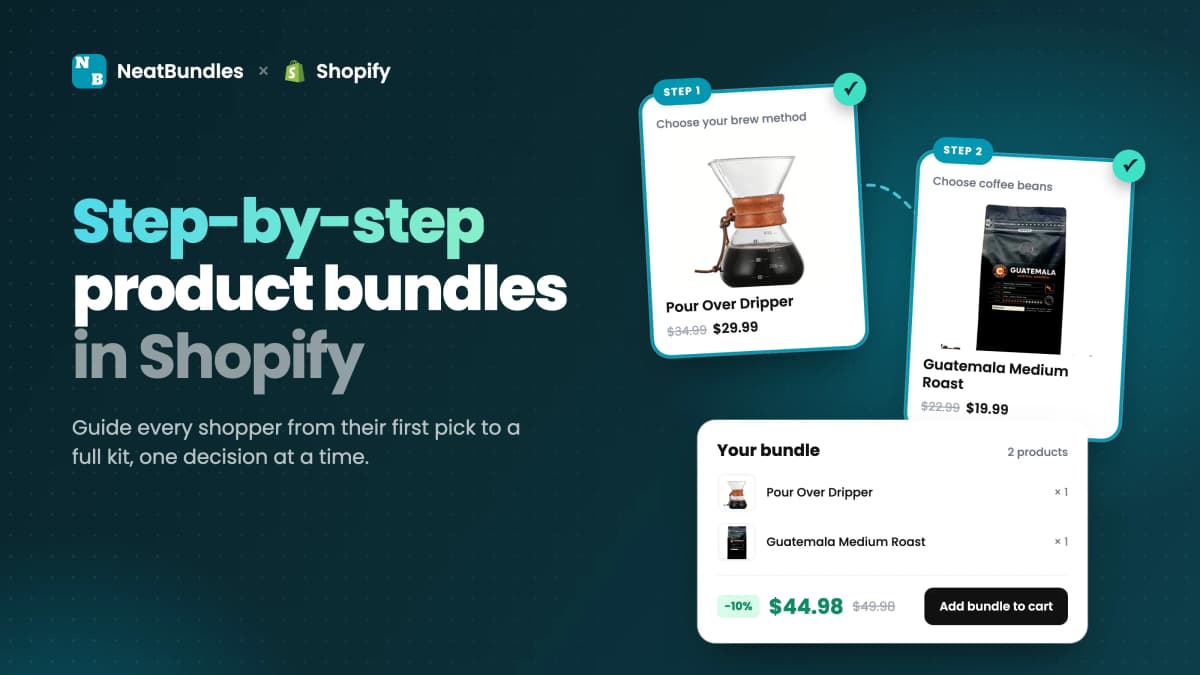
- The bundle has parts that depend on each other (a brewer and the right filters). A guided bundle that asks one question per step handles that better.
- You only want to sell one proven set. A fixed bundle is simpler.
- You have just two or three products. A full page with a grid feels empty; a "frequently bought together" offer on the product page may convert better.
Here's how the three common bundle types compare:
| BYOB bundle | Guided bundle | Fixed bundle | |
|---|---|---|---|
| How shoppers build it | Pick any products from one page | One choice per step, in order | No choices |
| Best for | Mixing items from one range | Kits made of different parts | A proven combination |
| Example | Any 3 cookies, 15% off | Brewer, then beans | A holiday gift set |
| Where it lives | Its own bundle page | Its own bundle page | A single product |
If you want to see more layouts before deciding, the bundle gallery has live examples of each.
How I built it in four steps
All four steps happen inside the NeatBundles app in your Shopify admin. Install NeatBundles from the Shopify App Store first and go through the short onboarding. After that you land on the bundles dashboard. In the video I recorded these steps on a separate test store stocked with snowboards, so the admin screenshots below show snowboards; the cookie page above uses exactly the same setup.
Step 1 - Create a bundle and pick the build your own type
The bundle type decides what the page looks like, so it's the first choice you make. Click Create bundle in the top right of the dashboard. On "Choose Bundle Type", select Build Your Own Bundle (marked "Most popular") and click Next.
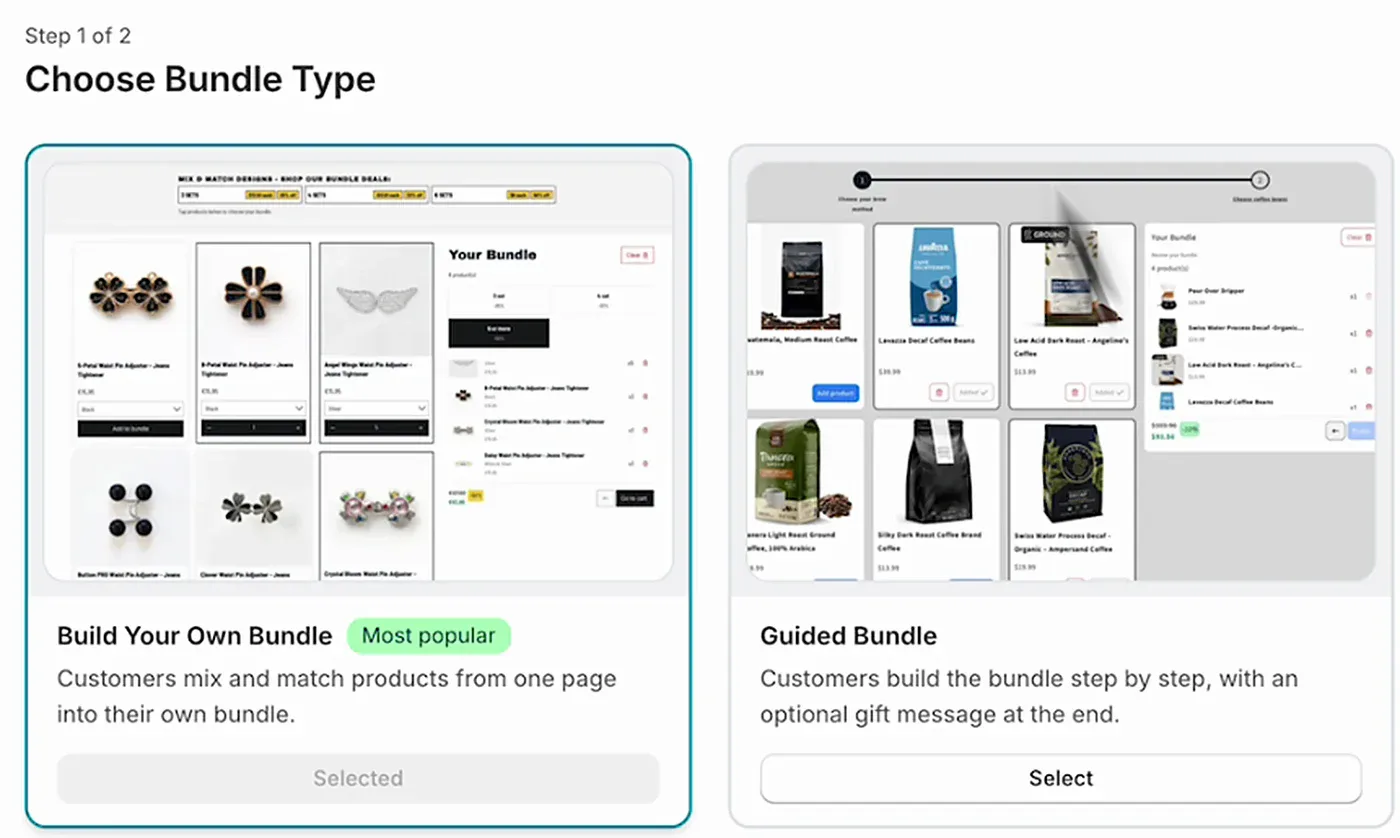
The other options are Guided Bundle, where customers build the bundle step by step, and Custom. For a single page of products to mix and match, Build Your Own Bundle is the one.
Step 2 - Name it for the cart and checkout
The bundle name is what shoppers see in the cart, at checkout and on the order, so pick something that still makes sense there. Type it into Bundle title, or click one of the ideas under the field: Build Your Own Bundle, Build a Box, Mix & Match, Bundle Set, Pick n Mix or BYOB. Then click Finish.
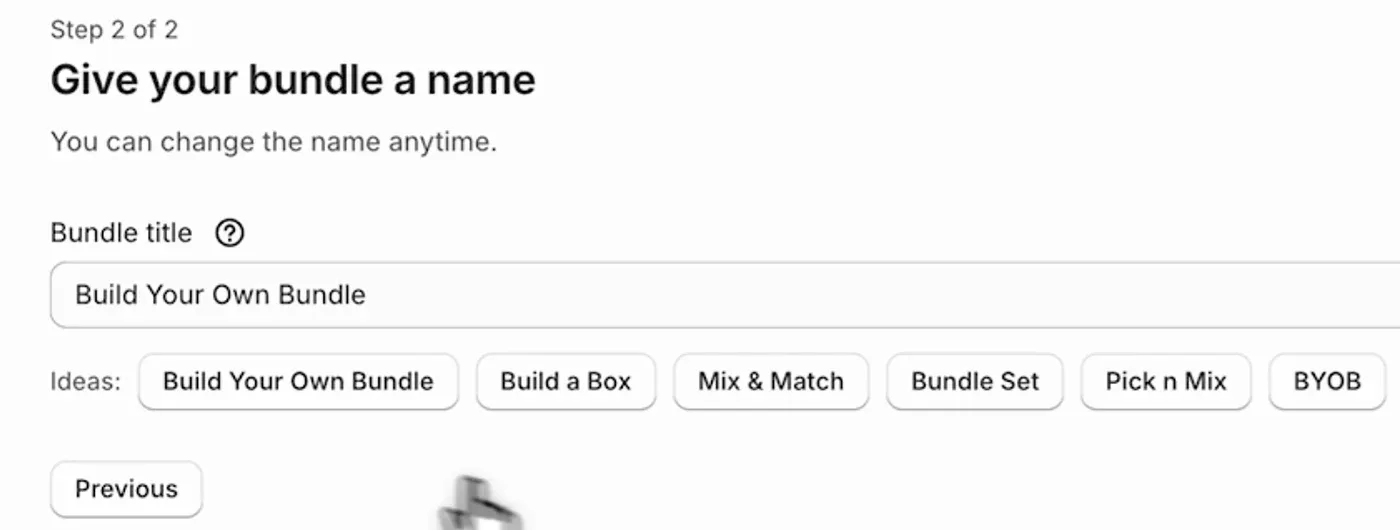
Tip: You can rename the bundle any time, so don't overthink it. If you want something more on-brand than "BYOB", ask ChatGPT for options with this ready-made prompt and swap in your own products.
Step 3 - Choose the products shoppers can pick from
The product list is the only setting the page can't work without, because it's what fills the grid. On the bundle's edit page, find the Products section and click Select products. You can switch to Collections instead if you'd rather offer whole collections than hand-pick products.
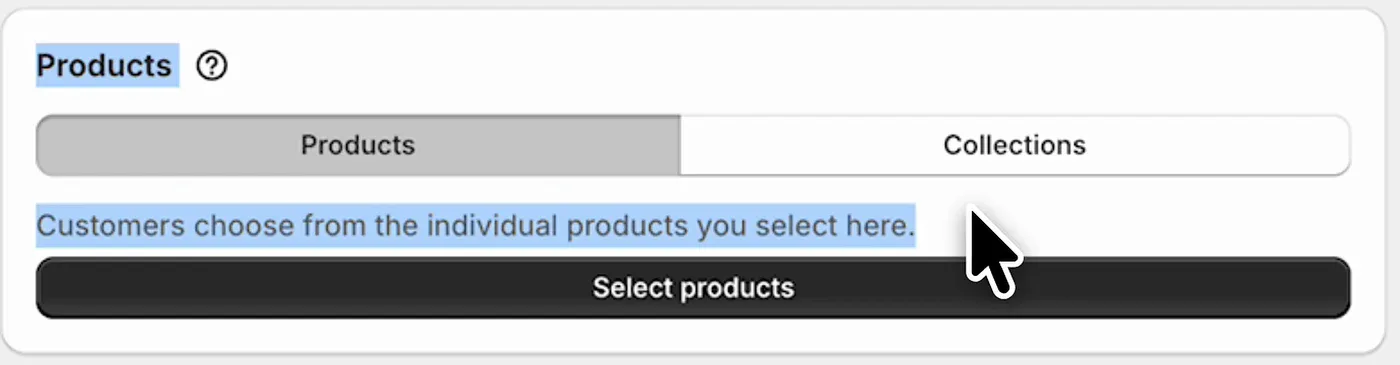
Shopify's product picker opens. Tick the products (or individual variants) you want to offer, click Select, then Save in the bar at the top.
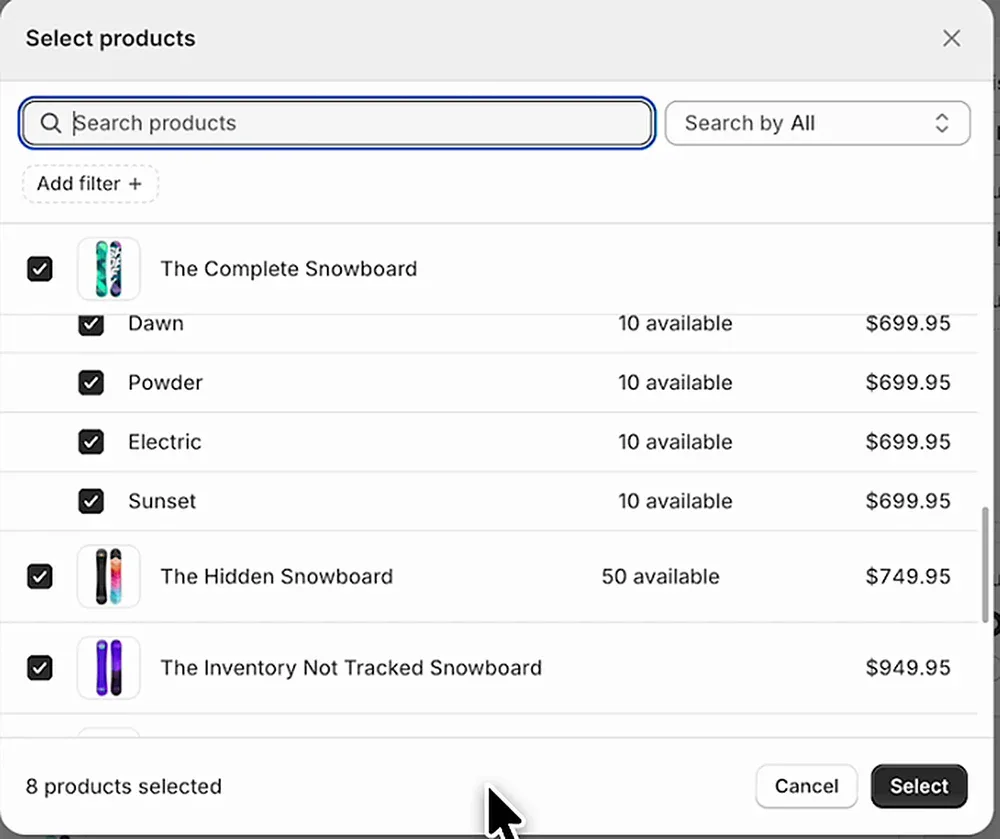
The picker shows stock next to each variant, which is a quick way to spot something that's nearly sold out before you feature it.
Step 4 - Switch it from Draft to Active
Every new bundle starts as a Draft, which means customers can't see it. This is the step people forget: the page is built, the products are in, and nothing shows on the store. In the Visibility box on the right, change Draft to Active and click Save.
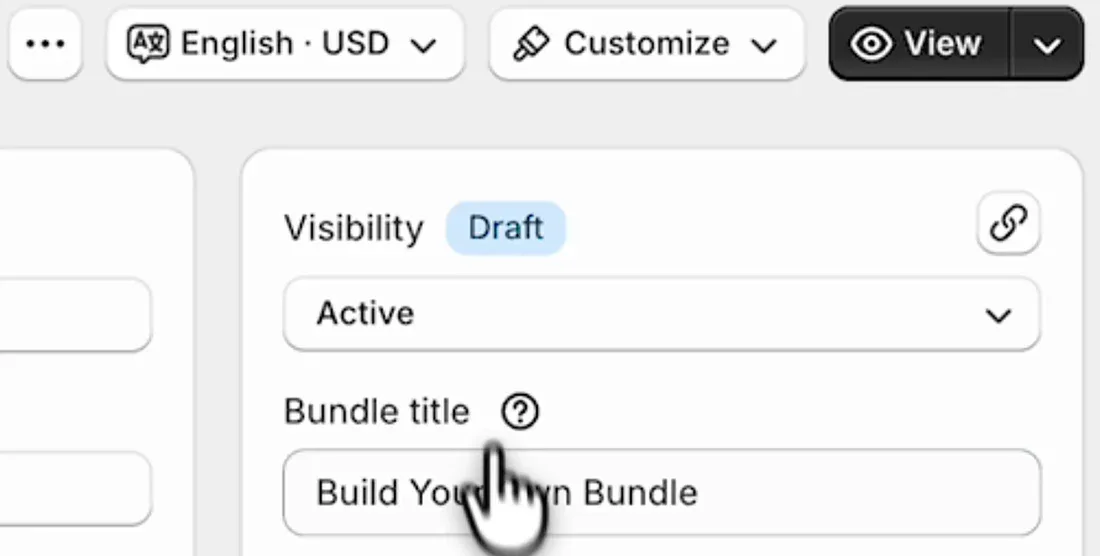
Then click View (it's the button next to Customize) to open your new bundle page on the storefront. That's it: a working BYOB page, live on your store.
Heads up: Clicking Select in the product picker doesn't save anything on its own. Shopify shows "Unsaved changes" at the top until you click Save, and if you switch to Active without saving the products first, you get a live page with an empty grid.
Making the page your own
The four steps above give you a working page with sensible defaults. When you have ten more minutes, scroll down the bundle's edit page. These are the settings I'd look at first.
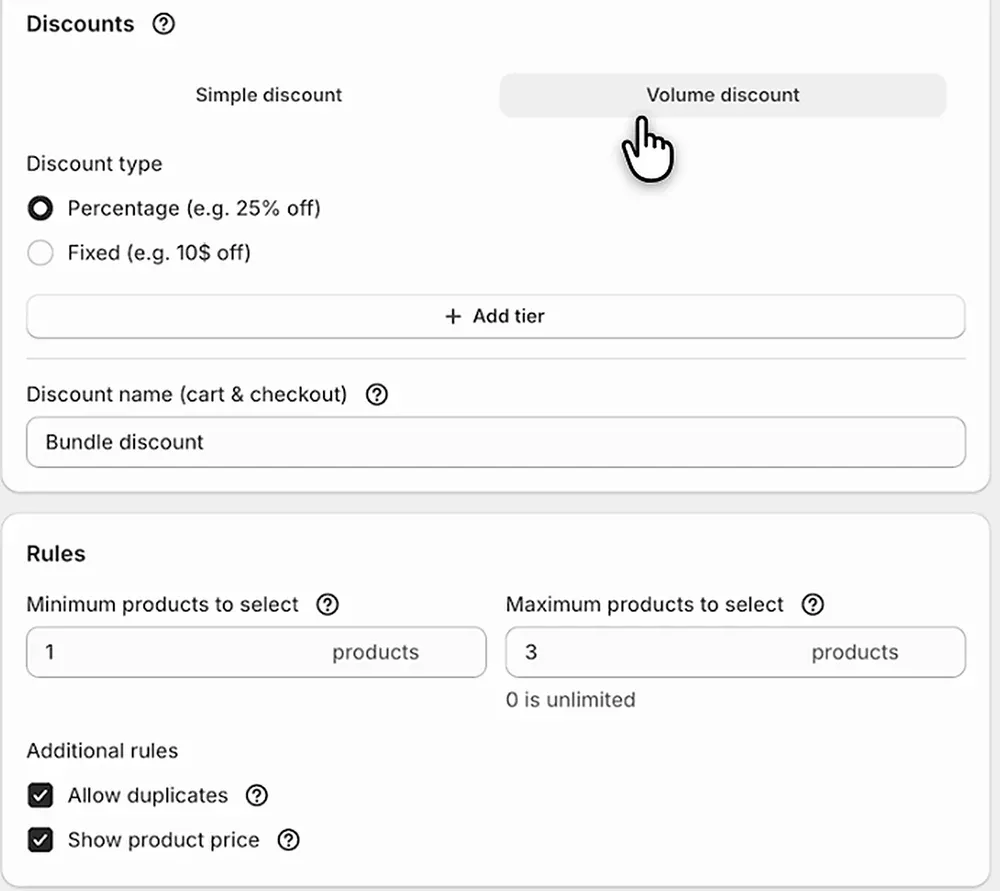
- Discounts. Choose a Simple discount (one percentage or fixed amount for the whole bundle) or a Volume discount, where you add tiers so the more products a shopper adds, the bigger the discount. Volume tiers are the classic "buy more, save more" setup. The volume and tiered discounts page explains how tiers work in more detail.
- Discount name. The "Discount name (cart & checkout)" field sets the label next to the savings. "Bundle discount" is the default; "Cookie box deal" might fit your store better.
- Rules. Set the minimum and maximum number of products a shopper can select (0 means unlimited), whether they can pick the same product more than once (Allow duplicates), and whether product prices show on the cards.
- Free gifts. Add a product to every bundle for free, such as a sample or a tote bag.
- Design. The app's design settings let you change colours, corner rounding and other styling so the page matches your theme.
For the full list of what a BYOB bundle can do, see the build your own bundle feature page.
Before you share the page: a quick checklist
Run through this before you link the page from your menu or an email:
- Visibility is Active and saved. Open the page in a private window to check it's really public.
- Build a test bundle yourself and go all the way to checkout. Confirm the discount and the item list look right.
- Min and max rules make sense for your box size. If your packaging fits six cookies, set the maximum to six.
- The bundle name reads well at checkout. "BYOB" is fine for a demo; your customers might prefer something clearer.
- Link the page somewhere. The bundle gets its own page you can add to your navigation, a homepage banner or a campaign email. A page nobody can find won't raise your AOV.
Frequently asked questions
Can I create a build your own bundle page on Shopify without an app?
Not a real one. Shopify's own Bundles app creates fixed bundles where the customer can't choose the items. The closest no-app workaround is a collection plus an automatic discount, but shoppers get no bundle panel, no live total and no grouped line at checkout. An app like NeatBundles adds the full page without code.
Does a build your own bundle keep my inventory accurate?
Yes. With NeatBundles each product in the bundle is its own SKU. The order lists every item under the bundle and Shopify deducts stock from those products, so you can't oversell an item that has run out. Sold-out variants also can't be picked on the bundle page in the first place.
Can I give a bigger discount when customers add more products?
Yes. In the bundle's Discounts section, choose Volume discount and add tiers, for example 10% off for three items and 15% off for five. The bundle panel shows shoppers how many more products they need for the next tier, which encourages bigger boxes.
What's the difference between a build your own bundle and a guided bundle?
A BYOB bundle shows all products on one page and lets shoppers pick any mix. A guided bundle splits the choice into steps, one category per step, like choosing a brewer and then beans. Use BYOB for one range of similar products and guided bundles for kits made of different parts.
How much does a build your own bundle page cost?
NeatBundles is free to install and free to use until your bundle sales pass $500 a month, which is enough to launch and test your page. After that, plans scale with your bundle sales; the current plans are on the pricing page.
Next steps
Your new page is four actions away: create a bundle, choose the build your own type, select your products, and switch it to Active. Start with the defaults, watch which combinations people build, and then tune the discount tiers and rules around what actually sells.
If you'd rather walk customers through choices one at a time, my guide on step-by-step product bundles covers the guided version. Otherwise, install NeatBundles for free and build your first page today.