A build your own gift box on Shopify is a page where shoppers first choose the box, then pick the products that go inside, and buy it all as one discounted bundle. In NeatBundles you create a Guided Bundle with two steps, one for your boxes and one for the contents, set a discount and switch it to Active.
The box is the part most setups skip. Here it's a real product with its own price and stock, chosen by the shopper like everything else. I'll show the finished skincare gift box first, then how I built it, then what you can change and a few ideas for other stores.
Key takeaways
- Make the gift box itself a Shopify product and give it its own step, so shoppers choose the packaging and it shows up in the order with everything else.
- In NeatBundles this is a Guided Bundle: step one "Pick your box", step two the products that go inside. No personalization step is needed.
- The bundle discount covers the whole box, and every item, packaging included, is listed separately in the order so stock stays right.
- NeatBundles is free to use up to $500 of bundle sales a month, so you can launch the page before you pay anything.
A finished gift box page, from box to checkout
A finished build your own gift box page shows a short row of numbered steps, a grid of boxes on the first step, and a "Your Bundle" panel that fills up as the shopper picks. This is the skincare gift box on our demo store. The first step lists the boxes: a box with a bow, one in floral wrapping paper, a plain red one and a few more.
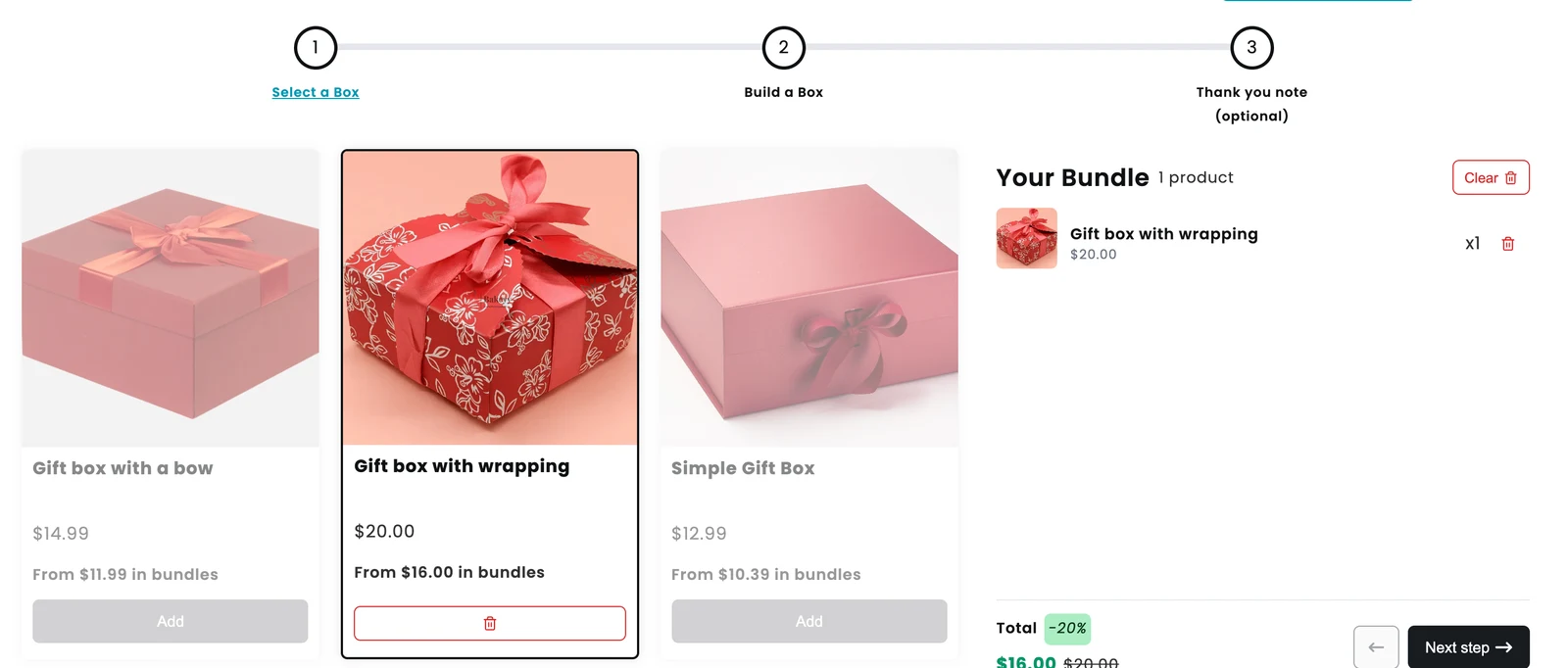
Once a box is picked, the other boxes grey out, because the step allows one. The box appears in the summary with its price, and "Next step" opens the products that go inside.
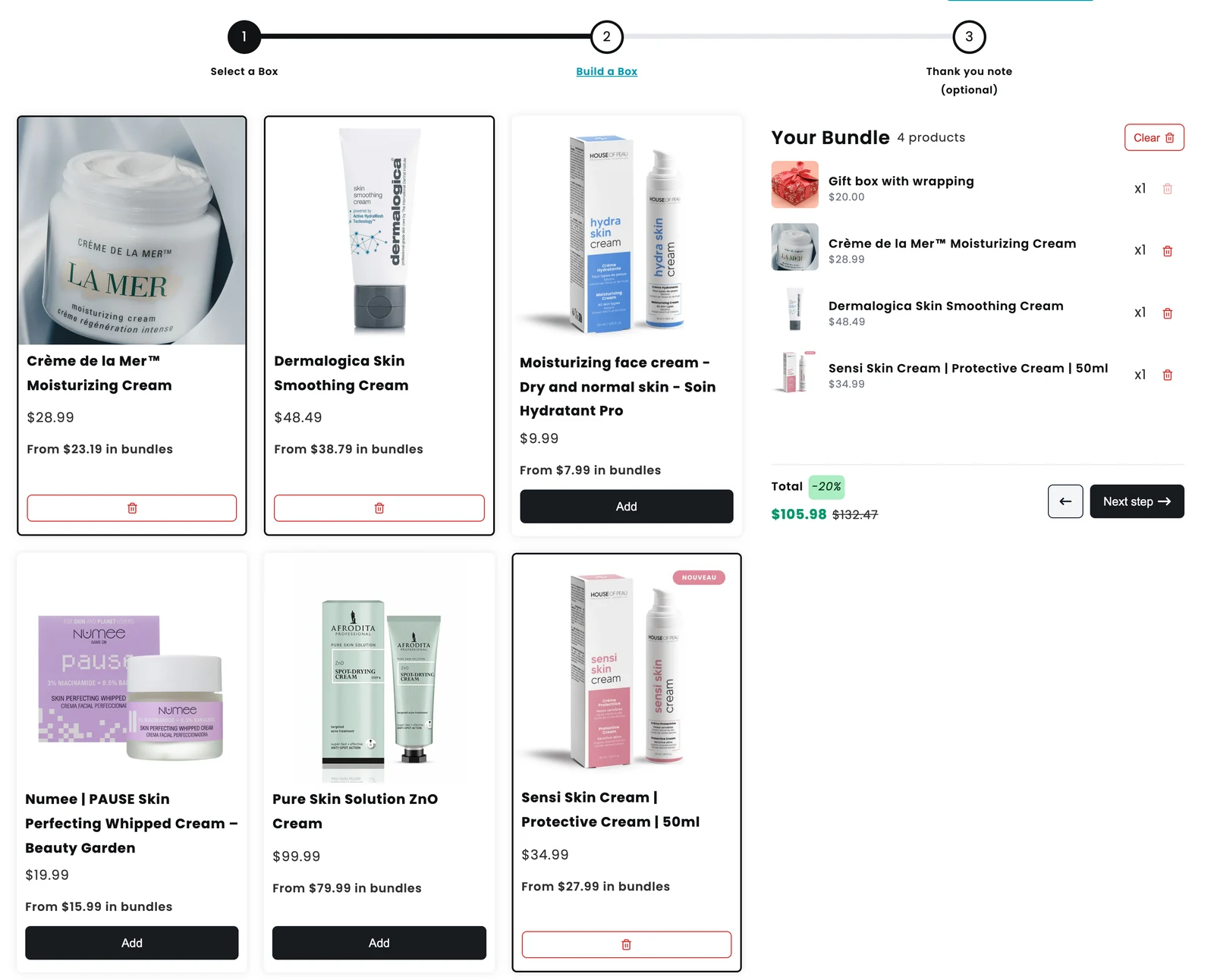
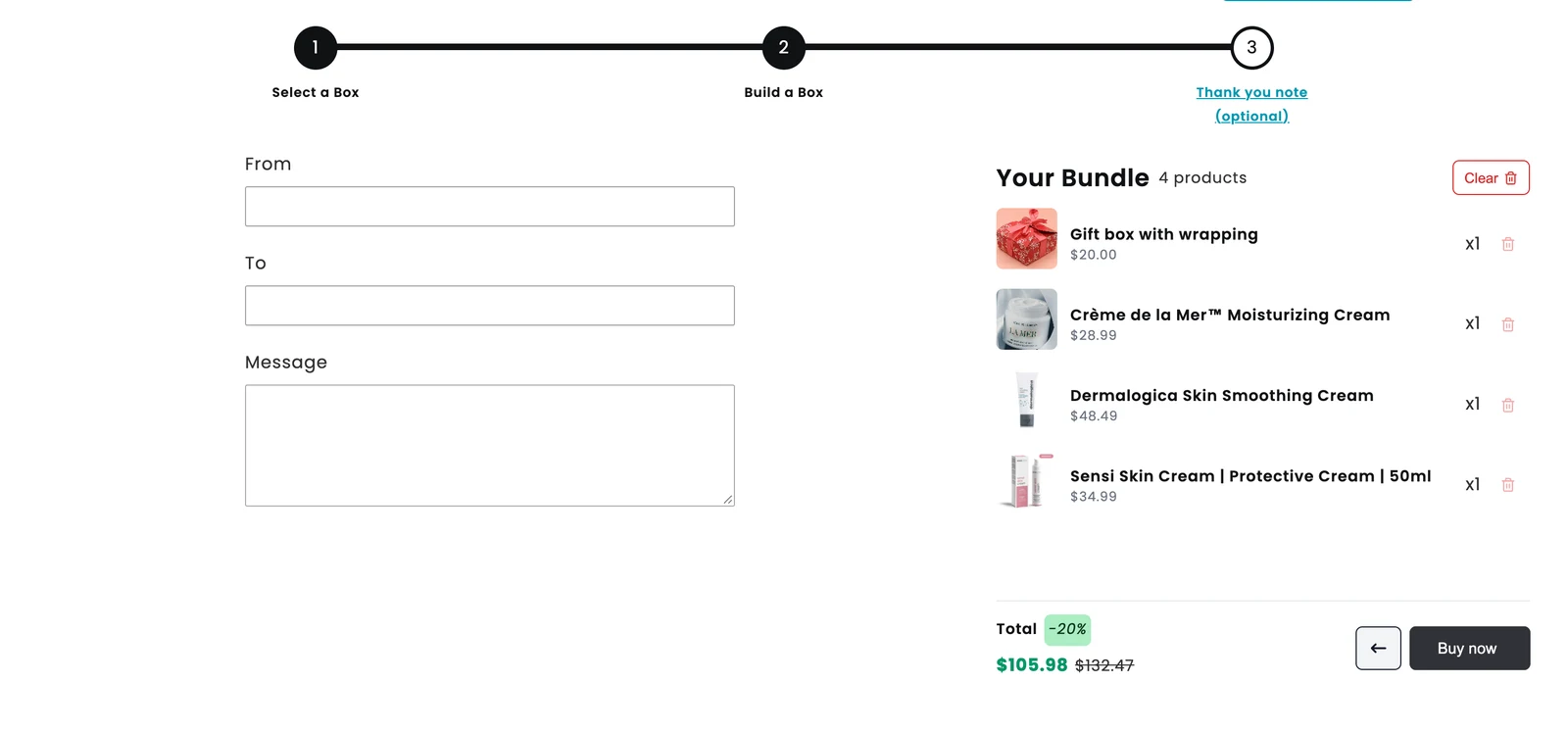
On the second step the shopper adds the skincare: here a La Mer moisturizer, a Dermalogica cream and a Sensi Skin cream. The panel keeps a running total with the discount applied, so the shopper sees the saving grow with every product.
After the last step, the whole box goes to checkout as one line called "Gift Box", with the bundle discount and all four items listed underneath it.
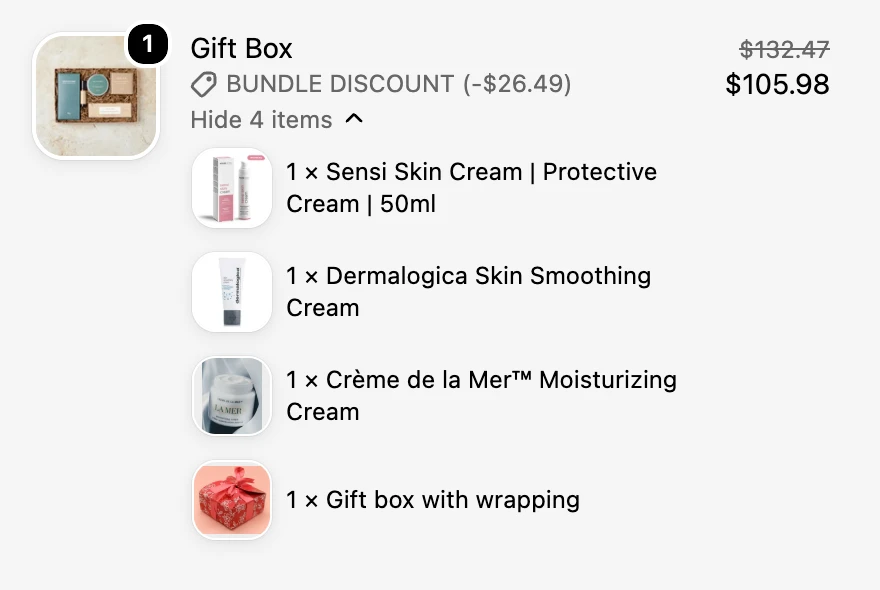
The demo store version runs at 20% off and adds an optional thank-you note step at the end. The one I build below uses 15% and stops after two steps, which is all a gift box needs if you don't collect a message.
Why sell the box as its own product?
In a build your own gift box, selling the box as its own product means the packaging gets a price, a stock count and a line on the order, just like the creams inside it. When the box is a dropdown option or a flat fee, you lose all three: you can't tell which box to pack, you can't stop selling a box you've run out of, and the box never shows up in your sales reports.
As I say in the tutorial video, everything "gets broken down into individual units for proper inventory tracking". When the order comes in, you see the exact box and the exact products the customer chose, and Shopify deducts each one from stock.
It also gives shoppers a real choice. A gift box is often bought for the look as much as the contents, so letting someone pick between a bow, floral wrapping or a plain red box makes the gift feel like theirs. You can price premium boxes higher, or set a basic box to $0 if you'd rather include it for free.
Which bundle type fits a build your own gift box?
A Guided Bundle fits a build your own gift box best, because it puts the box and the contents on separate steps. NeatBundles offers two bundle types for this, and the choice comes down to whether shoppers should pick the box separately and whether you collect a message.
| Your gift box | Bundle type in NeatBundles | What the shopper sees |
|---|---|---|
| Box first, then the contents | Guided Bundle with two product steps | Step one "Pick your box", step two the products |
| Box, contents and a gift note | Guided Bundle with the personalization step turned on | The same two steps, plus a last step with From, To and Message fields |
| One fixed box, shopper only picks the contents | Build Your Own Bundle | One page with all the products and the bundle panel |
If every order ships in the same packaging, the one-page layout is simpler; this build your own bundle page walkthrough covers it. If you want a gift message too, the Shopify gift box builder guide shows the version with a note step. For a box the shopper picks first, read on.
How I set up the skincare gift box
Setting up the gift box takes four steps in NeatBundles: create a Guided Bundle, add a step for the boxes, add a step for the contents, then check the discount and set it to Active. The admin screenshots come from my tutorial video, recorded on an earlier version of the editor, so a few labels look different today; I use the current names below.
1. Create a Guided Bundle and name it
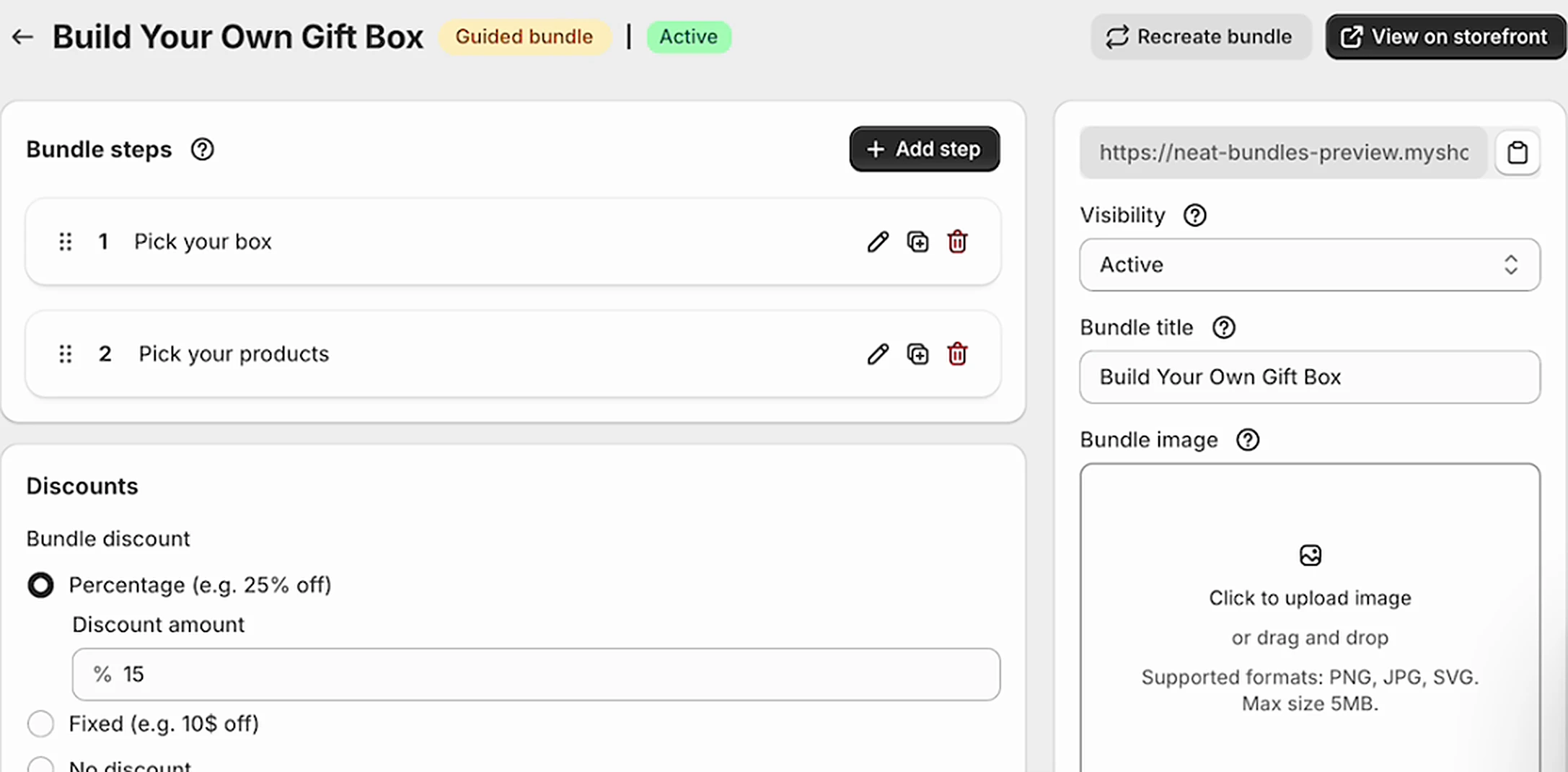
Open NeatBundles and click Add bundle. On "Choose Bundle Type" pick Guided Bundle, which lets customers build the bundle step by step. Click Next and give it a name; I used "Build Your Own Gift Box". Pick something descriptive, because the title appears on the bundle page, in the cart and at checkout. Click Finish and the bundle editor opens.
2. Add a "Pick your box" step with your boxes
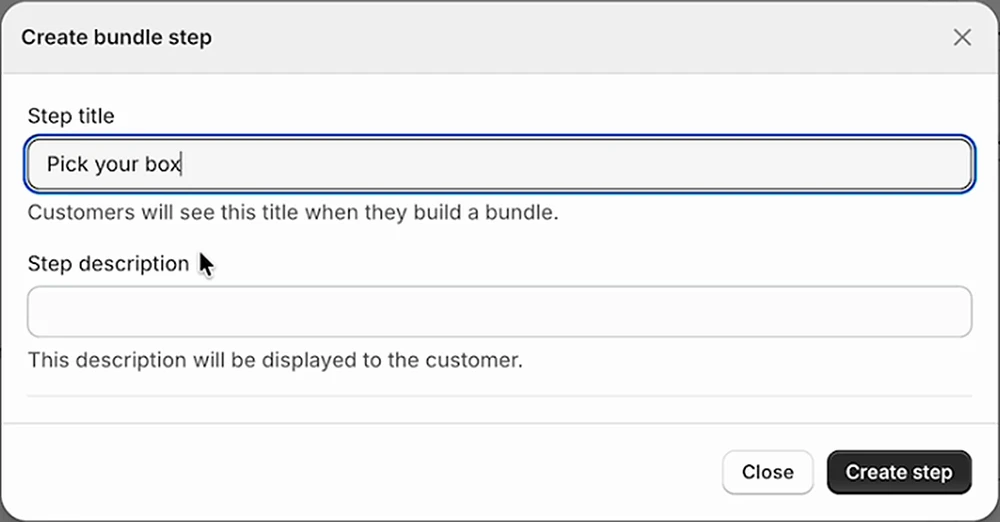
The first step is where the shopper chooses the packaging. In the "Bundle steps" card, click Create step.
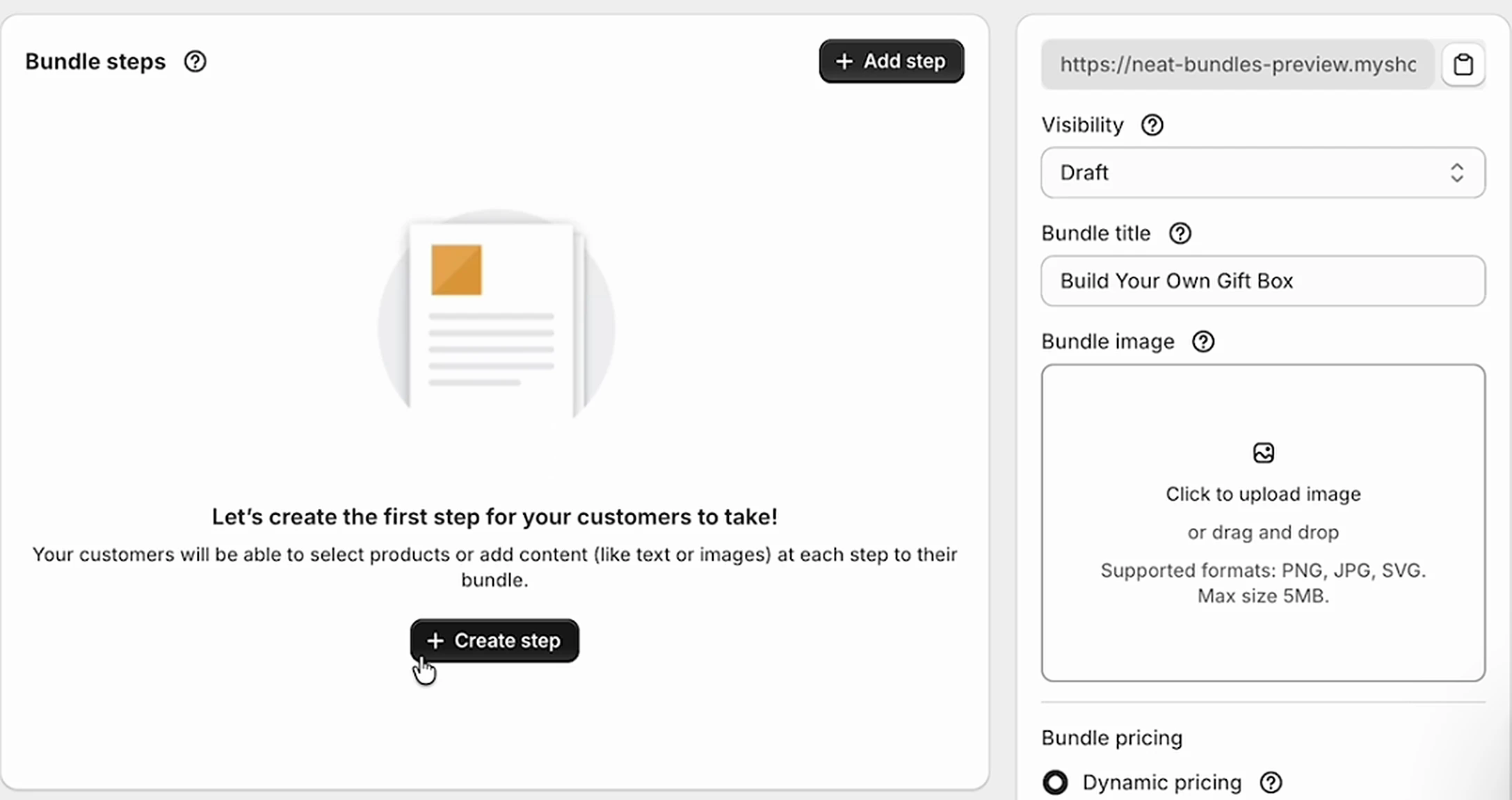
Type a step title, "Pick your box", and leave the description empty or write a short line such as "Choose the box for your gift". Click Create step.
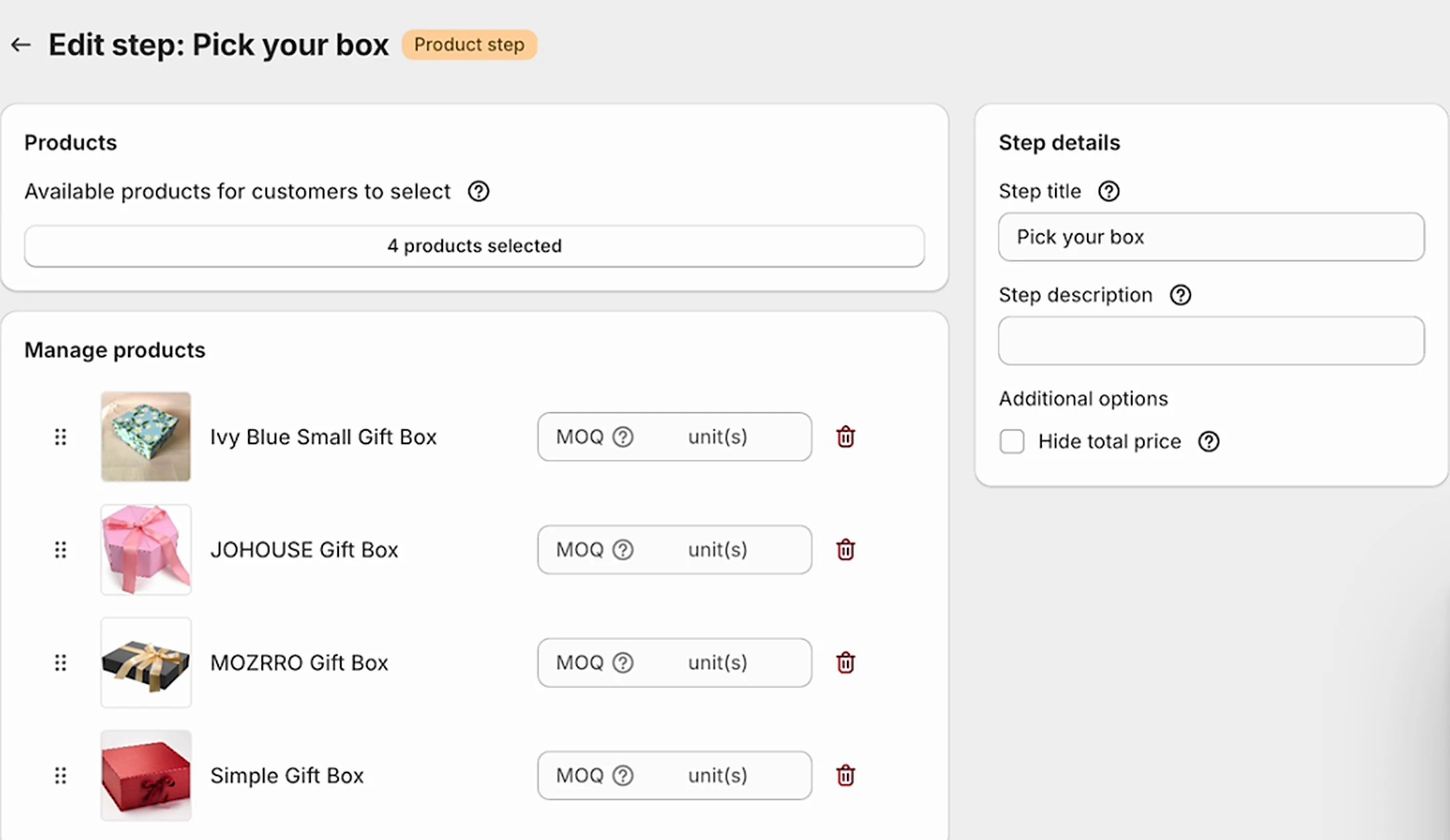
On the step page, click Add products and select your gift boxes. I added four: Ivy Blue Small Gift Box, JOHOUSE Gift Box, MOZRRO Gift Box and Simple Gift Box. In the step's Rules, let customers pick exactly one product, so every bundle gets one box. Click Save and go back to the bundle.
3. Add a second step for what goes inside
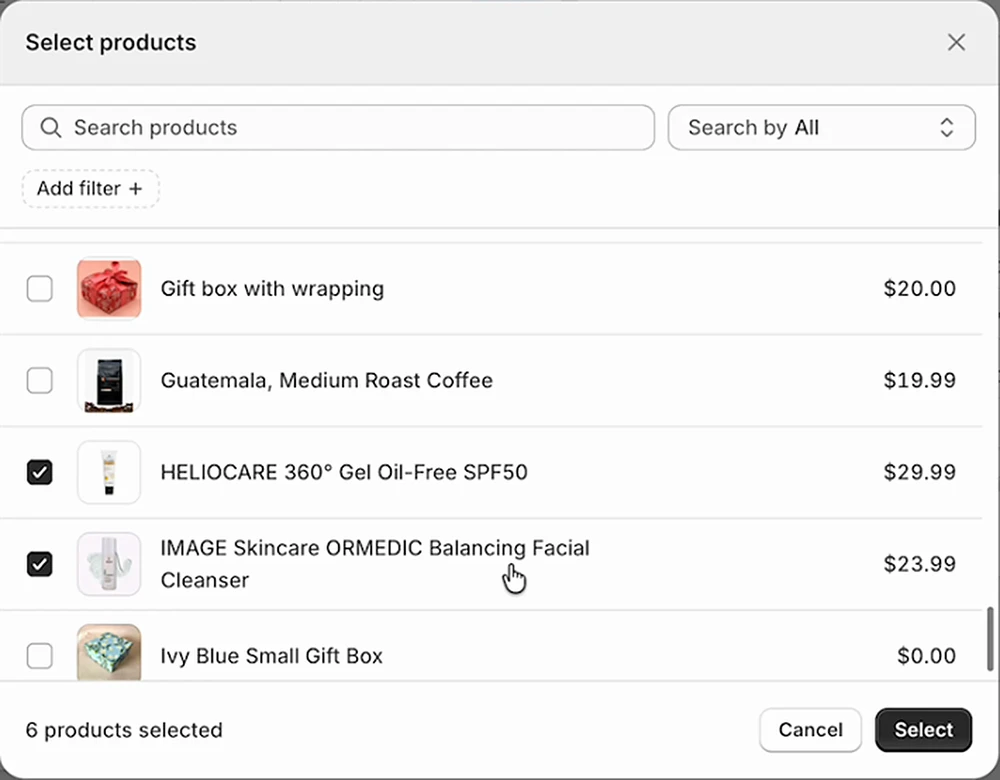
The second step holds the products that fill the box. Add another step, call it "Pick your products" and click Create step. Click Add products again and choose what can go inside; I picked a range of skincare. If you want a minimum or maximum number of items, set it in the step's Rules. A description like "Choose 3 to 5 products" tells shoppers the limit up front.
Tip: Put the limit in the step description as well as in the Rules. Shoppers read the description before they start picking, so they know how many items fit in the box.
4. Check the discount and set Visibility to Active
New bundles start with a 15% discount in the Pricing & Discounts card, which is what I kept. Change it to a fixed amount, a fixed bundle price or no discount if that suits your margins better. Then open Visibility in the sidebar, switch it from Draft to Active and save. The page is live, and "View on storefront" opens it.
What can you change in a build your own gift box?
You can change most of how the gift box behaves from the bundle, its steps and the app settings, without code. These are the questions merchants ask most once the first version is live.
Can I make sure shoppers pick only one box?
Yes. In NeatBundles you open the "Pick your box" step and set its Rules so customers can pick exactly one product. After the first pick, the other boxes grey out on the storefront, as in the screenshot at the top of this post.
Can I offer the same box in different colors or sizes?
Yes. In NeatBundles a box product with variants shows a variant picker on its card, so shoppers choose the color or size there. If you'd rather show each variant as its own card, turn on "List variants as individual products" when you add the products to the step.
Can the box be free, or the whole gift box one price?
Yes. To include the box for free, set the box product's price to $0 in Shopify. To sell the whole gift box at one price whatever goes inside, choose a fixed bundle price in the Pricing & Discounts card instead of a percentage.
Can I add a gift note step later?
Yes. In NeatBundles you turn on "Include personalization step" in the Bundle steps card, and a last step is added where shoppers fill in fields such as From, To and Message. Your box and product steps stay as they are.
Can I send shoppers straight to checkout after the last step?
Yes. In NeatBundles you choose this under Settings, Redirect: "Redirect to checkout", "Redirect to cart" or "No redirect". The demo store goes straight to checkout, which suits a gift that is ready to buy once it's built.
Can I hide boxes that are sold out?
Yes. In NeatBundles you set "Out of stock products" to Hide in Settings, and sold-out boxes and products disappear from the page instead of showing as unavailable.
Can I check the page before customers see it?
Yes. While Visibility is Draft the bundle is hidden from customers, and the Preview button opens it on your storefront for you. Set Visibility to Unlisted if you want the page reachable only by its direct link, for example to share it with a few customers first.
Gift box ideas that use a box step
A build your own gift box with a box step works for any store where the packaging is part of the gift. Here are a few combinations, all built the same way as the skincare box: step one the box, step two the contents.
- Skincare and beauty. Three box designs, then three to five products from a moisturizer, cleanser and SPF range. This is the example above.
- Coffee and tea. A kraft box or a wooden crate, then two or three bags of beans or tins of tea, plus a mug.
- Candles and home. A small or large box, then candles, a matchbox and a room spray. Price the large box higher to cover the extra space.
- Snacks and sweets. A seasonal box for the holidays and a plain one for the rest of the year, then cookies, chocolate and treats.
- Pet treats. A paw-print box, then chews, a toy and a treat pouch.
- Corporate gifts. A branded box, then a fixed set of products the company can swap. The corporate gift box guide goes deeper into selling these.
Tip: Stuck on themes and step wording? Ask ChatGPT for gift box themes, step titles and bundle names with this ready prompt, then swap in your own products.
More finished pages from other stores are in the bundle gallery.
Frequently asked questions
Which Shopify app lets customers build their own gift box?
NeatBundles lets customers build their own gift box on Shopify. You create a Guided Bundle where shoppers pick a box in the first step and the products that go inside in the next, with a bundle discount and every item tracked in your inventory. It's free to use up to $500 of bundle sales a month; see pricing for more.
Does Shopify have a build your own gift box feature built in?
No. Shopify's own bundles cover fixed sets where the shopper chooses variants, not a box the shopper fills with products of their choice. For a build your own gift box you need an app such as NeatBundles, which adds the step-by-step page, the discount and the bundle panel without code.
Is the gift box packaging deducted from my inventory?
Yes, when the box is a product in the bundle. NeatBundles breaks the bundle into its individual products, so the order lists the box and each item inside it, and Shopify deducts every one from stock. That is the main reason to make the box a product instead of an option.
How many products can go inside the gift box?
As many as you allow. In NeatBundles you set the minimum and maximum for each step in its Rules, so the box step can allow exactly one box and the contents step, for example, three to five products. The "Next step" button stays disabled until the shopper meets the rule.
How do I link to my gift box page?
Use the "Copy bundle page link" button next to Visibility in the bundle editor and paste the link into your menu, a banner, emails or ads. NeatBundles also creates a linked Shopify product for the bundle, so you can feature it in collections like any other product.
What to build next
Your first build your own gift box needs a Guided Bundle, two steps and a discount, and the setup above takes a few minutes. Once it sells, add a note step for the gifting season, or a second gift box for a different occasion with its own boxes and products. The gift box builder features list everything else the page can do, and the guided bundles page covers the step options in more detail.
Install NeatBundles from the Shopify App Store and build your first gift box today.

 Install for free