To sell corporate gift boxes on Shopify without quoting every company by email, give clients a gift box builder page. The buyer picks the box, adds who it's from, who it's for and a message, and checks out at a bundle discount. With the NeatBundles app you can set one up in a few minutes.
I'm a Shopify developer, and the complaint I hear most from merchants who sell gift boxes is about the B2B side. A company wants 30 boxes for its team, and the next two weeks go to emails: which box, what goes inside, what the card says, how many, what it costs. Every company starts that loop from zero.
This post shows the fix I recorded in the video: a page where the company builds the box on its own, and an order that lands in Shopify with everything your packer needs.
Key takeaways
- The slow part of corporate gifting is collecting the spec, not packing. A builder page moves that work to the buyer.
- The client picks a box, fills in From, To and Message, and the details travel with the order to cart, checkout and Shopify admin.
- A "Sell bundles in bulk" option lets one company order many identical boxes in one go.
- NeatBundles is free to use up to $500 of bundle sales a month.
Why corporate gift box orders eat your week
Corporate gift box orders are slow because the order itself lives in an email thread instead of in Shopify. A consumer clicks Add to cart. A company asks for a quote, then changes the box, then sends the card text in a separate email, then asks for ten more.
The cost shows up in a few places:
- Your time. Every company gets the same questions from you, and each answer arrives at a different time.
- Mistakes in the box. When the spec is spread across five emails, the packer has to piece it together. The wrong ribbon or a card addressed to the wrong person is what the client remembers.
- Manual orders. Someone retypes the agreed spec into a draft order, product by product, and has to get the discount right by hand.
- Lost orders. Small companies that want 10 boxes by Friday often give up when the answer is "let me send you a quote".
The cause is the same in every case: there is no page where the buyer can say exactly what they want. So that's what to build.
The fix: let the company build the box itself
A corporate gift box builder is a page on your Shopify store where the buyer assembles a gift box step by step, adds the personal details for the recipient, and checks out like any other order. You decide which boxes and products are allowed, the rules for each step and the discount. The buyer does the rest.
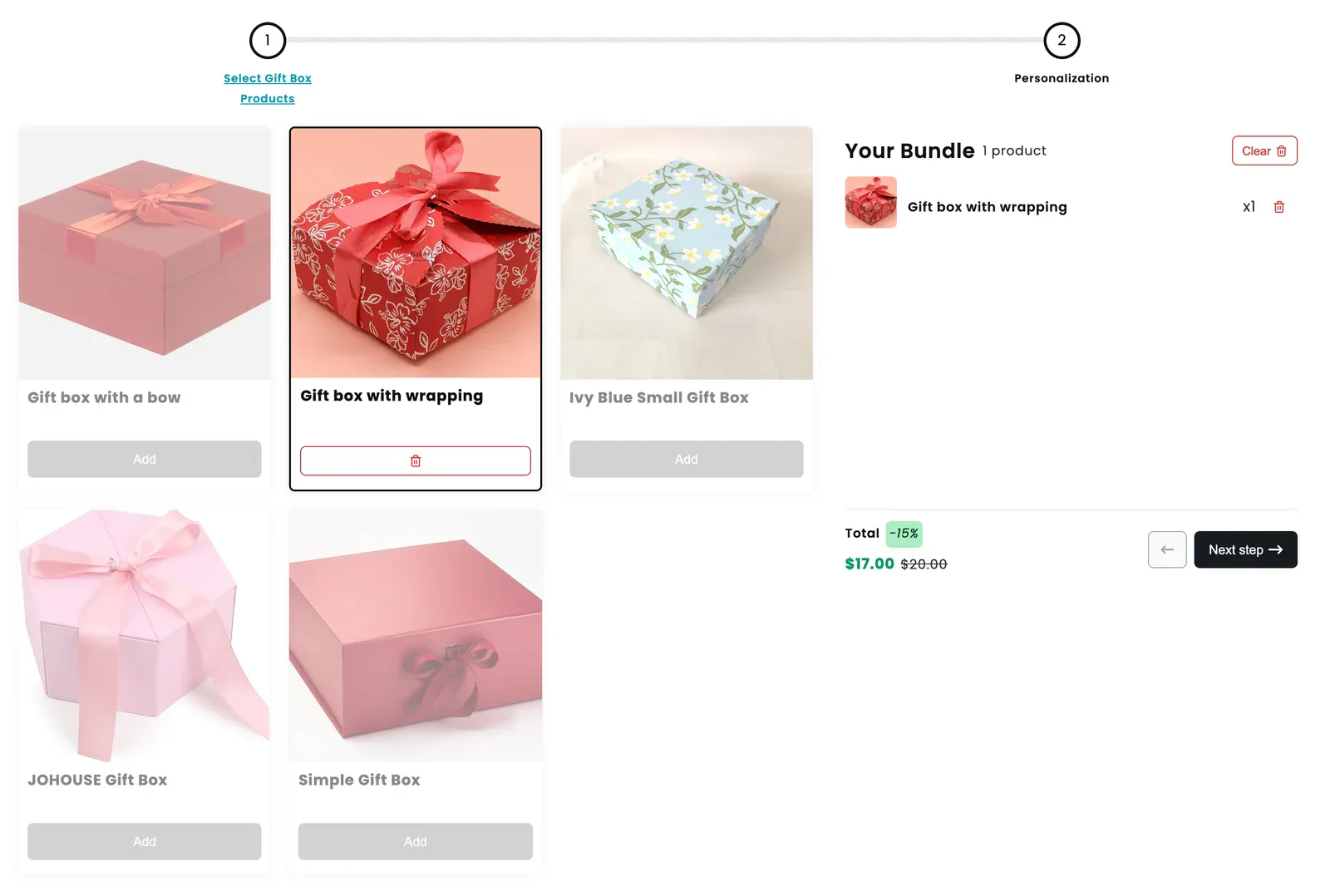
Here's the Corporate Gift Box from the video, live on our demo store. Step one asks for the box. Once the buyer picks one, the other boxes grey out because I capped this step at one box, and the summary on the right already shows the 15% discount: $17.00 instead of $20.00.
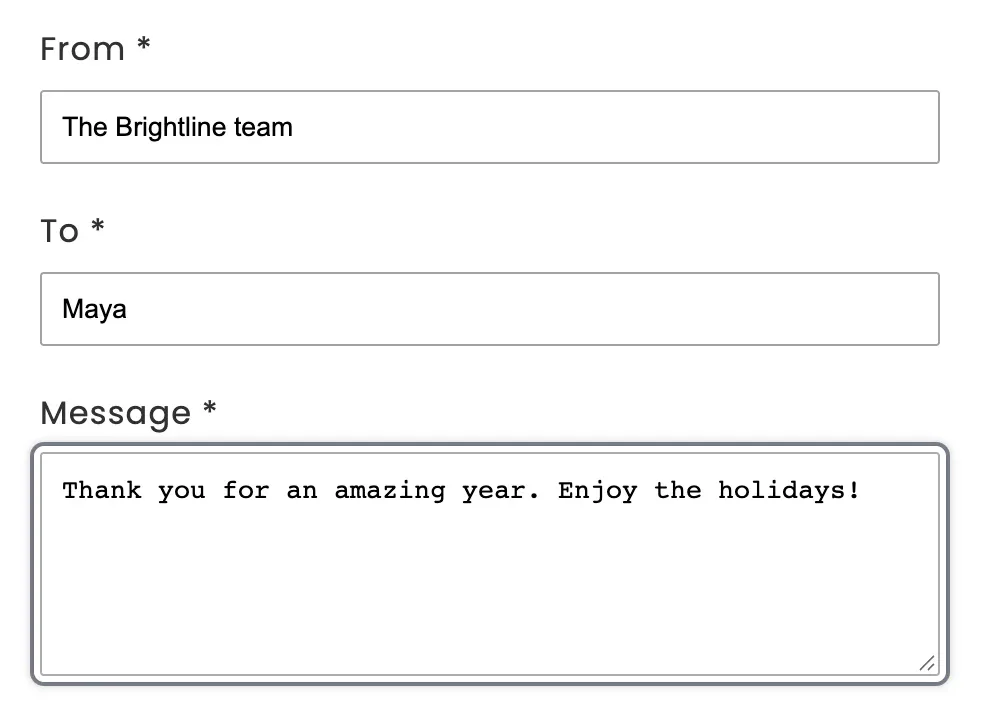
Step two is personalization. The buyer fills in From, To and Message. All three are required, so nobody can check out with a blank card. For an employee gift that might be "The Brightline team", the employee's name and a thank-you note.
Clicking Buy now goes straight to Shopify checkout. The bundle shows up as one line with the name you gave it, "Corporate Gift Box". Under it are the From, To and Message lines, the bundle discount, and the box itself as its own item:
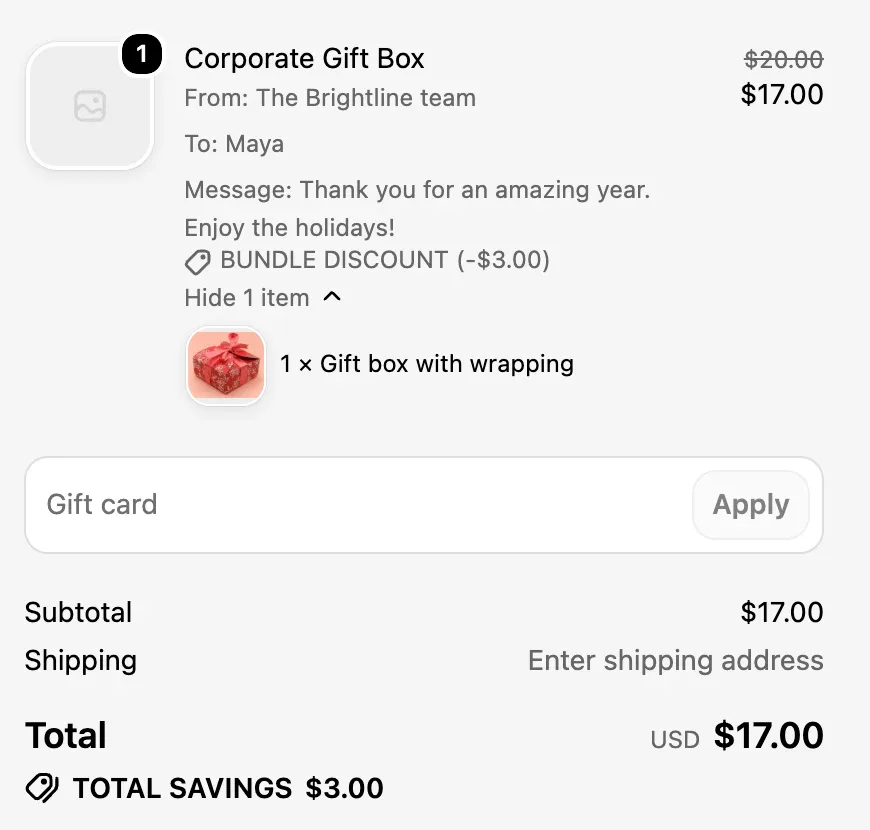
The checkout says "Total savings $3.00" in Shopify's own words, which reassures a buyer who is spending the company's money.
What arrives in your Shopify orders
Everything the buyer chose is in the order. The bundle is broken down into the individual products, so Shopify tracks stock on the real box (and on any products inside it), not on a made-up bundle product. The personalization answers are attached to the products in the order, so whoever packs it can read who the box is for and what the card says without opening an email.
That's the whole point for B2B. When the client builds the box, the spec is written once, by the person who knows it, and it reaches the packing table unchanged. More detail on the field types is on the personalized bundles page.
Setting up the corporate gift box in NeatBundles
Setting up the corporate gift box takes five short stages: create the bundle, add the box step, add the personalization step, decide on bulk orders, and publish. After you install NeatBundles from the Shopify App Store, the app walks you through two installation steps (duplicate a product template and add the bundle builder to it), then drops you on the bundles page.
Create the bundle: type, name and discount
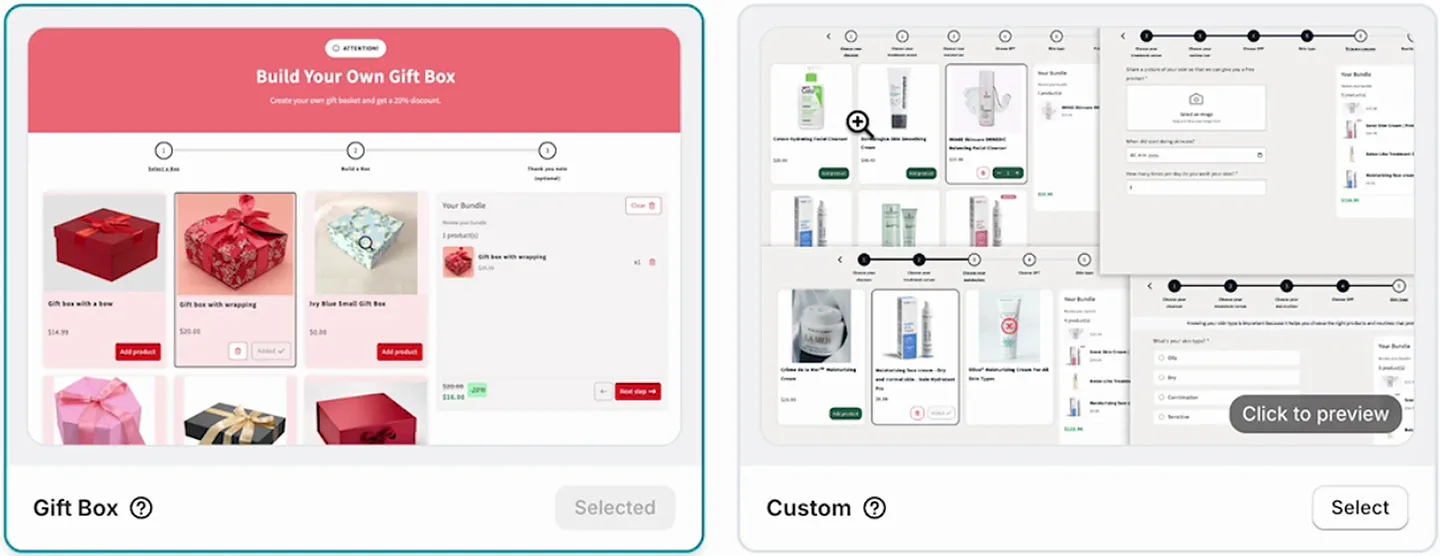
Click Add bundle and choose the Gift Box layout. The app has other layouts for other kinds of bundles, but this one is made for a box plus contents plus a message.
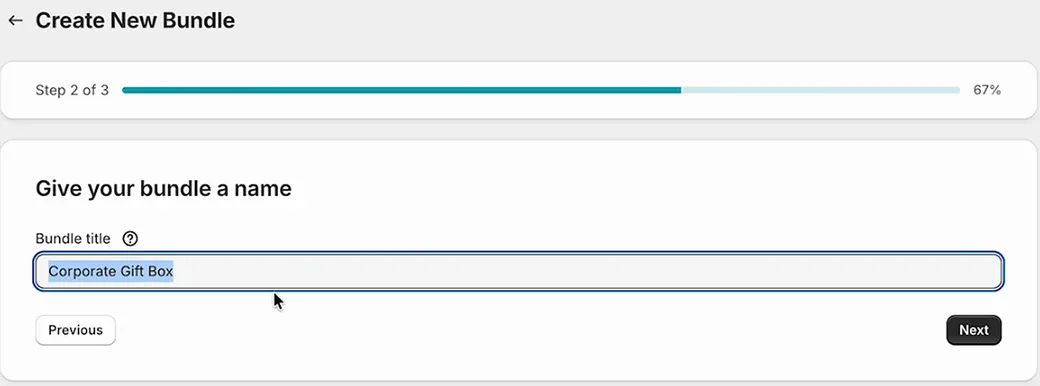
Next, name the bundle. Pick the name with the client in mind, because it's what they'll see in the cart and checkout. "Corporate Gift Box" is plain and clear.
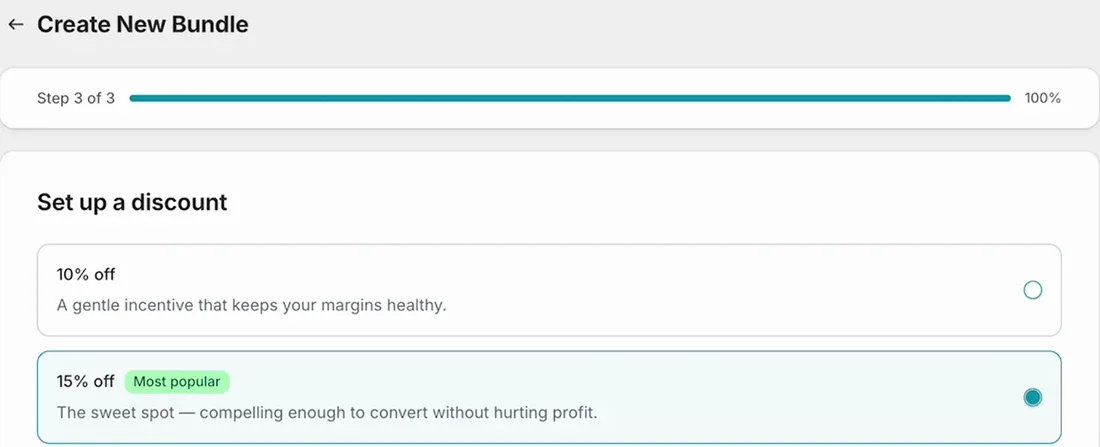
Then pick the discount. I went with 15%, which the app marks as the most popular choice. Click Finish and the bundle is created.
Add the box step and cap it at one
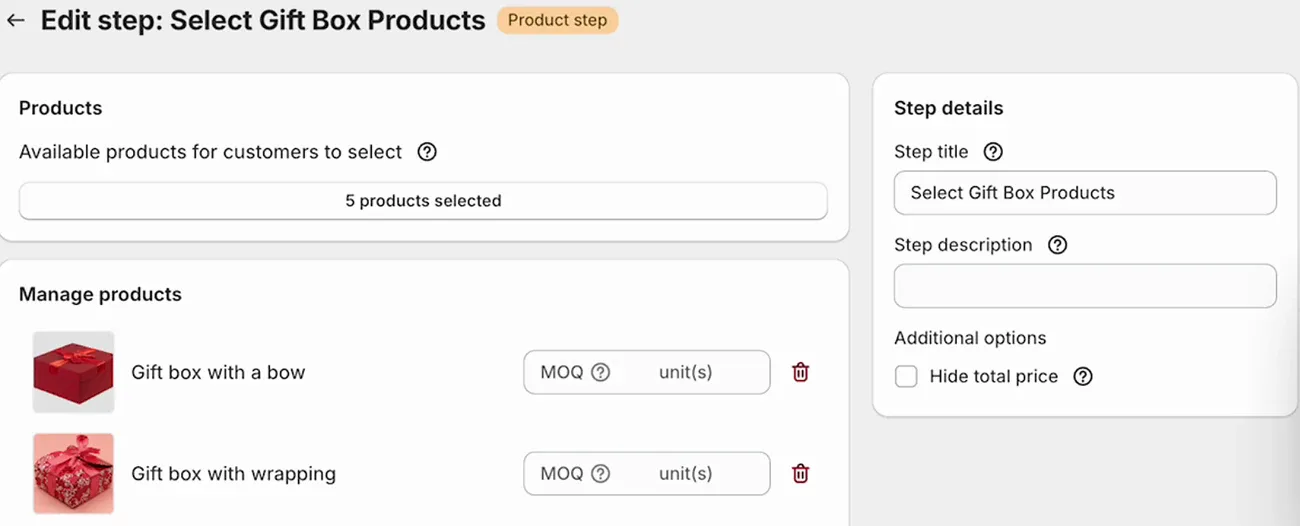
A bundle is a series of steps, and each step is one choice the buyer makes. Click Add step, give it a title (mine is "Select Gift Box Products") and an optional description. Both are shown to the buyer, so write them for the buyer. Then click Select products, tick the boxes you sell, and click Select. I added five.
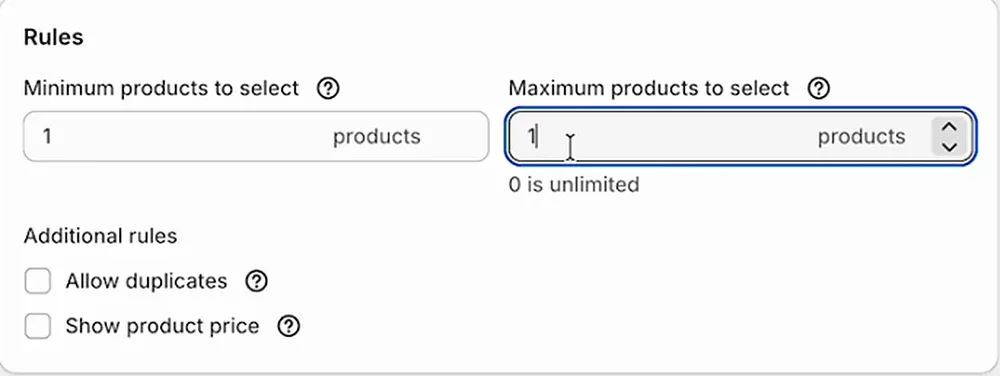
Scroll down to Rules and set Maximum products to select to 1. One gift box per gift is the only order that makes sense here, and the cap stops a buyer from adding two boxes by accident. Click Save.
If you want the box filled with products, add another product step the same way, for example "Choose what goes inside" with your snacks, candles or skincare and a minimum and maximum count. I kept the video to one step so the setup stays short.
Add the From, To and Message step
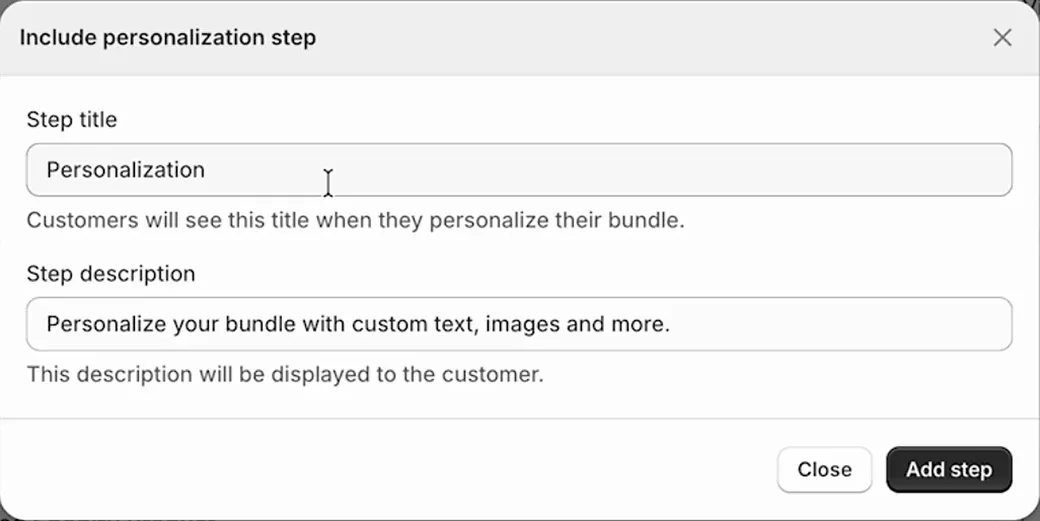
Back on the bundle page, tick Include personalization step. The title and description are pre-filled, and they're fine as they are. Click Add step.
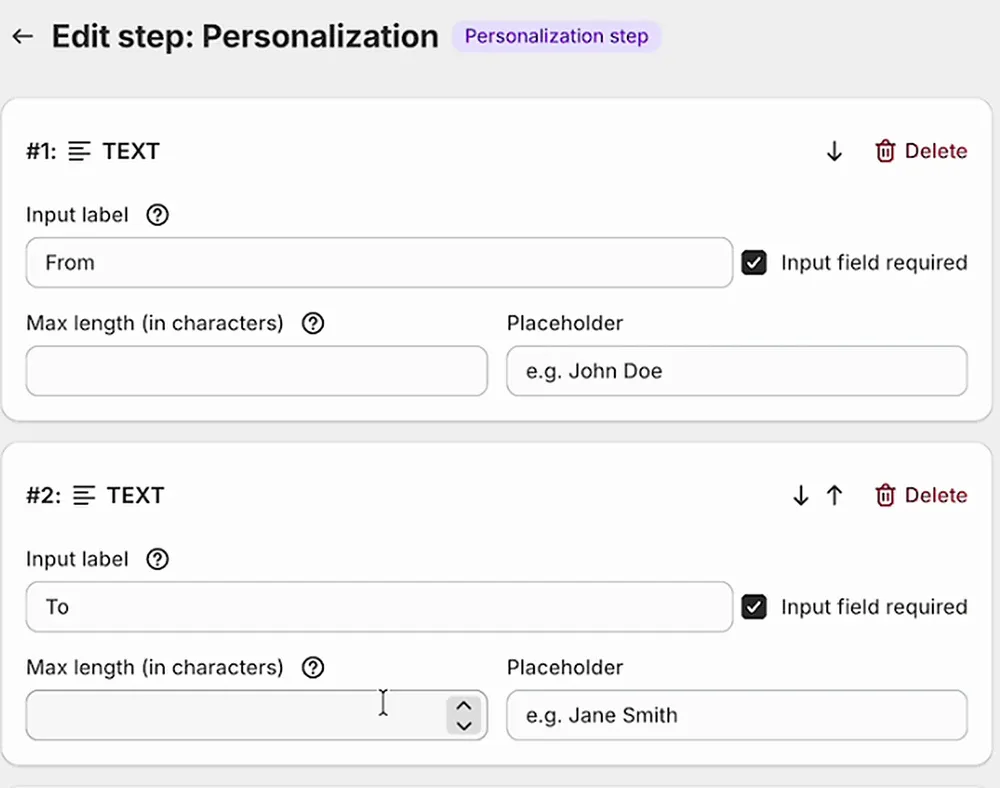
The step comes with three required fields: From, To and a long-text Message. That's exactly what a corporate gift card needs. You can rename them, change the placeholders, or add other field types, such as a date for a delivery deadline or an image upload for a company logo.
Let companies order in bulk
Companies rarely buy one box. They buy 20 identical boxes for a team. On the bundle page there's a Sell bundles in bulk toggle, which lets a buyer order several units of the same box configuration (the hint text says "e.g. 20 units of the same configuration"). For B2B, that's the setting I'd turn on first. If you also want a bigger discount for bigger orders, look at bulk and volume discount tiers.
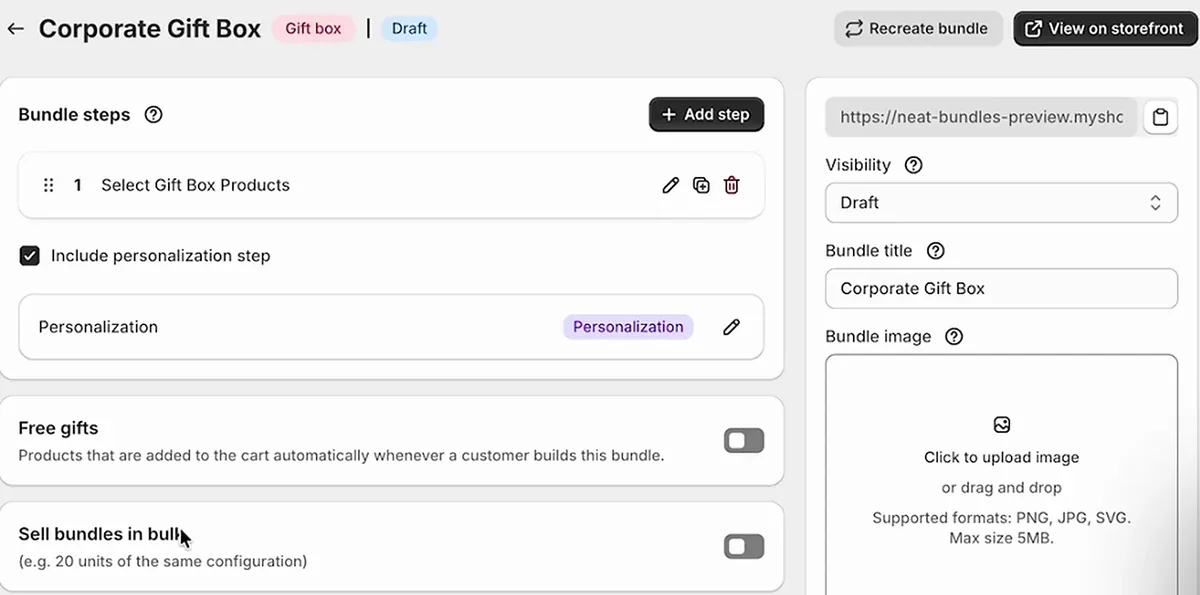
Tip: Turn on Sell bundles in bulk only if every box in that order really is the same. If a company wants a different message for each employee, they should build the box once per person, so each card is right.
Publish it and send the link
New bundles start as Draft, and a draft is invisible on the storefront. Set Visibility to Active and click Save. Then click View on storefront to see the page, and copy its link from the field above Visibility.
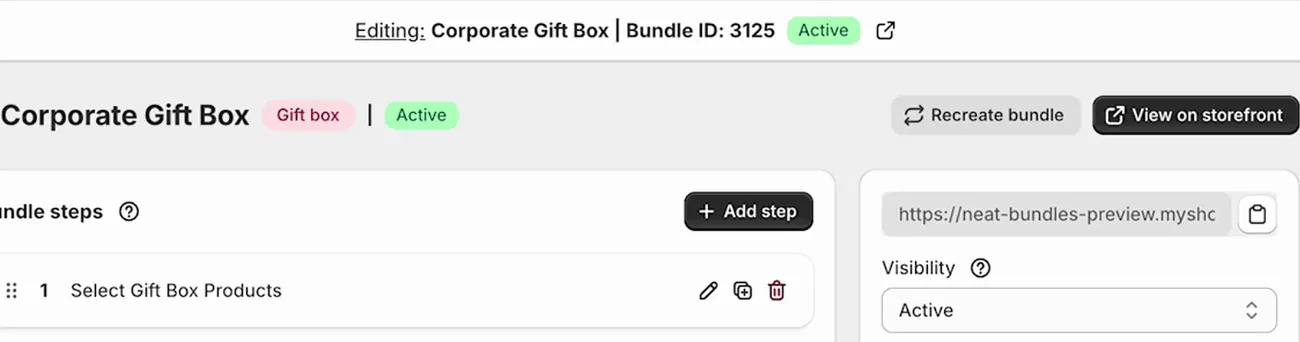
That link is what you send to companies instead of a quote. You can also add it to your menu or a "Corporate gifts" page so new buyers find it on their own.
Tip: Need a template for the email to the client? Ask ChatGPT to draft it and paste in your link.
How to check it works before a client sees it
Run one test order the way a corporate buyer would, before you send the link to anyone. Five minutes now saves an awkward call later.
- Open the page in a private window. If the builder doesn't show up, the bundle is probably still in Draft.
- Try to pick two boxes. The second one should be greyed out. If not, check the maximum on the box step.
- Try to skip the message. With required fields, the summary says "Please fill out all required fields" and won't let you continue.
- Read the checkout line. The bundle name, From, To and Message should all be there, plus the discount.
- Place a test order and open it in Shopify admin. Confirm the packer can read everything from the order alone.
What a gift box builder won't do for B2B orders
A gift box builder solves the spec, the message and the price. It doesn't run your whole corporate gifting operation, and it's worth knowing where it stops before you promise a client something.
| Part of a corporate order | Handled by the builder page | Needs something else |
|---|---|---|
| Choosing the box and contents | Yes, inside the rules you set | |
| Recipient, sender and card message | Yes, required fields per box | |
| Discount, including bigger ones for bulk | Yes, applied automatically in the cart | |
| Many identical boxes in one order | Yes, with Sell bundles in bulk | |
| Shipping each box to a different address | A multi-address shipping app, or a spreadsheet of addresses you handle yourself | |
| Custom branding, logo printing, sourced products | A quote and a conversation | |
| Invoices and payment terms | Shopify's B2B features or your own invoicing |
Two cases where I'd still pick up the phone: very large orders with custom-sourced products, and clients who need a different message, product mix and address for every single recipient. For everything in between (the 10 to 50 box orders that make up most requests) the builder page is faster for both sides.
Frequently asked questions
Can I sell corporate gift boxes on Shopify without an app?
Partly. You can list a fixed gift box as a normal product, and Shopify's free Bundles app handles fixed bundles where you decide the contents. Neither lets the company choose the box and contents or attach a recipient and message to each box. For that you need a gift box builder app such as NeatBundles.
Can a company order 50 of the same gift box in one order?
Yes. Turn on Sell bundles in bulk on the bundle, and the buyer can order several units of the same box configuration in one checkout. If the 50 boxes need different messages, the buyer builds each box separately so every card gets the right name.
Where do I see the recipient and gift message for each box?
The From, To and Message answers show under the bundle in the cart and at checkout, and they're attached to the products of that bundle in the Shopify order. Your packer reads them straight from the order in Shopify admin, with no email thread to search.
Can I give companies a bigger discount for larger orders?
Yes. Besides the bundle discount (15% in this example), NeatBundles supports bulk discount tiers, up to five, that reward a buyer who orders several boxes at once. They apply automatically in the cart, so there's no discount code to send or forget.
How much does it cost to sell corporate gift boxes with NeatBundles?
NeatBundles is free to use up to $500 of bundle sales a month, with every feature included, including the gift box layout, personalization and bulk ordering. The pricing page has the details.
Where to go from here
Build the Corporate Gift Box once, test it with the five checks above, and send the link to the next company that emails you for a quote. If you want ideas for how other stores lay out their builders, browse the bundle gallery, and the full feature list for boxes is on the gift box builder page.
You can install NeatBundles and have the first version live today. Then see how many of those email threads turn into checkouts.