A Shopify gift box builder is a page where shoppers pick a box, fill it and add a gift message, then buy it all as one discounted bundle. Shopify has no built-in one, so you use an app: in NeatBundles, create a Gift Box bundle with a box step, a gifts step and a note step, then set it Active.
Picture someone buying an anniversary present on your store. They want a nice box, three skincare products their partner actually uses, and a short note that says who it's from. Without a builder they'd add four products to the cart, hunt for a gift message field, and hope the box arrives packed together. With one, they do it in three short steps and you get an order that's ready to pack.
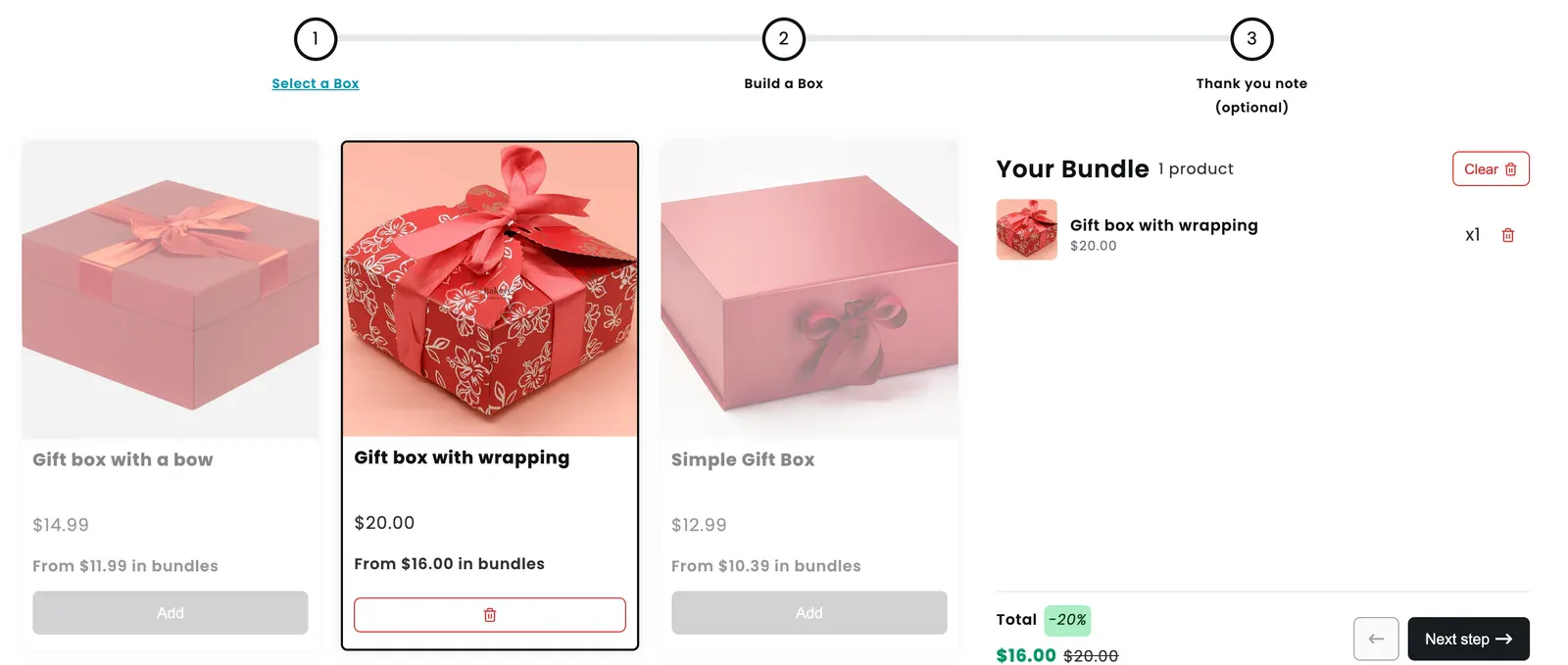
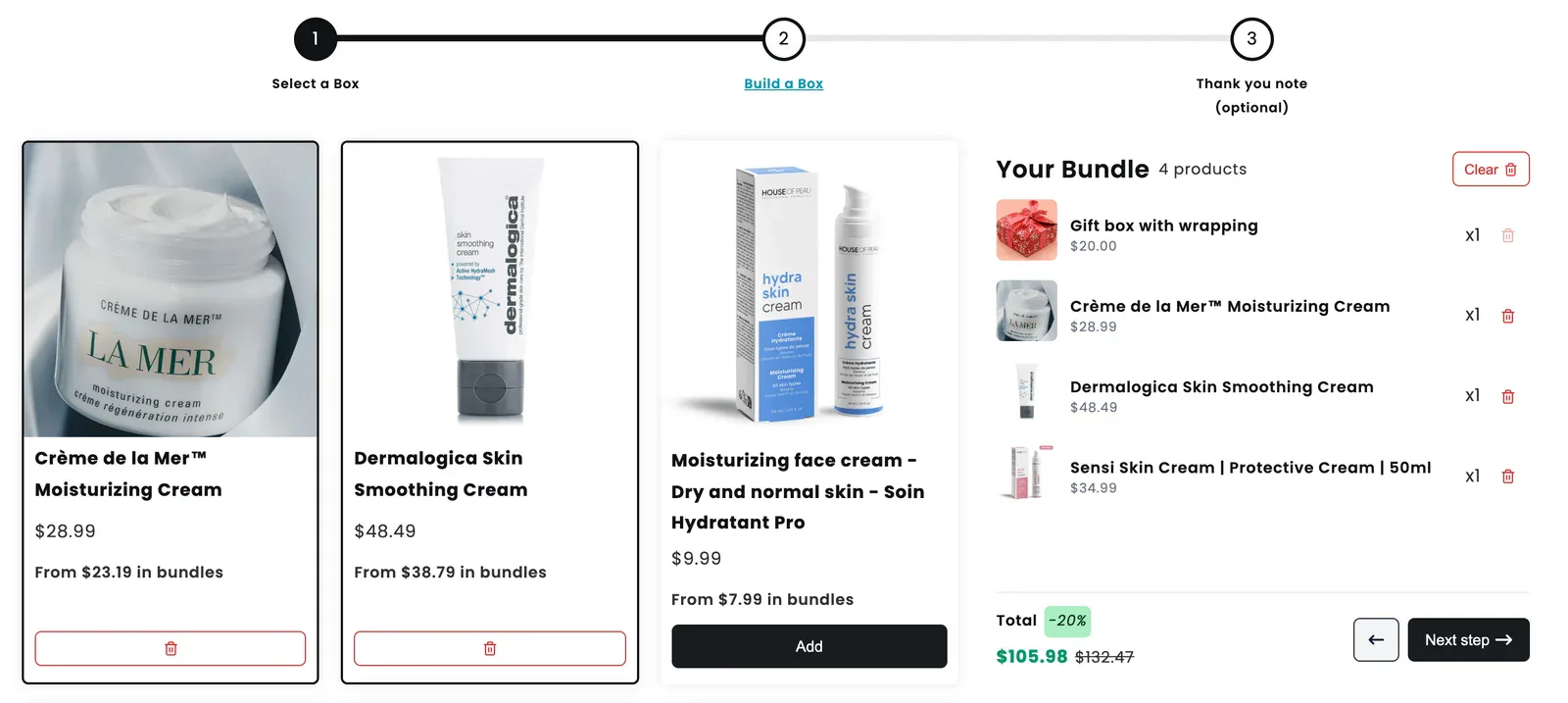
Here's the first step of the gift box I tested on our demo store. The shopper picked "Gift box with wrapping" and the other boxes greyed out, because this step allows exactly one box:
Key takeaways
- A gift box builder has three layers: the box, the gifts inside it, and a note with From, To and Message fields.
- In NeatBundles the setup is five actions: create a Gift Box bundle, name it and pick a discount, add product steps, include the personalization step, set it to Active.
- At checkout the box is one line that carries the gift note and the discount, with every product listed under it as its own SKU.
- NeatBundles is free to use up to $500 of bundle sales a month.
What is a Shopify gift box builder?
A Shopify gift box builder is a multi-step bundle page that lets the shopper assemble a gift instead of buying a pre-packed set. Each step is one decision, a live "Your Bundle" panel keeps the running total, and the last step collects the gift details. The whole box goes to the cart or checkout as a single bundle.
Every layer the shopper sees maps to one setting in the app:
| Shopper step | What the shopper does | Where you set it in NeatBundles |
|---|---|---|
| 1. Select a box | Picks one box or wrapping | A product step with your box products, minimum and maximum set to 1 |
| 2. Build the box | Adds the gifts that go inside | A product step with the products you want to offer |
| 3. Thank you note | Writes From, To and a message | The personalization step (always the last step) |
| Total | Sees the discount as they build | The bundle discount you choose when creating the bundle |
That table is also your plan. If you can fill in each row for your store, the setup below takes a few minutes.
Plan the box before you open the app
A gift box builder is only as good as the choices on each step, so decide three things first.
The boxes. The box or wrapping has to exist as a real Shopify product, with a price and stock, so it can be picked and counted. On our demo store the boxes are products like "Gift box with a bow" ($14.99) and "Gift box with wrapping" ($20.00). If you want the box to be free, give it a $0 price on purpose rather than leaving it out; the shopper still needs to choose one.
The gifts. Pick a range that makes sense together and fits the box. In the video I used skincare: a moisturizing cream, a smoothing cream and a serum. Six to ten products per step is plenty; a step with forty products turns a gift into homework.
The note. Decide which gift fields you need and whether they're required. The default From, To and Message trio covers most gifts. Personalized messages are what turn a bundle into a present, and the personalized bundles feature covers what else the step can collect.
How to build the gift box builder in NeatBundles
The setup below follows the tutorial video. It assumes you've installed NeatBundles from the Shopify App Store and finished the short onboarding, which ends on the "My bundles" page.
1. Create a bundle with the Gift Box type
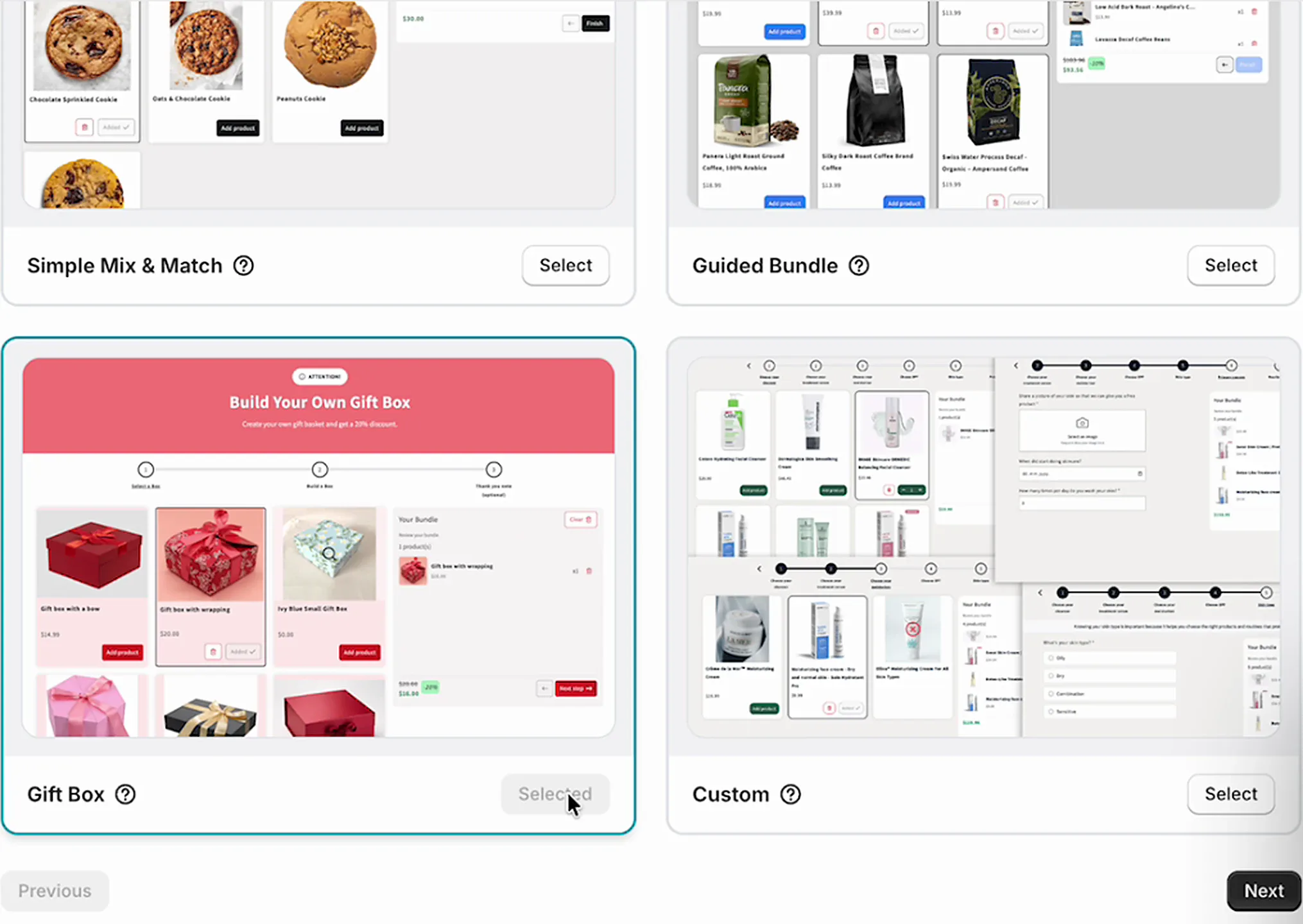
Click Add bundle on the "My bundles" page. The first screen asks which bundle type you need. NeatBundles supports several (Simple Mix & Match, Guided Bundle, Custom and more), and the one built for this is Gift Box. Select it and click Next.
2. Name the box and choose the discount
Give the bundle a title. I called mine "Gift Box Builder", which is fine for a demo, but pick something that reads well to customers: the speaker in the video calls this out because the name shows up in the checkout and in other places shoppers see.
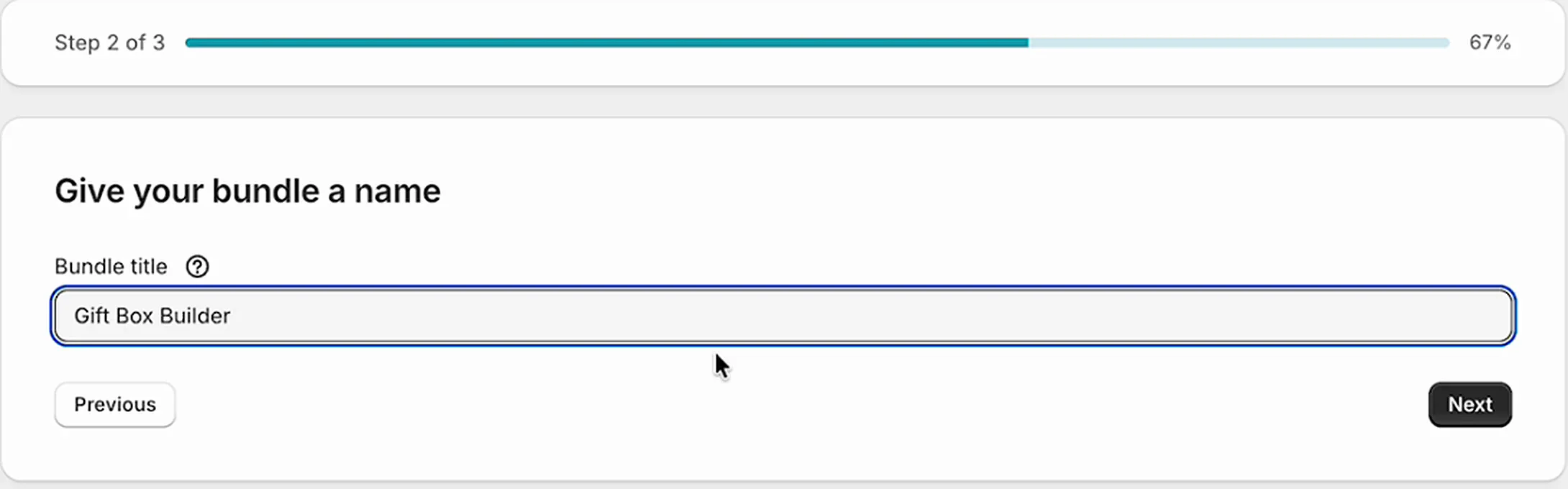
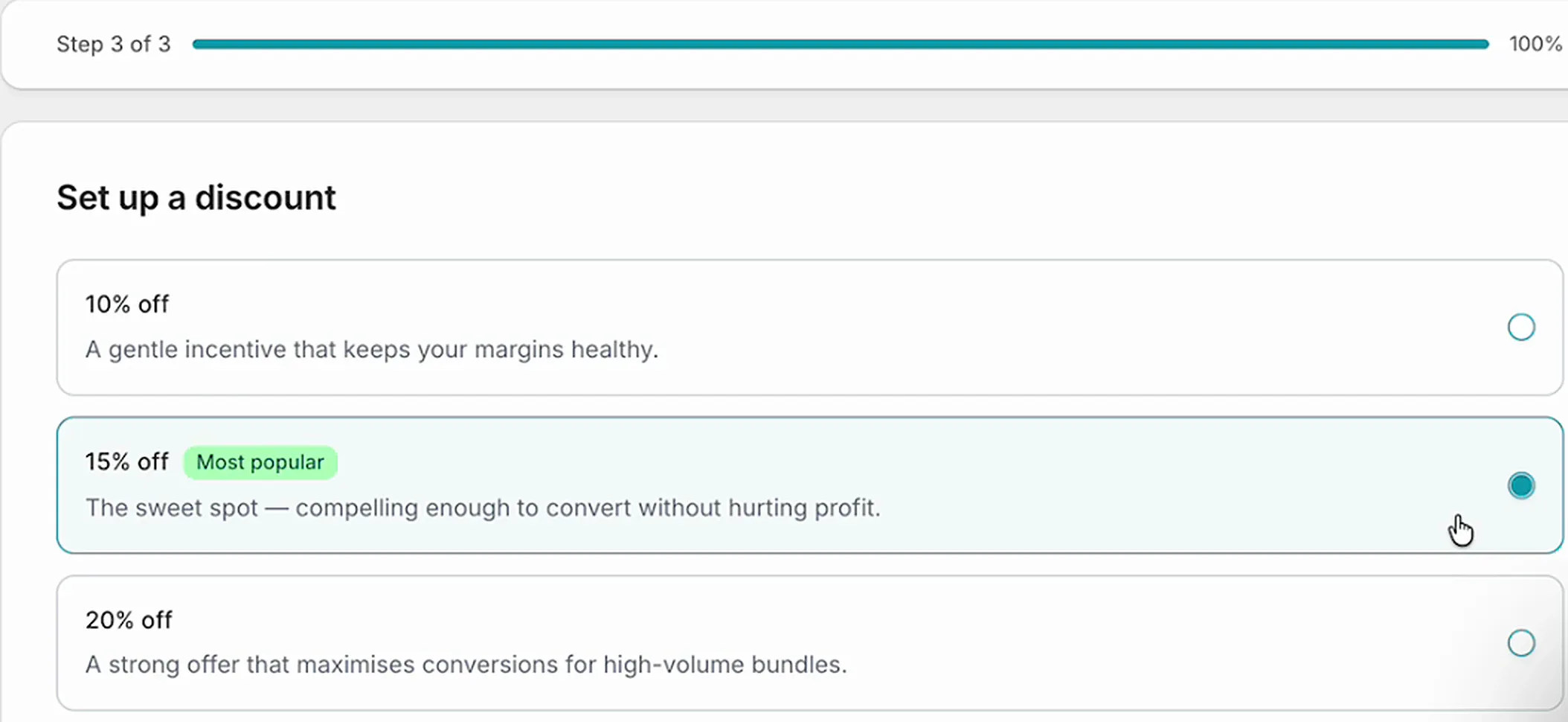
Click Next and pick a discount. The wizard offers 10%, 15% (marked "Most popular") and 20%. I stayed with 15%, then clicked Finish. You can switch to a fixed amount or no discount later in the bundle's Discounts section.
3. Add a step for the box and one for the gifts
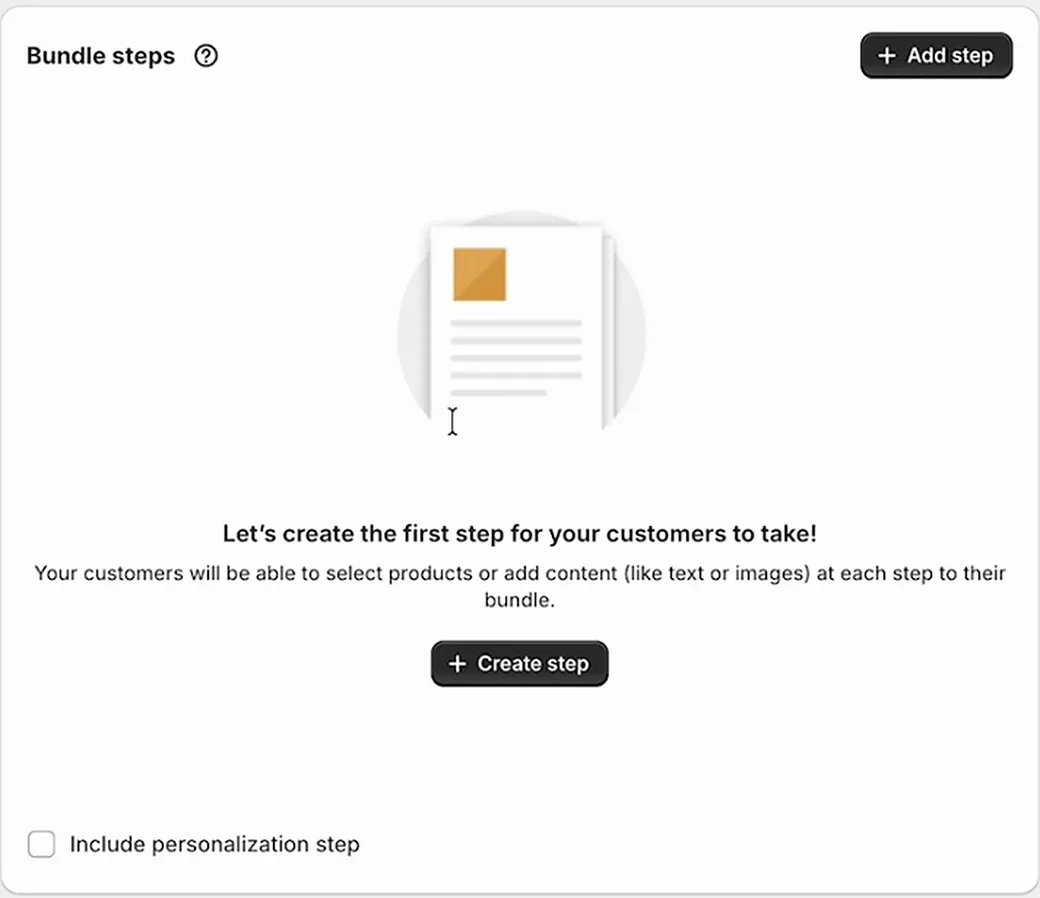
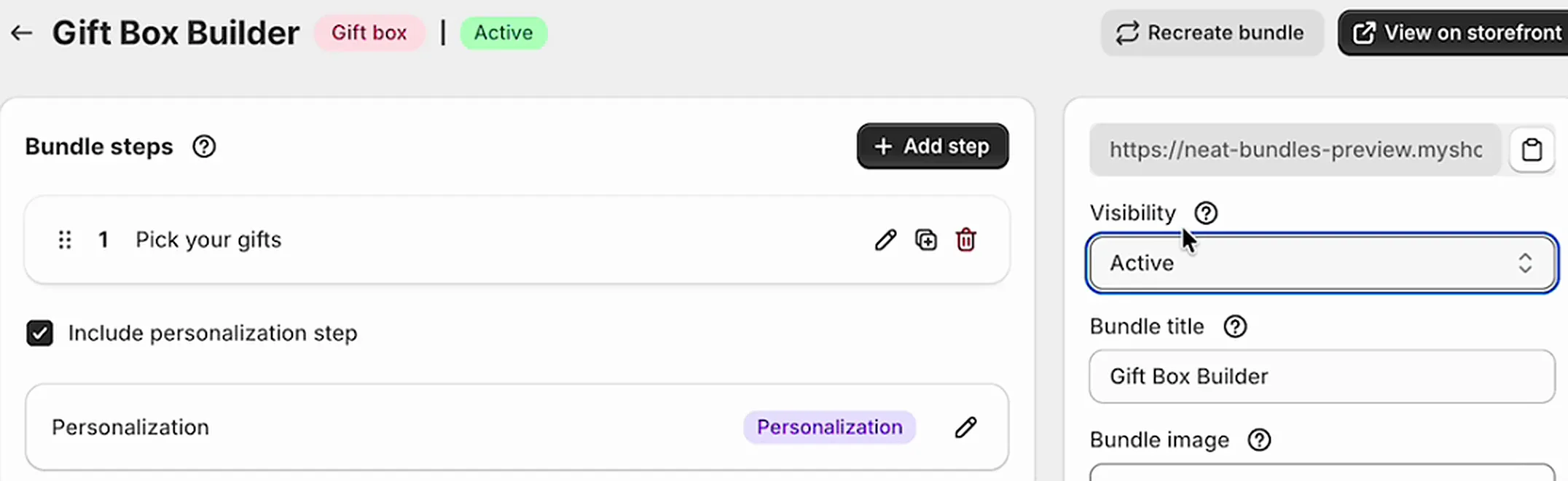
After Finish you land on the bundle page. The Bundle steps card is empty for now, with a Create step button and a checkbox at the bottom called "Include personalization step" that we'll use in a moment. The panel on the right shows the bundle's Visibility, which starts as Draft.
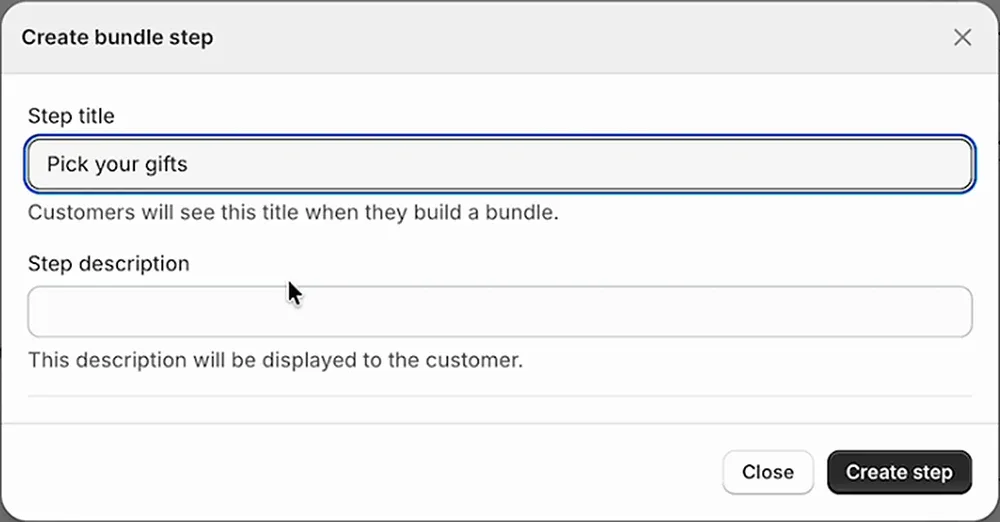
Click Create step and give the step a title and an optional description. Customers see both while they build, so write them for the shopper. I typed "Pick your gifts"; with more time you'd write something warmer, like "Fill the box with their favourites".
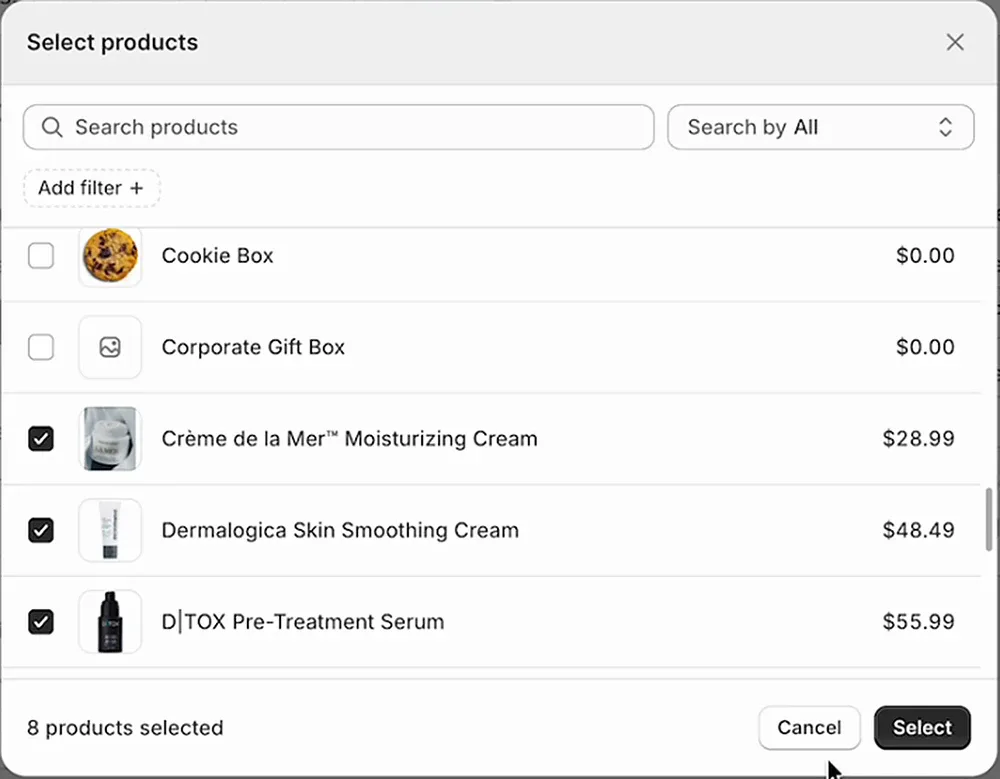
Click Create step, then Select products on the next page, tick the products for this step and click Select. I picked the skincare products from the demo store. Click Save when the list looks right.
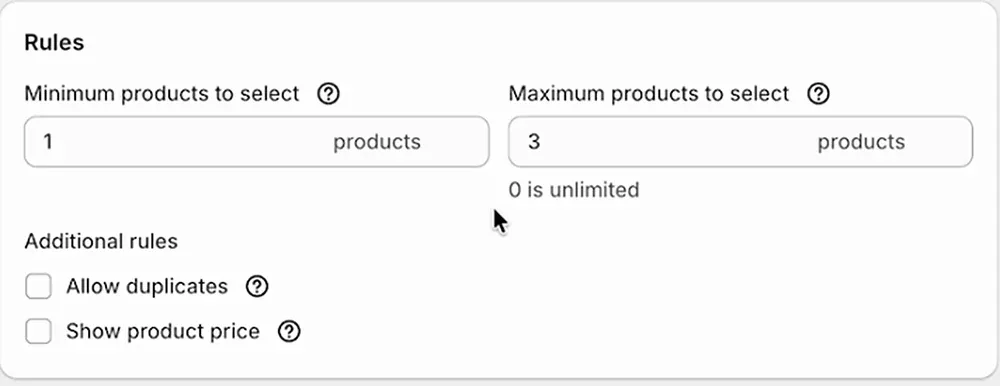
Scroll down to the Rules card. Here you set the minimum and maximum number of products a shopper can pick on this step (0 means unlimited), and whether they can pick the same product twice ("Allow duplicates"). My gifts step allowed one to three products.
The box step is created exactly the same way: create a step, select your box products, and set both the minimum and the maximum to 1. That's what makes the other boxes grey out once a shopper picks one. Order the steps so the box comes first; picking the box before the gifts feels natural to shoppers.
Tip: Want more layers? Add another product step the same way, for example "Add a treat" with chocolates or candles. Each step keeps its own rules, so you can limit the box to one and let the treats go up to three.
4. Turn on the personalization step for the gift note
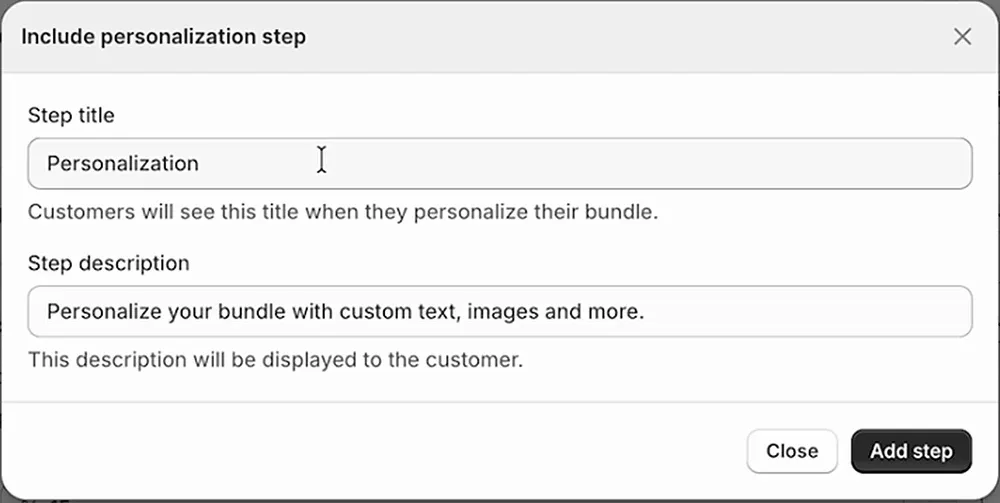
Back on the bundle page, tick Include personalization step. A dialog opens with the title "Personalization" and the description "Personalize your bundle with custom text, images and more." already filled in. Change them if you like (our demo store calls it "Thank you note (optional)") and click Add step.
Open the new step and you'll find three fields already set up: From (text), To (text) and a long text field for the Message. For each one you can change the label, set a maximum length, add a placeholder and decide whether it's required. The defaults matched what I needed, so I left them.
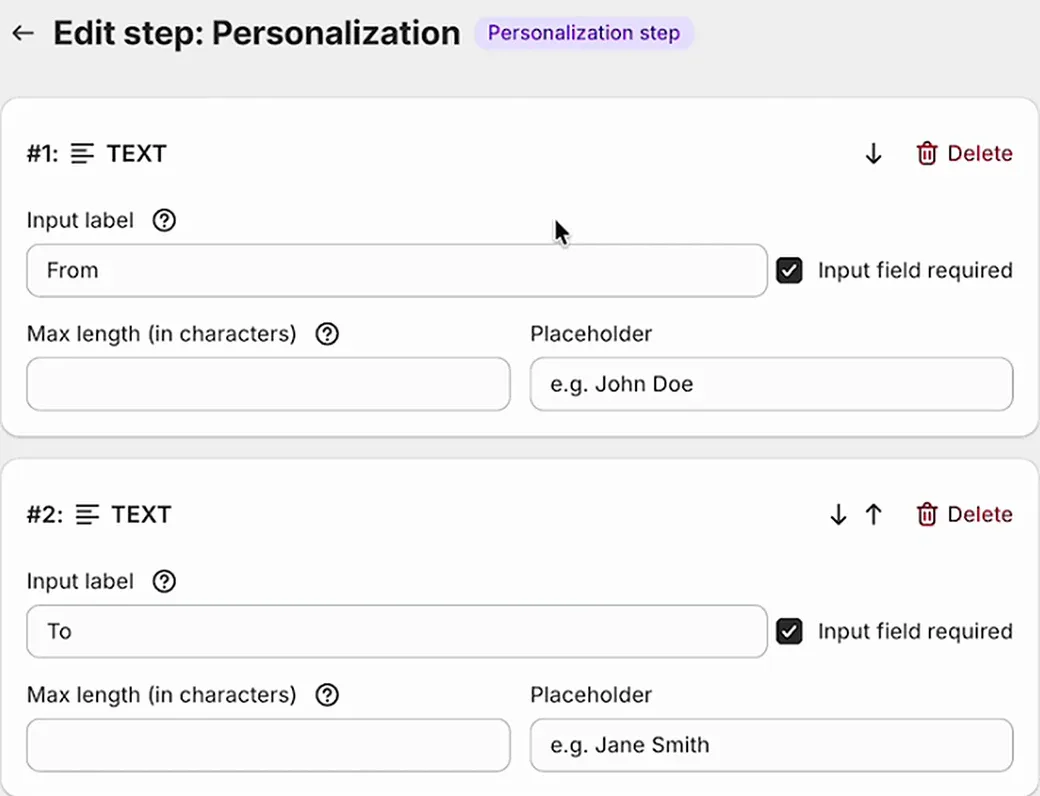
Heads up: From and To are marked required by default. If you call the step "optional" like our demo store does, untick "Input field required" on those fields, otherwise the note isn't really optional.
5. Switch from Draft to Active and open it
The last setting is visibility. Every new bundle starts as Draft, which means shoppers can't see it. Change Visibility to Active, click Save in Shopify's bar at the top, then click View on storefront. A second or two later your new gift box builder page opens.
What shoppers see, from box to checkout
Testing the page as a shopper is the fastest way to catch a confusing step title or a missing product. I went through the gift box on our demo store (it uses a 20% discount instead of the 15% from the video).
After picking the wrapped box, the shopper moves to "Build a Box" and adds the gifts. The panel on the right lists each item with its price, and the total shows the discount next to the crossed-out price: four items worth $132.47 come to $105.98.
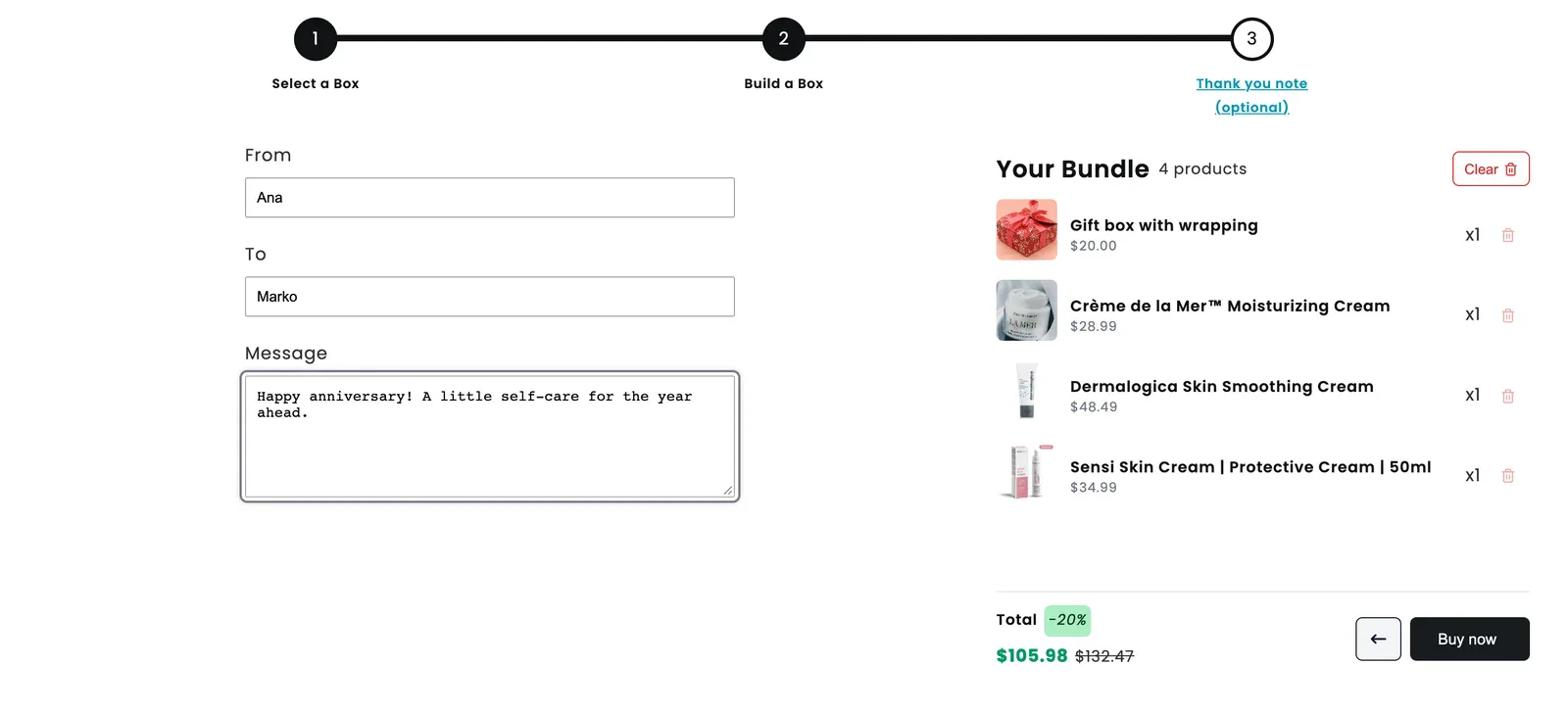
The last step is the note. The shopper fills in From, To and Message, and the panel still shows everything in the box, so they can check it one more time before clicking Buy now.
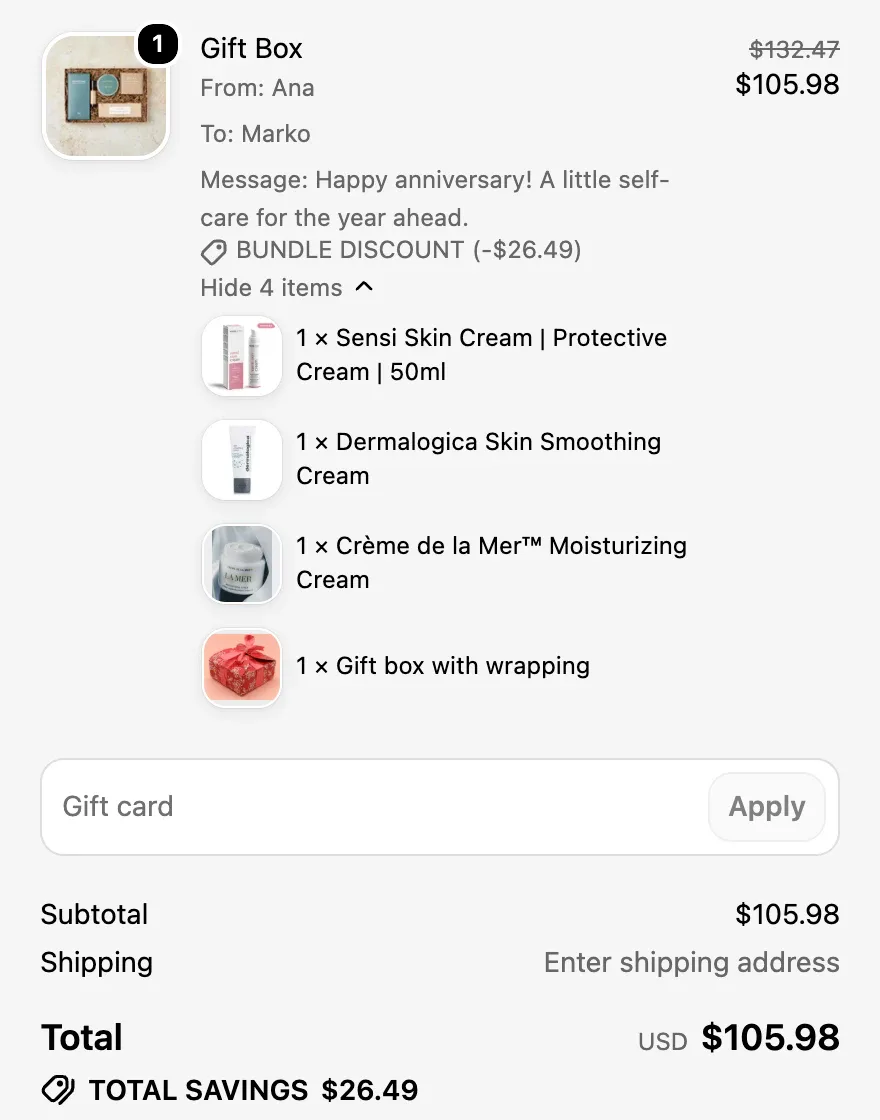
Buy now goes straight to Shopify checkout (you can send shoppers to the cart instead). The box arrives as one line called "Gift Box", with the From, To and Message underneath, the bundle discount of $26.49, and all four items listed: the wrapped box and the three creams.
What lands in your Shopify orders
Every product in the box stays its own SKU, so Shopify deducts stock from the real box and the real creams, not from a made-up "gift box" product. When the order comes in, you see the items grouped under the gift box with the From, To and Message on them, which is exactly what whoever packs the box needs. Pack it, write the card, ship it.
When a gift box builder is the wrong tool
A gift box builder adds steps, and steps only help when the shopper has real choices to make. It's the wrong fit when:
- You sell one hero product. If nearly everyone buys the same thing, a fixed bundle or a simple "add gift wrap" option converts better than a three-step builder.
- Your boxes are curated on purpose. If the value is your selection (a sommelier's three wines, a chef's spice set), let shoppers buy the finished box. A builder hands that curation to someone who came to you for it.
- You can't pack custom combinations. Every order will be different. If your fulfilment only handles pre-packed kits, sort that out before launch.
- There's no gift moment. Without a recipient, the note step is friction. For everyday "pick any 3" offers, a single-page step-by-step bundle or mix and match without personalization is simpler.
Gotchas worth checking before launch
These came up while recording the video or testing the demo store:
- The bundle title is customer-facing. It shows at checkout, so "Gift Box Builder Test 2" will be seen. Rename it before you go live.
- Box products need a real price and stock. A box with no stock can't be picked, and a box that's $0 by accident gives your wrapping away.
- Optional notes shouldn't have required fields. See the heads up in step 4.
- Draft hides everything. If the page doesn't show up for shoppers, check Visibility first and remember to click Save after changing it.
- Keep step titles short. On our demo store "Thank you note (optional)" already wraps onto two lines under the progress bar on a desktop screen, and phones are narrower. Two or three words per title read best.
- Link the page somewhere. The builder is its own page; add it to your menu, a holiday banner or a "Gifts" collection description, or nobody will find it.
Frequently asked questions
Does Shopify have a built-in gift box builder?
No. Shopify's native bundles cover fixed sets of products, but not a page where shoppers pick a box, choose the contents and add a gift message. You need an app for that. NeatBundles adds the builder as its own page with a one-click theme install and no code.
Can customers add a gift message to their gift box?
Yes. The personalization step adds From, To and Message fields by default, and you can change labels, placeholders, length limits and which fields are required. The message appears in the cart, on the checkout line of the gift box, and on each product of the box in the Shopify order.
Can shoppers choose the box or gift wrapping?
Yes. Make the box options Shopify products and put them in their own step with the minimum and maximum set to one. Once a shopper picks a box, the others grey out, and the chosen box appears in the bundle summary and at checkout like any other item in the bundle.
Does a Shopify gift box builder keep inventory accurate?
With NeatBundles it does, because every item in the box is its own SKU. Shopify deducts stock from the actual box and products in the order instead of from a separate bundle product, so you can't sell a cream you've run out of and your stock counts stay correct.
Can a gift box have a fixed price?
Yes. A gift box can have one fixed price whatever goes inside, or a price that adds up the items picked, with a percentage or fixed-amount bundle discount on top. You switch between dynamic and fixed pricing on the bundle page, and the discount applies automatically with no discount code.
How much does a gift box builder cost?
NeatBundles is free to use up to $500 of bundle sales a month, with every feature included, so you can build and test a gift box builder without paying anything. Beyond that, plans scale with your bundle sales; the pricing page has the details.
What to try next
Once the basic box works, the next improvements are small: write warmer step titles, add a second product step for treats, and set a fixed price if you want a clean "$49 gift box" offer. The gift box builder feature page lists every option, and the bundle gallery has live examples you can click through on our demo store.
If you haven't yet, install NeatBundles for free and build your first box. The setup part of the video runs about three minutes, and most of that is typing step titles.