A custom gift box bundle on Shopify is a page where shoppers pick the gifts that go in the box, then type who it's from, who it's for and a message, and buy it all as one discounted bundle. In NeatBundles you build it as a Guided Bundle with a product step and a personalization step.
In the video I build exactly that on our demo store: one step where the shopper fills the box with skincare products, a second step with From, To and Message fields, a 15% bundle discount, and nothing else. The admin part takes a few minutes. This post goes past the video into the part merchants ask me about most: what the personalization step can collect, which fields you can make required, and where the shopper's answers show up when you pack the order.
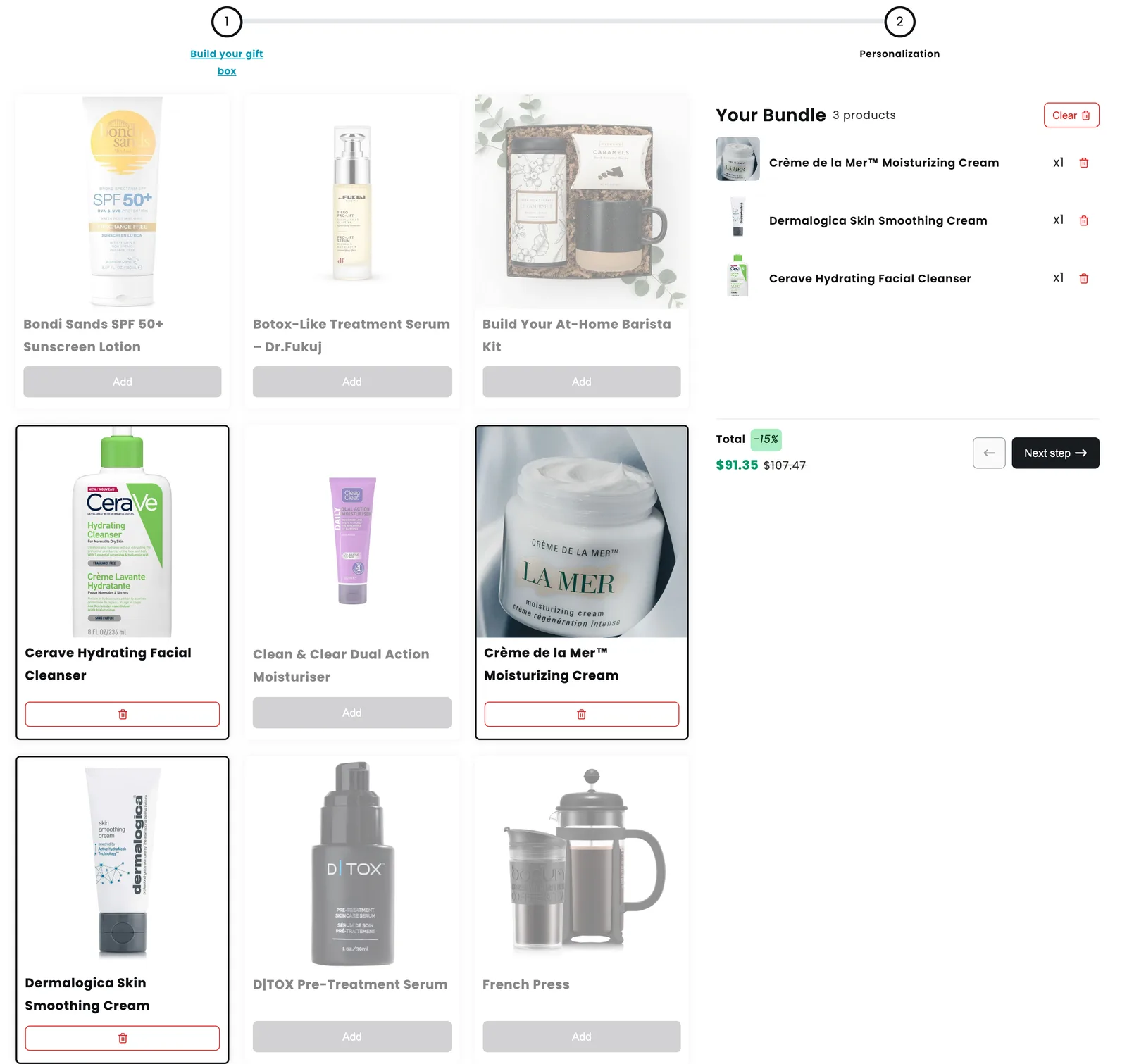
Here's the first step of that gift box on the live demo page. The step allows three products, so once the shopper has picked three, the rest grey out:
Key takeaways
- A custom gift box bundle in NeatBundles is a Guided Bundle: product steps for the gifts, then a personalization step for the names and the note.
- Turning on the personalization step adds From, To and Message fields for you. You can edit, reorder, delete or add fields.
- Fields can be Text, Long Text, Number, Image, Multiple Choice, Date or Date & Time, and each one can be required or optional.
- The shopper's answers sit on the bundle line in the cart, at checkout and on the Shopify order, with every product listed underneath for packing.
What makes a gift box bundle "custom"?
A gift box bundle is custom when the shopper decides both what goes in the box and what the box says. Two layers do the work: product steps, where the shopper picks the gifts within limits you set, and a personalization step, where they type or choose the details that make it a gift rather than an order.
| Layer | What the shopper does | Where you set it in NeatBundles |
|---|---|---|
| Gifts | Picks products, e.g. three skincare items | A product step with its own products and rules |
| Box or wrapping (optional) | Picks one packaging option | Another product step limited to one product |
| Personal touch | Types From, To, a message, or uploads a photo | The personalization step and its input fields |
| Price | Sees the bundle discount as the box fills up | Pricing & Discounts on the bundle page |
My gift box builder walkthrough adds a box step in front of the gifts. In this video I skipped the box step to keep it to two steps, which suits stores where the packaging is always the same.
Setting it up in NeatBundles
The setup is short. Install NeatBundles from the Shopify App Store and finish the onboarding, which turns on the app embed and walks you through a first practice bundle. Then:
- Create the bundle. Click Add bundle, choose Guided Bundle and give it a name. Use something descriptive, because the bundle title is what customers see on the page, in the cart and at checkout. Mine is "Jure's Gift Box".
- Set the discount. New bundles start with a 15% discount, which is what I kept. You can change it in the Pricing & Discounts section of the bundle page.
- Add the gift step. Click Create step, give it a title ("Build your gift box"), pick the products with Select products and save. Under Rules you set how many products the shopper needs to pick to complete the step.
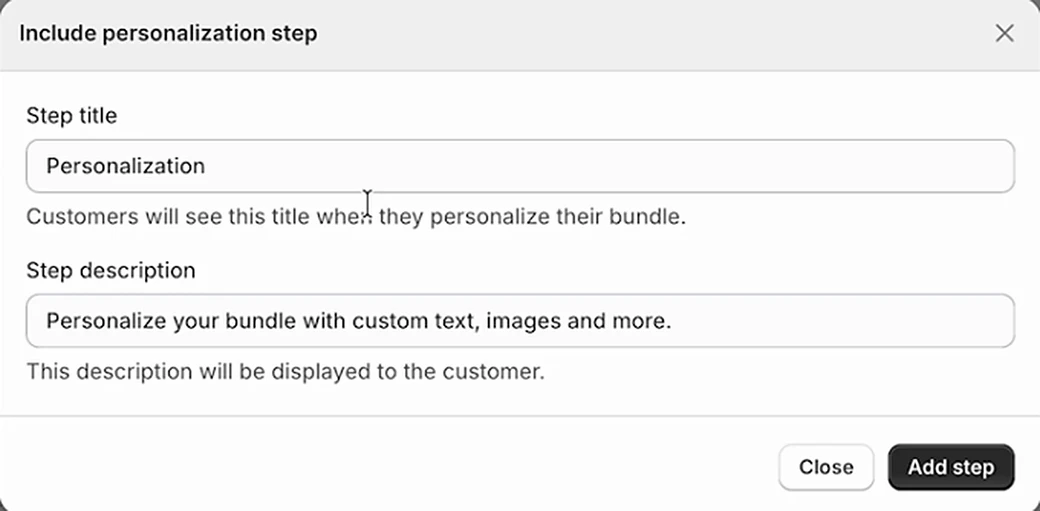
- Turn on the personalization step. Switch on Include personalization step. A dialog opens with the step title "Personalization" and a short description already filled in. Click Add step.
- Go live. Change Visibility from Draft to Active, save, and click View on storefront to see the page.
Here's the dialog from step 4, prefilled the way it comes:
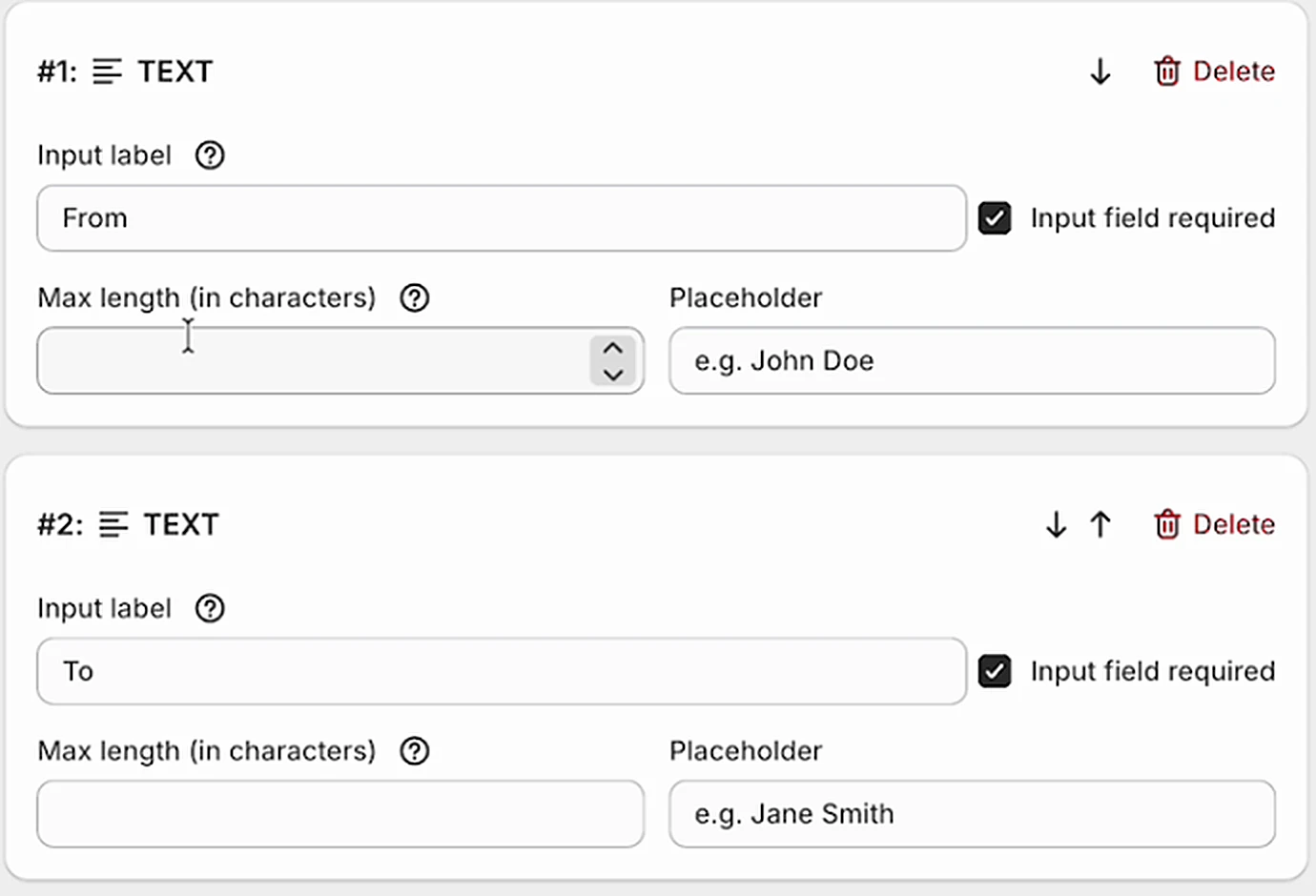
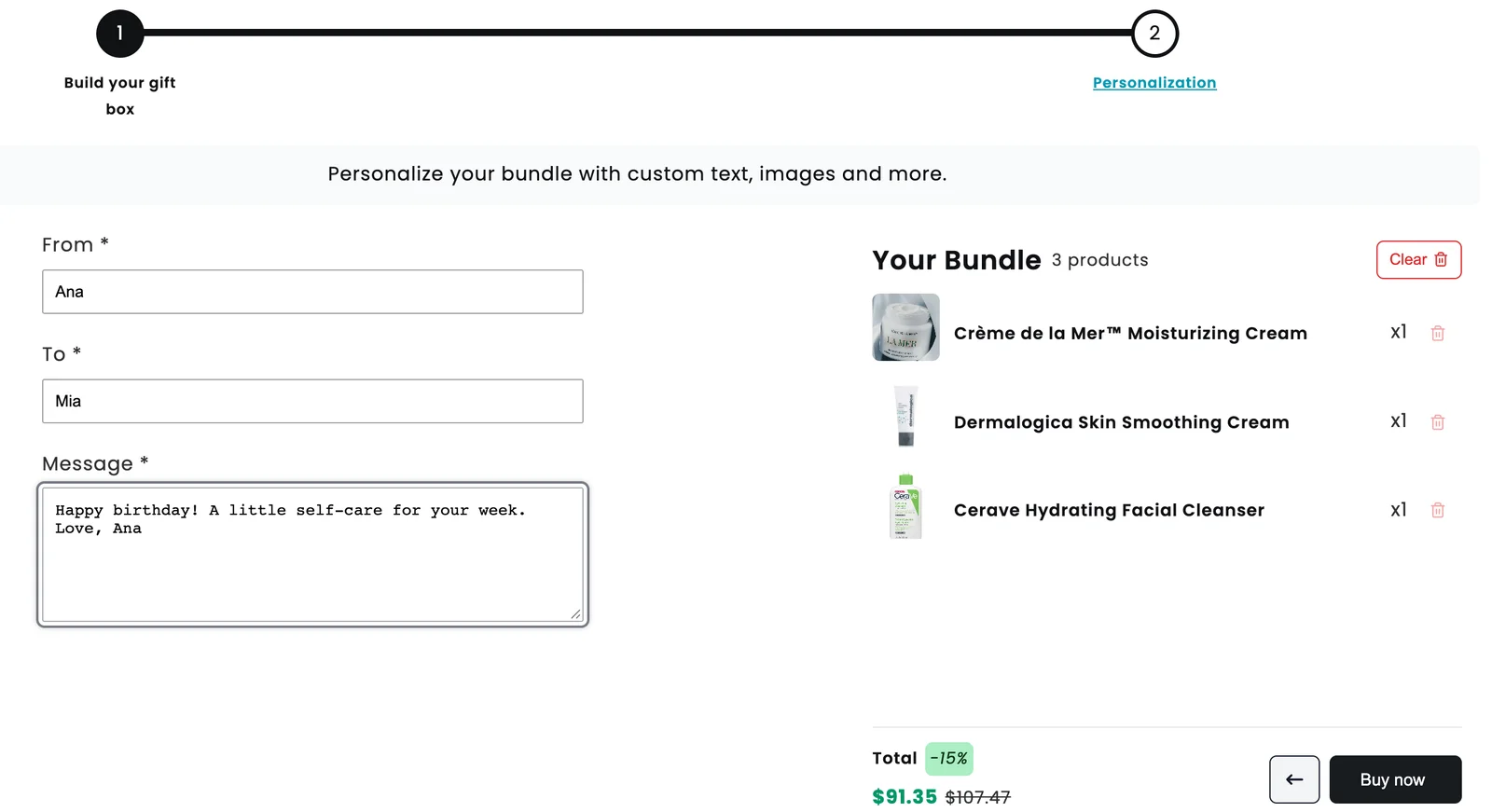
Clicking the personalization step opens its fields. NeatBundles adds three for you: From and To as Text fields and Message as a Long Text field, all three required. I kept them exactly as they were:
Heads up: The video was recorded on an earlier version of the app, where this layout had its own "Gift box" bundle type and a discount screen in the setup wizard. Today the same result is a Guided Bundle with the personalization step switched on, and the discount lives on the bundle page.
What can the personalization step collect?
The personalization step can collect almost any detail a gift needs: names, a long message, a number, a photo, one choice from a list, or a date. Each question below is one a merchant has asked me while setting up a gift box.
Can shoppers write a gift message?
Yes. In NeatBundles the personalization step comes with a Message field already in place, as a Long Text field so shoppers have room for a few lines. You can rename it ("Card message", "Note for the recipient") in the Input label, and change the placeholder, which is the grey example text inside the box.
Which field types can I add?
You can add seven field types with the New input field button in the personalization step. Each one fits a different gift detail:
| Field type | What the shopper sees | Gift box example |
|---|---|---|
| Text | One-line text box | From, To, a name to engrave |
| Long Text | Multi-line text box | The card message |
| Number | Number box | Age on a birthday card |
| Image | Upload area for a PNG or JPG | A photo to print on the card |
| Multiple Choice | A list, shopper picks one option | Card design, ribbon colour |
| Date | Date picker | When the gift should arrive |
| Date & Time | Date and time picker | A delivery slot |
You can drag fields to change their order, and delete any you don't need, including the three that come prefilled.
Can I make a field optional?
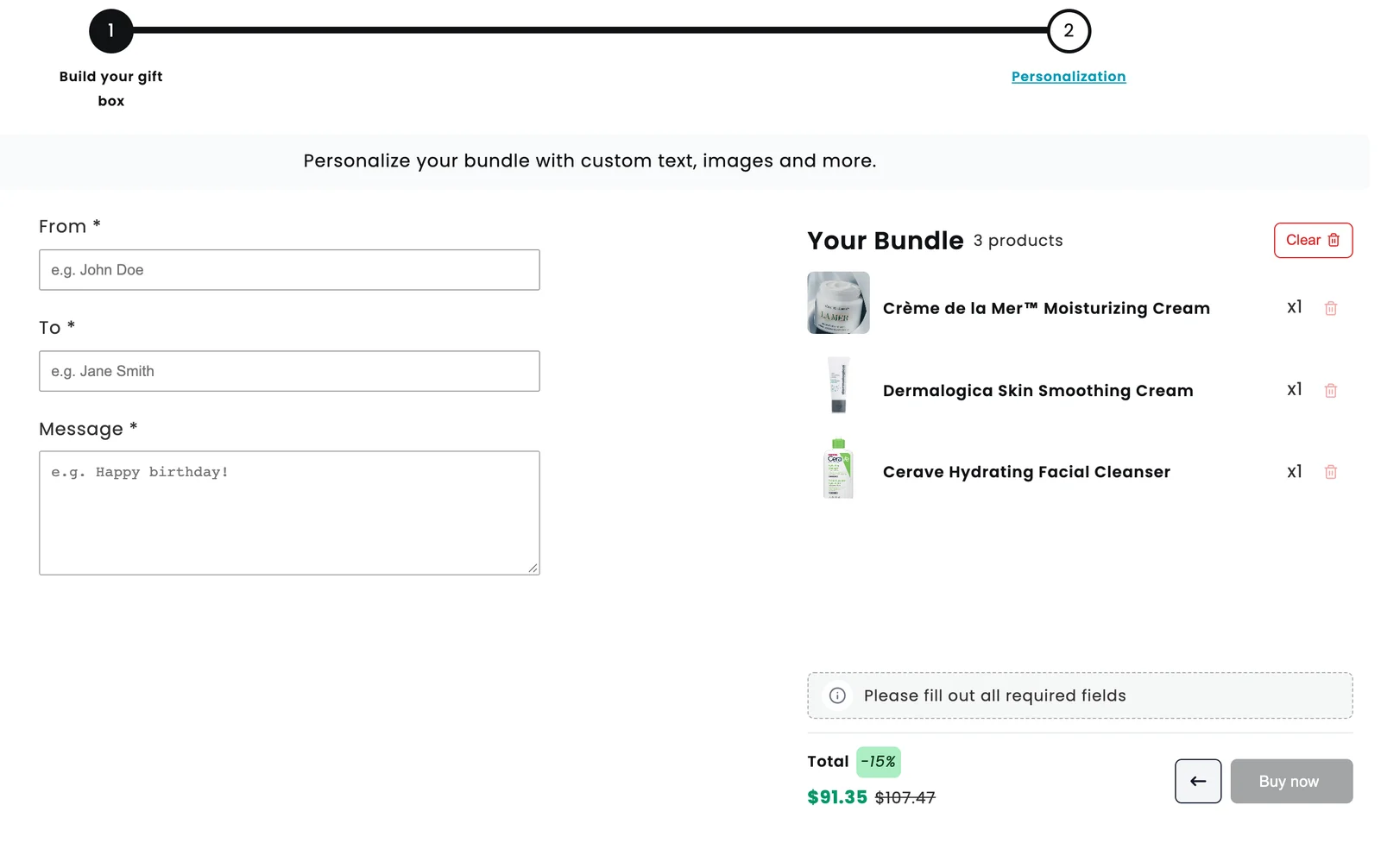
Yes. Every field has an Input field required checkbox. Leave it ticked and the shopper can't finish the bundle until the field is filled; the Buy now button stays disabled and the bundle panel says "Please fill out all required fields". Untick it for extras like a delivery date that not every buyer needs.
Can I limit how long the message is?
Yes. Text and Long Text fields have a Max length (in characters) setting. Use it when the message has to fit a printed card or a gift tag, and say so in the placeholder ("Up to 150 characters") so shoppers aren't surprised.
Tip: Placeholders do more selling than you'd think, because they show shoppers what a good message looks like. If you're stuck, ask ChatGPT for a few short gift message examples and use one as the placeholder.
Can shoppers upload a photo for the card?
Yes. Add an Image field and the shopper gets an upload area that accepts PNG and JPG files, by clicking or dragging the file in. The photo is uploaded to Shopify when the shopper finishes the bundle, and the bundle line shows its file name next to a camera icon, so you know which order has a photo card to print.
Can shoppers choose a card design or a ribbon colour?
Yes. Add a Multiple Choice field, type the options with Add Option, and the shopper picks one. This suits choices that don't change your stock. If the option is a physical item you track, such as a box or a wrapping style, put it in a product step instead, so it has its own SKU and inventory.
Can I ask when the gift should arrive?
Yes. Add a Date or Date & Time field. The answer shows on the order next to the other personalization answers, so you can plan when to ship.
Can a gift box have more than one personalization step?
Yes. In a Guided Bundle you choose a Personalization mode. Simple mode gives you one personalization step at the end, which is what the video uses. Custom mode lets you add as many personalization steps as you like, anywhere in the flow, for example a name step for each gift in a box of three.
Can I limit how many gifts go in the box?
Yes. Each product step has Rules, where you set how many products the shopper has to pick to complete the step, and whether the same product can be picked twice (Allow duplicates). On my demo page the gift step allows three products, which is why the rest of the grid greys out after the third pick.
Can I translate the field labels?
Yes. Input labels, placeholders and options are translatable in NeatBundles, so a store that sells in several languages shows "From" and "To" in the shopper's language.
Where do the shopper's answers end up?
The shopper's answers travel with the bundle as line item properties: each answer appears under the bundle in the cart, at checkout and on the order in your Shopify admin, labelled with the field name. Here is the second step of my demo page filled in:
And this is what Shopify checkout shows after Buy now. One "Jure's Gift Box" line carries From, To and Message, the bundle discount, and the three products listed underneath:
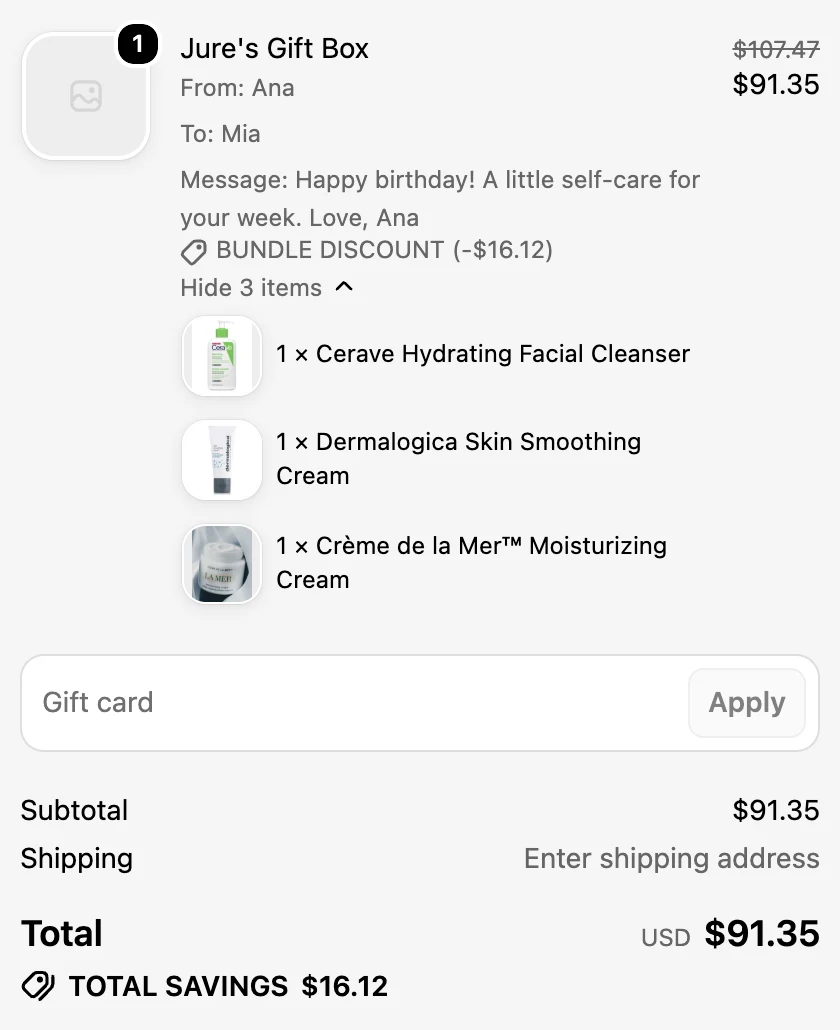
That layout is what makes the order easy to pack:
- The message is on the order. Whoever packs the box reads From, To and the message on the order, no email thread needed.
- Each product is its own SKU. Shopify tracks inventory for every product in the box, so stock stays right.
- The answers can't be switched off by accident. In Settings, the Bundle data option can hide the bundle details shown in cart and checkout, but personalization answers are always shown.
- Each box carries its own note. If a shopper builds two different boxes, each bundle line has its own answers.
Which layout fits your gift offer?
A custom gift box bundle is one of several NeatBundles layouts, and it's the right one when the gift needs a personal note or a choice of contents. Here's how I'd match the layout to the offer:
- Personalized gift box (pick the gifts, add a note or photo): a Guided Bundle with a personalization step, as in this post. See personalized bundles.
- Box, then gifts, then a note: the same layout with a packaging step first. See the gift box builder.
- Mix and match from one page, no note: a Build Your Own Bundle page, where everything sits on one grid.
- Bigger boxes at a better price: add volume and tiered discounts to the same builder, so a fuller box earns a bigger discount.
Getting your custom gift box page in front of buyers
A custom gift box page only sells if gift buyers find it, so the video ends with two places to put the link. Copy the page URL from the bundle page and share it in your Instagram, TikTok or Facebook profile and posts, and add it to your homepage navigation as "Build a gift box" or similar.
If you want a seasonal box that only people with the link can open, set Visibility to Unlisted instead of Active. The page then works by direct link and stays out of the rest of your store.
Frequently asked questions
Which Shopify app lets customers personalize a custom gift box bundle?
NeatBundles does. It's a Shopify bundle app where shoppers pick products step by step and then fill in a personalization step with text, a message, a photo, a choice or a date. The answers appear on the Shopify order and each product keeps its own inventory. It's free to use up to $500 of bundle sales a month.
Will the gift message in a custom gift box show on the Shopify order?
Yes. NeatBundles adds every personalization answer to the bundle line as a line item property, labelled with the field name, such as From, To and Message. You see it in the cart, at checkout and on the order in Shopify admin, together with the list of products in the box.
Do personalization fields change the price of the gift box?
No. Personalization fields only collect information, so the price comes from the products in the box and the bundle discount. If you want to charge for an extra such as premium wrapping, add it as a product in its own step, so it has a price and its own stock.
Can a shopper skip the gift message?
Yes, if you let them. Untick Input field required on the Message field and the shopper can finish the bundle without it. The three fields NeatBundles adds for you start as required, so decide this before the page goes live.
How much does NeatBundles cost?
NeatBundles is free to use up to $500 of bundle sales a month, with every feature included, personalization steps too. Above that you move to a paid tier based on your monthly bundle sales; the pricing page has the details.
What to set up next
Start your custom gift box bundle with the setup from the video: one gift step, the personalization step as it comes, a 15% discount and Visibility set to Active. Then add the fields your gifts need, an Image field for photo cards or a Date field for delivery days, and place a test order to see the answers on the order. When it works, install NeatBundles on your live store and put the link where gift buyers will see it.

 Install for free