A full page bundle on Shopify is a bundle with its own page: shoppers pick from a grid of products, a summary shows how many more they need, and one button sends the bundle to checkout. In NeatBundles you build one without code: choose Build Your Own Bundle, add products or a collection, set it to Active.
In the video I build a cookie bundle from scratch in under five minutes: eight cookies, 15% off, live on the store. This guide uses that same bundle, captured live on our demo store, to show what the dedicated page changes for the shopper, then walks through the setup and the settings worth knowing.
Key takeaways
- A full page bundle gives the whole screen to the bundle, so a shopper can compare the full range, see the discount and finish in one place.
- The shopper sees a running count ("Add 1 more product to get 15% off"), a live total and a single Buy now button.
- In NeatBundles you can fill the page product by product or with a whole collection, and every item stays its own SKU at checkout.
- NeatBundles is free to use up to $500 of bundle sales a month.
Why big mix and match offers outgrow the product page
A mix and match offer asks the shopper to make several choices: which items, how many, and whether the discount kicks in yet. On a regular product page, a bundle widget gets the space under one product's photo and price, in a narrow column next to an image that isn't the bundle. That works for "buy these two together". It gets cramped when the offer is "pick any three of our eight cookies".
What most merchants actually want is simpler to describe: a shopper lands, sees everything they can choose from, understands the deal, builds the box and pays. That is what a dedicated bundle page is for. The Pin Theory, a UK accessories brand, moved from a product page bundle app to a full page layout in NeatBundles for exactly this reason. Their old bundle "was squeezed into a standard product page", and after the switch their average order value rose 17%, with the bundle page converting at 4.5%. The details are in The Pin Theory case study.
What a full page bundle gives the shopper
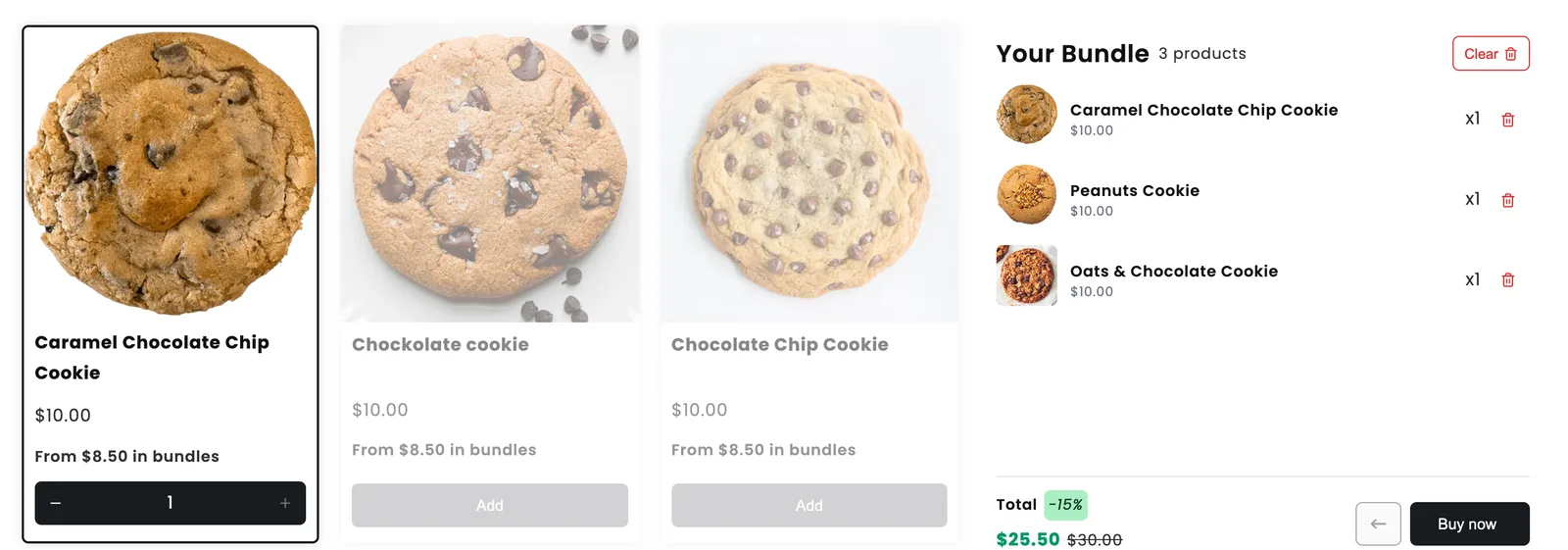
A full page bundle is a Shopify page where the bundle builder is the main content: a product grid on the left and a "Your Bundle" summary on the right. Here is the cookie bundle from the video, live on our demo store, after a shopper has picked three cookies:
Four things change compared with a widget on a product page.
Room for the whole range
Every cookie gets its own card with a photo, the regular price and the bundle price ("From $8.50 in bundles"), so the saving is visible before the first click. Eight products fit comfortably; so do thirty. The page in the video caps the bundle at three cookies, and once the third is in, the other cards grey out so nobody adds a fourth by accident.
A running count that says what's left
Before the first pick, the summary panel tells the shopper exactly what the deal needs. In the video the presenter points at this message as the moment he knows to "add a few more cookies":
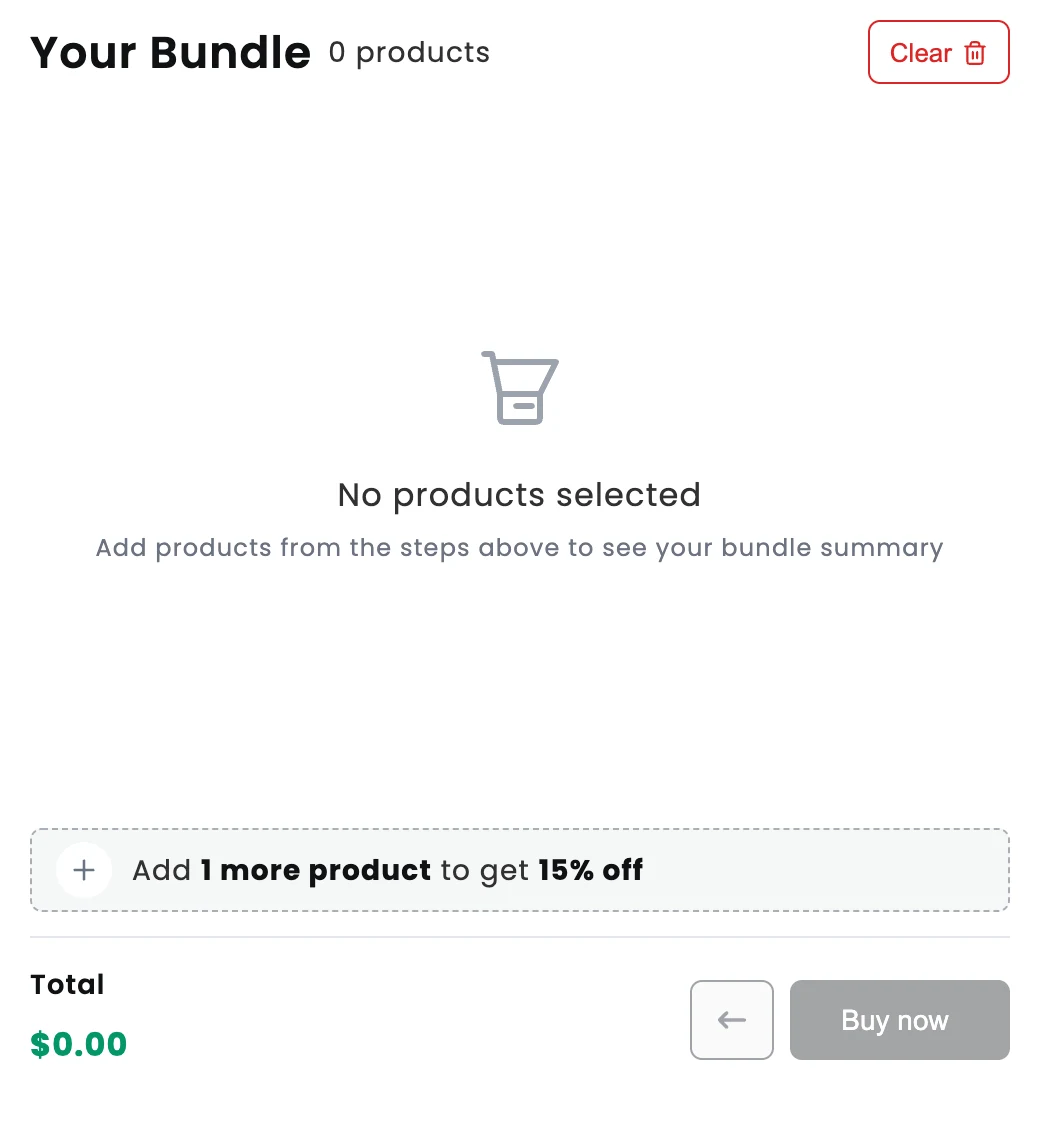
The count updates with each pick, so the shopper never has to work out the rules from a description.
One button to finish
When the bundle is complete, the panel lists each pick, shows the 15% badge and the discounted total next to the crossed out price, and offers one button. Three cookies at $10 come to $25.50 instead of $30.00:
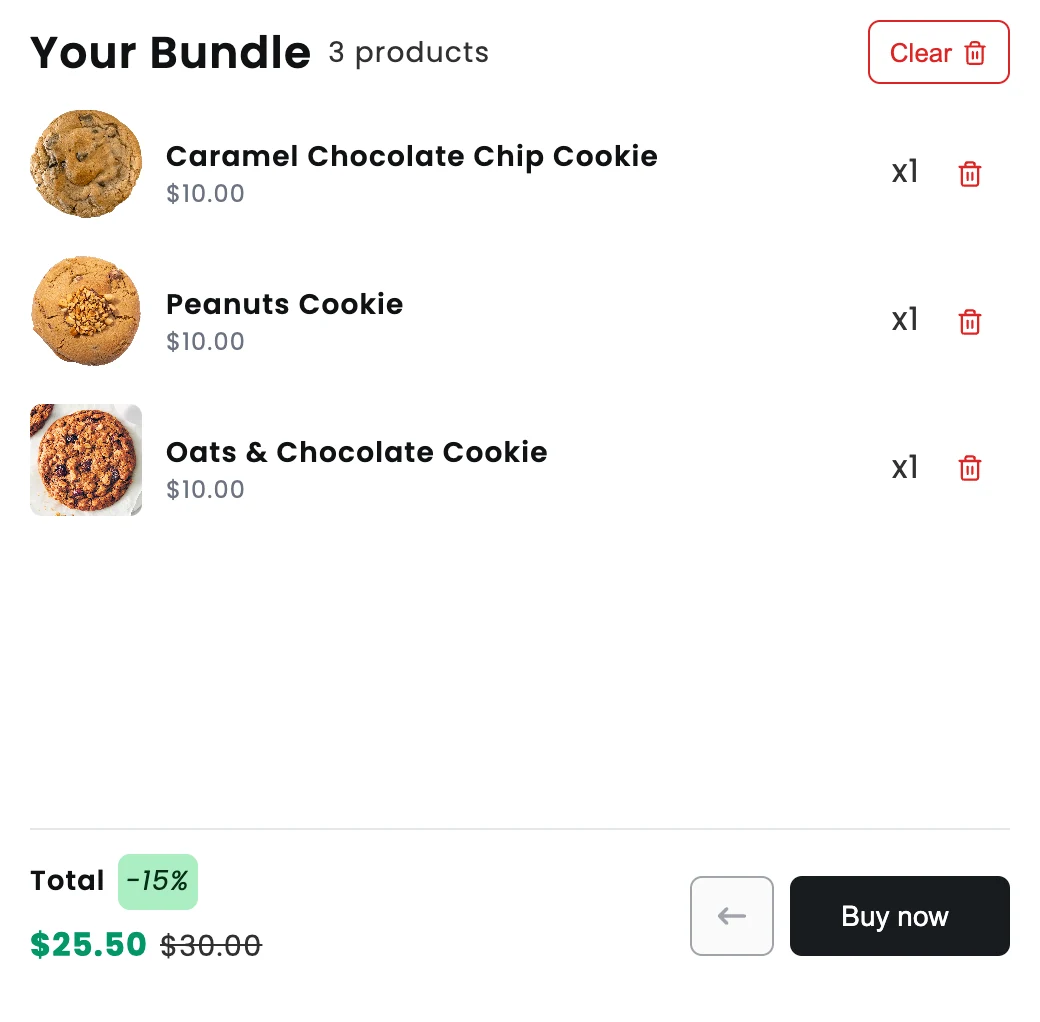
There is no second offer competing with it and no product page Add to cart button next to it. One click adds the whole bundle.
Each item stays its own SKU
At checkout the bundle arrives as one line named after the bundle, with the bundle discount on it and every cookie listed underneath:
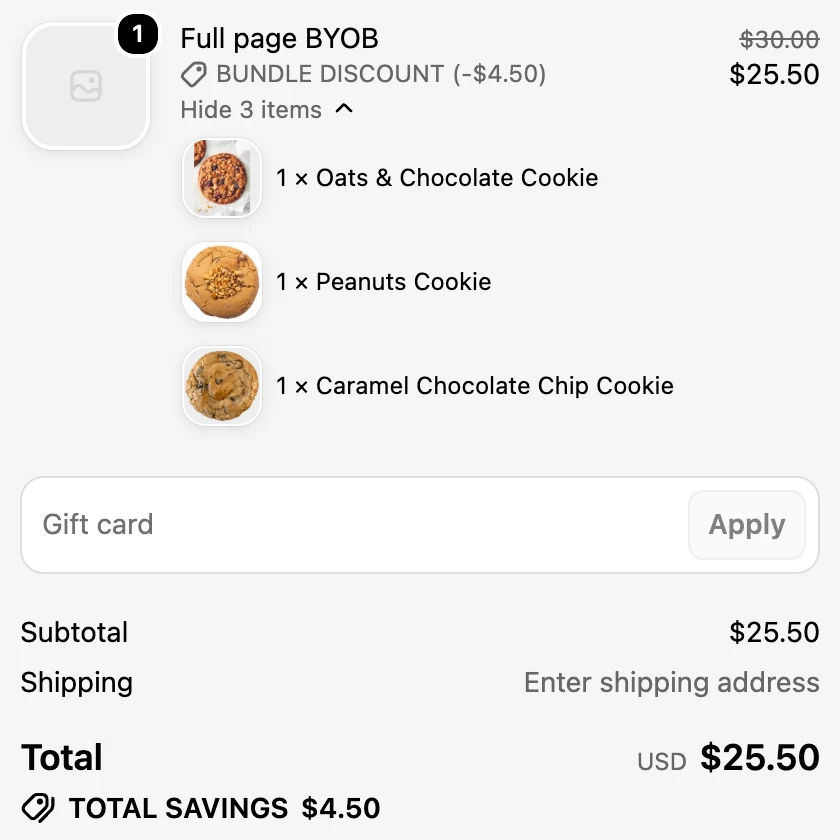
Each cookie is still its own product in the order, so Shopify tracks inventory per item and you can see exactly what to pack. As the presenter puts it in the video, no pick and packing headaches.
Building the cookie bundle in NeatBundles
Building the page in NeatBundles takes four steps, and the video does them in under five minutes. If you haven't installed the app yet, install NeatBundles from the Shopify App Store; a short onboarding turns on the app embed in your theme and walks you through a first bundle, so no theme code is involved.
1. Add a bundle and pick Build Your Own Bundle
In the app, open Bundles and click Add bundle. The "Choose Bundle Type" screen offers two layouts. Build Your Own Bundle is the full page one: "Customers mix and match products from one page into their own bundle." Guided Bundle walks shoppers through steps instead. Select Build Your Own Bundle and click Next.
Heads up: The video was recorded on an earlier version of this screen, with four bundle types and a discount step during creation. Today the choice is Build Your Own Bundle or Guided Bundle, and the discount lives in the bundle editor, where it has more options.
2. Name it after the offer
Type the bundle title and click Finish. The name shows in the cart, at checkout and on the order, so name the offer, not the page: "Cookie Box" or "Pick Any 3 Cookies" rather than "Full page BYOB". The name screen suggests title ideas if you're stuck, and you can change it any time.
3. Add the products, one by one or by collection
The Products card at the top of the editor decides what appears on the page. It has two tabs, and the choice matters more than it looks:
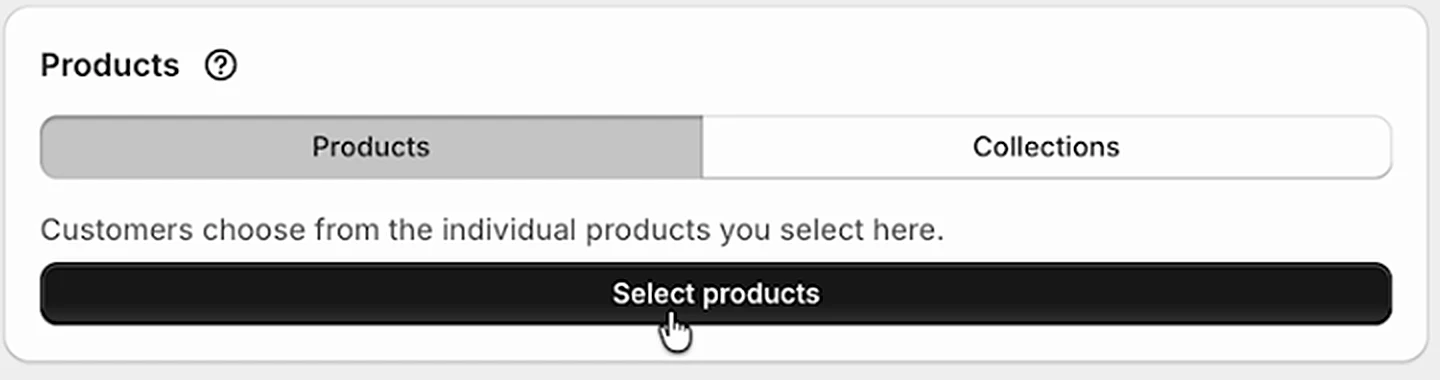
- Products: "Customers choose from the individual products you select here." Click Select products, tick the items and click Select. This is what the video does, picking each cookie by hand.
- Collections: "Customers choose from every product inside the collections you select here." Click Select collections and pick one or more. Up to the first 250 products of each collection appear, and any bundle products inside a collection are left out automatically.
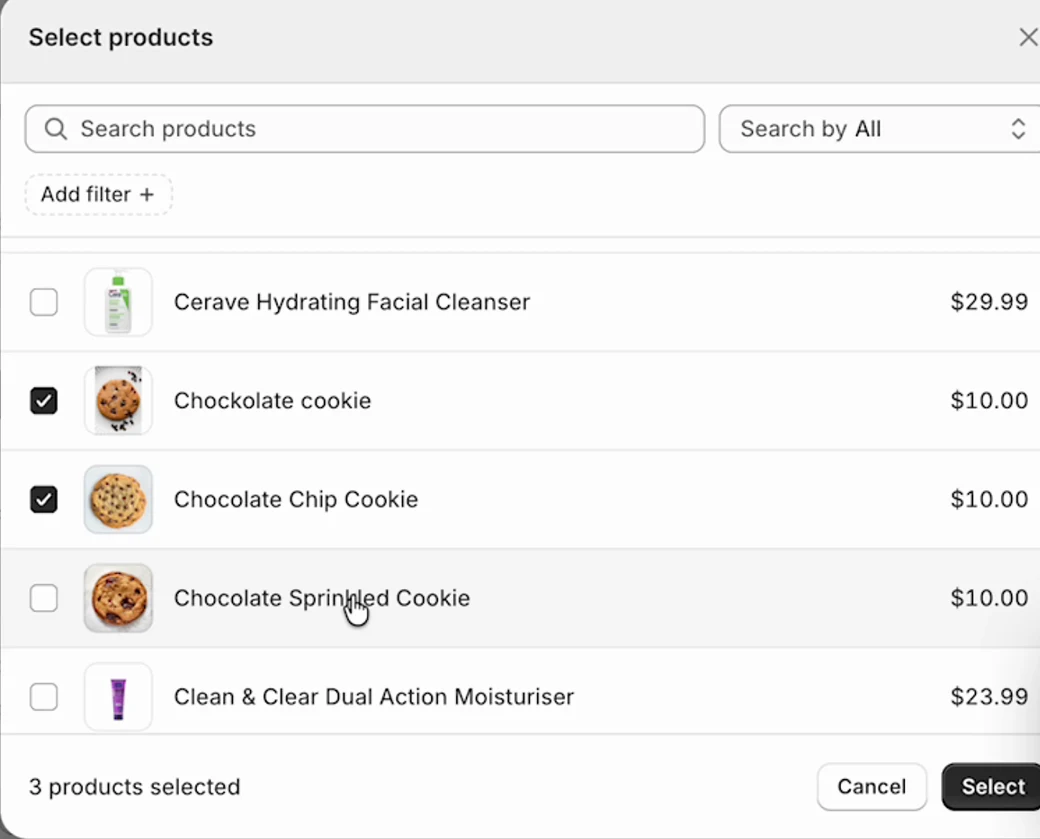
Pick Products when the bundle is a short, curated list that rarely changes. Pick Collections when the range changes with the season or the stock: add a new cookie to the collection in Shopify and it shows up on the bundle page without opening NeatBundles.
Below the Products card, Pricing & Discounts sets the deal (I used 15% off) and Rules sets how many products the shopper can pick. Match the rules to the promise in your headline: a "pick any three" box needs a minimum and maximum of three. Click Save.
4. Set Visibility to Active
New bundles start as Draft, which is hidden from customers and can't be bought. In the right column, set Visibility to Active and click Save. The badge turns green and View on storefront opens the live page:
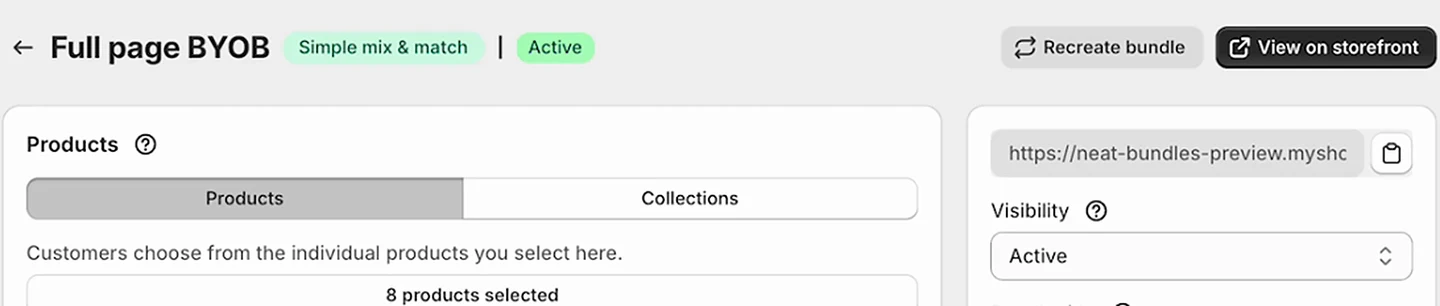
The same column has a copy button for the bundle page link. That link is a regular Shopify product URL, so you can put it anywhere; the bundle landing page guide covers where to send traffic once it's live.
Full page or product page: which NeatBundles layout fits?
The full page layout fits best when the shopper chooses several items from a range. For other offers a different placement or layout serves the shopper better, and NeatBundles has one for each:
| Your offer | Best fit in NeatBundles |
|---|---|
| Pick any 3 to 12 from a range (cookies, pins, snacks, skincare minis) | Build Your Own Bundle, the full page layout in this guide |
| A bundle with an order to it: a base, then add-ons, then a gift note | Guided Bundle, one step at a time, with an optional personalization step |
| Shoppers who land on a single product and might want the set | Connected bundle upsell: a "Buy the bundle" card on that product's page that links to the bundle page |
| The more they pick, the bigger the saving | Either layout with volume and tiered discounts |
The two placements work together rather than against each other. The full page is where the bundle gets built; the product page card is how shoppers browsing a single cookie find out the box exists.
What you can control on a full page bundle
Can I send shoppers to the cart instead of checkout?
Yes. In NeatBundles you choose this under Settings > General > Redirect: Redirect to cart, Redirect to checkout, or No redirect to keep the shopper on the bundle page. The video mentions this as the moment after Finish that "redirects us to either checkout or cart"; checkout is the shortest path, the cart suits stores where shoppers usually add other items.
Can I show the bundle on my product pages too?
Yes. In the bundle editor, the Feature this bundle card has a Connected bundle upsell switch. It "shows an offer for this bundle on the product pages of the products and collections in its steps": a card with the bundle's image, a "Save up to 15%" badge and a Buy the bundle button that opens the full page bundle.
Can I add the bundle page to my store menu?
Yes. The same Feature this bundle card has Add to navigation, which copies the bundle page link and shows the three clicks to add it to your main menu in Shopify (Online Store > Navigation).
Can I share the bundle page only by link?
Yes. Set Visibility to Unlisted instead of Active. The page is "accessible only by direct link", which suits a VIP offer, an email-only box or a page you want to test with a few customers first.
Can I change the Buy now text or the progress message?
Yes. Every storefront text, including "Your Bundle", "Buy now" and the "Add 1 more product" message, is editable under Settings > Translations, per language.
Frequently asked questions
What is a full page bundle on Shopify?
A full page bundle on Shopify is a bundle with its own page, where the bundle builder is the main content instead of a widget on a product page. Shoppers pick products from a grid, watch a summary count their picks and update the discounted total, and add the whole bundle to the cart or checkout with one button.
Which Shopify app can create a full page bundle?
NeatBundles creates full page bundles on Shopify without code. Its Build Your Own Bundle layout puts a product grid and a live bundle summary on one page, with percentage or fixed discounts, min and max rules, per-item inventory and a product page upsell card. NeatBundles is free to use up to $500 of bundle sales a month; see pricing for the rest.
Can Shopify's free Bundles app make a full page bundle?
No. Shopify's own Bundles app creates fixed bundles, where you choose the contents in advance, and it has no builder page where shoppers pick their own items. For a full page mix and match bundle you need a bundle app such as NeatBundles, which adds the page through a theme app extension.
How many products can a full page bundle show?
As many as you select. In NeatBundles you can add products one by one, or add whole collections, in which case up to the first 250 products of each collection appear on the page. In practice, 6 to 30 products keep the page easy to scan; split a bigger range into themed bundles.
Does a full page bundle keep inventory accurate?
Yes. In NeatBundles each pick stays its own product and SKU inside the order, listed under the bundle at checkout, so Shopify deducts stock per item. Sold-out variants can't be picked, and the bundle discount applies to the bundle line.
Start with one collection
The quickest way to try one is to pick one collection you already sell in multiples, create a Build Your Own Bundle with Collections selected, set a discount and a minimum, and switch it to Active. Open it on your phone and buy one yourself before you share the link. For everything the single page layout can do, see the mix and match bundles feature page, or install NeatBundles for free and build your first full page bundle today.

 Install for free